
TABLE OF CONTENTS
- 1 Connect your AI client
- Add the connection in your MCP client
- Configure authentication
- Sign in and confirm the connection
- Verify the registered agent
- 2 Configure agent permissions
- Apply a role preset
- Set individual permissions
- Match permissions to the workflow
- 3 Create and review a quote
- Create the client contact and opportunity
- Verify the created records in Zomentum
- Request the quote and review approvals
- Read the generated quote response
- Find the AI Draft in Documents
- Review the proposal content in AI Draft
- Review the quote products and pricing
- Review the signature box and recipient
- 4 Continue in the document editor
- Verify the editor and Draft status
- Complete the quote review
- 5 Diagnose access and review logs
- Inspect the agent Activity Log
- Use the account Audit Log
- 6 Manage capacity and troubleshoot
- Troubleshoot connection and permissions
- Troubleshoot quotes and document editing
- Frequently asked questions
- How many MCP agents are included in Growth
- Is this limited to the AI client used in the screenshots
- Does connected mean the agent has full access
- Does Write include Update
- Does a generated quote first appear as Draft
- Can the quote be revised through AI after opening the editor
- Does a signature block mean the quote has been sent or signed
- Why can the quote total differ from the opportunity estimate
- Where can an administrator check a blocked request
Use Zomentum MCP to connect a compatible AI client to Zomentum, control what its agent can do, and create linked sales records and quotes. This guide walks administrators and users through setup, permissions, the complete quote workflow, and troubleshooting.
Availability: Zomentum MCP is included in the Growth plan and available as a paid add-on for the Expand plan.
The quote workflow
Create and verify a client, contact, and opportunity. Ask the AI client to build a quote with catalog products, proposal content, and an assigned signature box. Review the resulting AI Draft in Documents, complete AI revisions, then select Open in editor to continue in the standard Draft editor.
How to use the examples
Follow the numbered actions and check the expected result before continuing. The setup screenshots show one compatible MCP client; menu names in other clients can differ. MCP is the protocol and the guide is not limited to a single AI client.
The examples use a sample customer, opportunity, and software quote to explain the workflow. Replace the example details with your own customer information, catalog products, prices, and approved terms.
1 Connect your AI client
Before you begin
• Have access to the intended Zomentum account and Settings > MCP Agents. An administrator should configure agent permissions.
• Use a compatible MCP client that supports a remote server and the sign-in flow shown in Zomentum.
• Keep the account’s configured sign-in method available. Review existing agent usage; Growth includes 3 MCP agents.
Find the endpoint
1. Open Settings using the gear icon in Zomentum, then select MCP Agents.
2. On Agents, click Connect a tool.
3. Locate Your Zomentum MCP endpoint. Copy the server URL for the client setup.
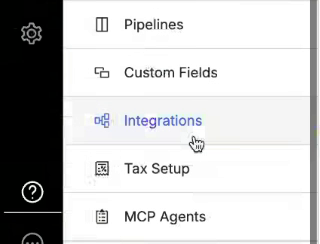
Figure 1. Open the Settings menu and select MCP Agents.
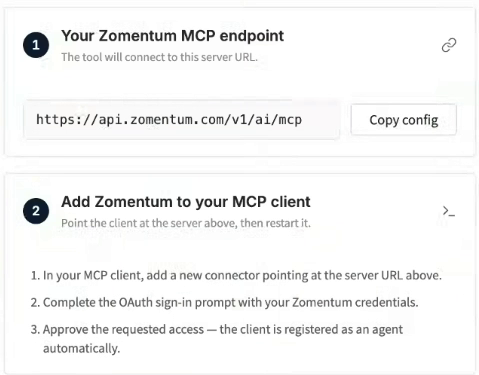
Figure 2. Find the server URL in Connect a tool.
Server URL: https://api.zomentum.com/v1/ai/mcp
A URL-only field needs the server address, not a JSON configuration object. If you use Copy config, extract the URL without quotation marks, braces, keys, or trailing characters.
Add the connection in your MCP client
The following screenshots show a worked example in one compatible MCP client. In another compatible client, use its equivalent option for adding a remote server or connector.
1. Open the client settings. In the illustrated example, select Connectors and open the Yours tab.
2. Click Add, then Add custom connector.
3. Enter a display name you can recognize. The example uses Zomentum Prod.
4. Enter https://api.zomentum.com/v1/ai/mcp in the MCP server URL field.
5. Click Continue and allow the client to check the server and discover its sign-in settings.
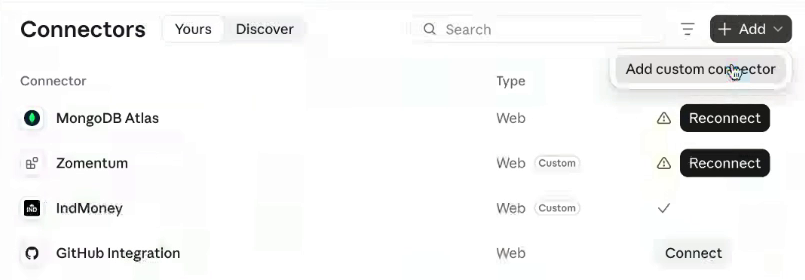
Figure 3. Add a custom connector in your MCP client.
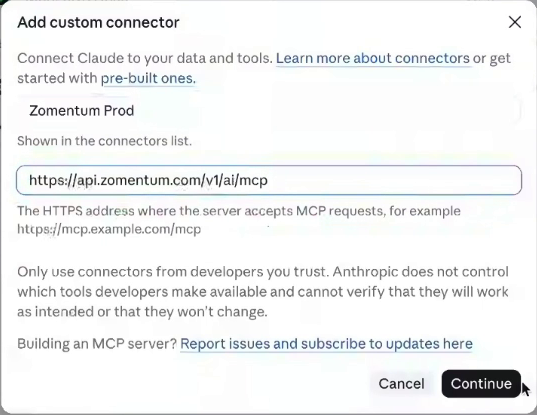
Figure 4. Enter the display name and exact MCP server URL.
Expected result: the client accepts the server address and shows the detected authentication options. If it does not, compare the URL character by character with the endpoint in Zomentum.
Configure authentication
1. In the setup example, select Sign in now under Authentication.
2. Select Register automatically under OAuth client.
3. Leave Request headers empty for the illustrated setup. A custom client ID and secret are not entered in this flow.
4. Scroll to the bottom and click Add.
5. If the new connector appears with a Connect button, click it to start Zomentum sign-in.
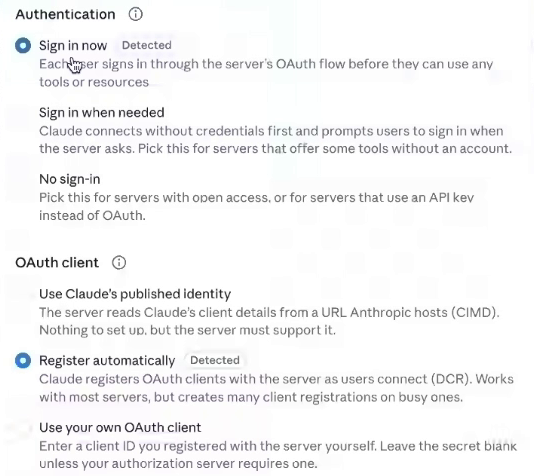
Figure 5. The setup example uses Sign in now and Register automatically.

Figure 6. Click Add after reviewing the connector settings.
What to check
The connector should point to the Zomentum endpoint and use the detected sign-in flow. If your client requires different authentication fields, follow that client's supported setup instructions rather than copying unrelated values into those fields.
Sign in and confirm the connection
1. In the Zomentum sign-in window, enter the email address for the account you want the agent to use.
2. Complete the sign-in method configured for that account. For password sign-in, enter the password and click Continue.
3. If an access approval screen is presented, review the connection and approve the intended access.
4. Return to the MCP client after sign-in completes.
5. Check its connection indicator. The example shows Connected to Zomentum Prod and a connected tick in the connector list.
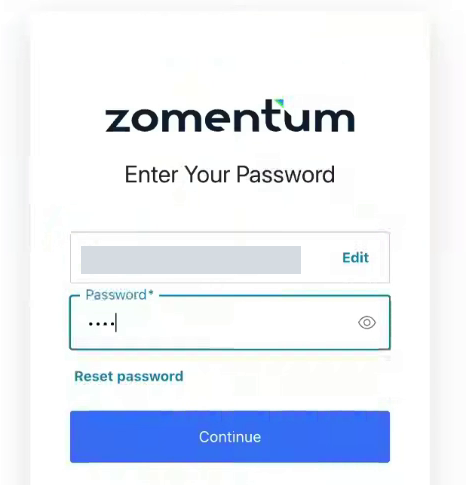
Figure 7. Sign in with the intended Zomentum account.
Account details are masked in the example. Use your own account details when connecting.

Figure 8. The client confirms that the Zomentum connector is connected.
If sign in does not complete
Confirm the account and sign-in method. Use the password-reset option only when needed, complete the reset email flow, and then return to the connector to reconnect. Verify the final connected state after signing in again.
Verify the registered agent
1. Return to Settings > MCP Agents after connecting. Refresh the list if needed.
2. Find the intended agent and review its role, risk, status, and last activity. Separate tools can register as separate agents.
3. Open the agent and review its Permissions tab before requesting changes to Zomentum records.
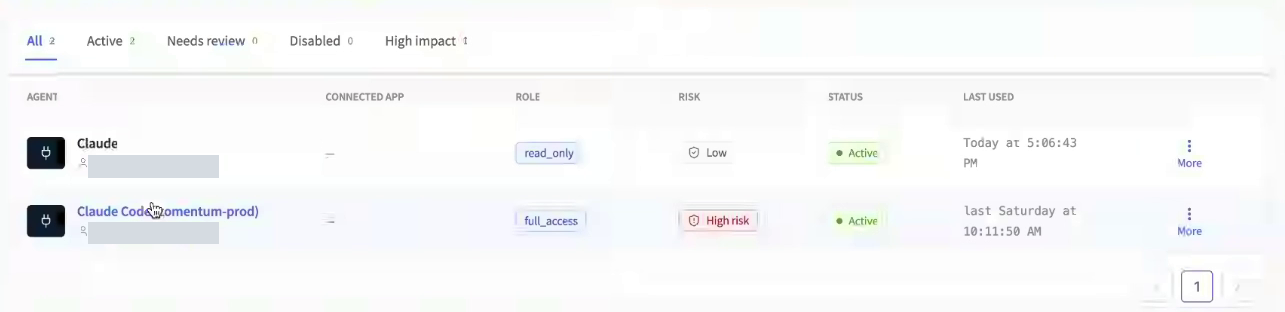
Figure 9. Identify the correct registered agent and review its role and status.
New agents start with the Read-only default role. The agent registers when the connected tool first calls the MCP server. Use its role, risk, and status indicators to review access. Check the Permissions tab in Zomentum before asking the agent to create or update records.
Run a read test
Example prompt
Using Zomentum, find client company [existing company name] and show its details. Do not create or change records. If multiple companies match, show the matches and ask which one to use.
1. Submit the request in the connected AI client.
2. Compare the returned company with the same record in Zomentum, including its name and identifying details.
3. Resolve any ambiguous matches before requesting a creation or update.
Expected result: the correct record is retrieved from the intended account without changes.
If the agent is missing
Confirm the account used for sign-in, make a read request to trigger an MCP call, and refresh the agent list. Review the connector address and connected state before adding another connector.
2 Configure agent permissions
MCP permissions control actions performed through the MCP pathway. These settings are separate from the user's normal Zomentum access and do not change that normal access.
Write and Update are independent permissions. Grant either action or both, depending on the workflow. Enable Read when the workflow needs to find or inspect the record before acting.
A workflow that must not create new records
For an existing-record update workflow, enable the relevant Update permission and keep Write disabled for that group. Add Read when the agent needs to locate the record. Give the request an exact record name or identifier and verify that the intended record was changed.
High impact permissions
Write permissions for Opportunities, Clients, Contacts, Documents, Products, and Reports are marked as high impact. Full access enables all available permissions and displays High risk. Review the permission summary before granting this level of access.
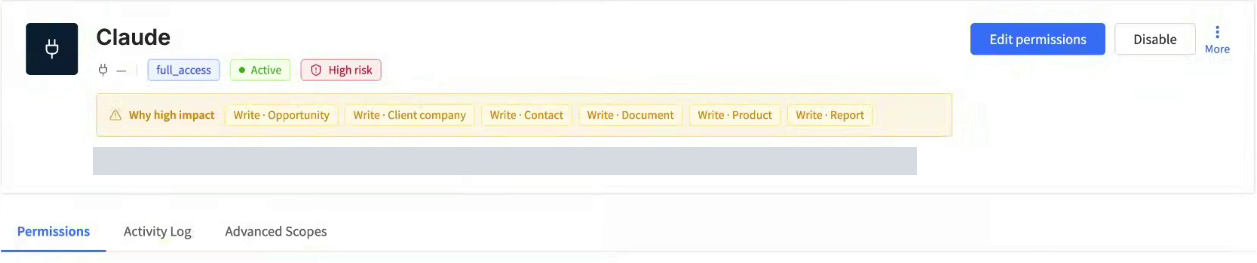
Figure 10. Full access displays High risk and lists high-impact permissions.
Why a request may be blocked
A connected agent can still lack a permission required by a request. For example, Read Document does not grant permission to create a quote. A workflow that creates a company and a contact also needs the relevant permissions in both groups.
Apply a role preset
1. Open the intended agent from MCP Agents.
2. Review its current role and the enabled permission chips.
3. On Permissions, scroll to Apply a role.
4. Select the appropriate preset and review the resulting actions.
5. Check the final role badge and risk indicator before returning to the AI client.
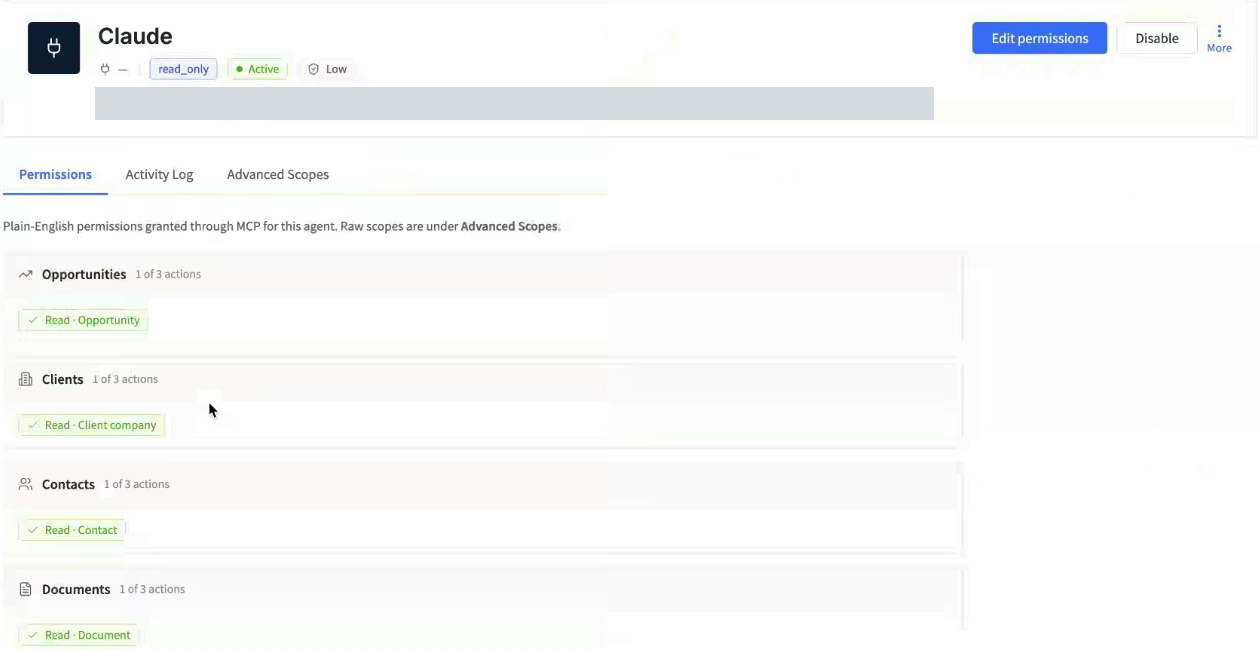
Figure 11. The agent detail page shows permissions grouped by module.
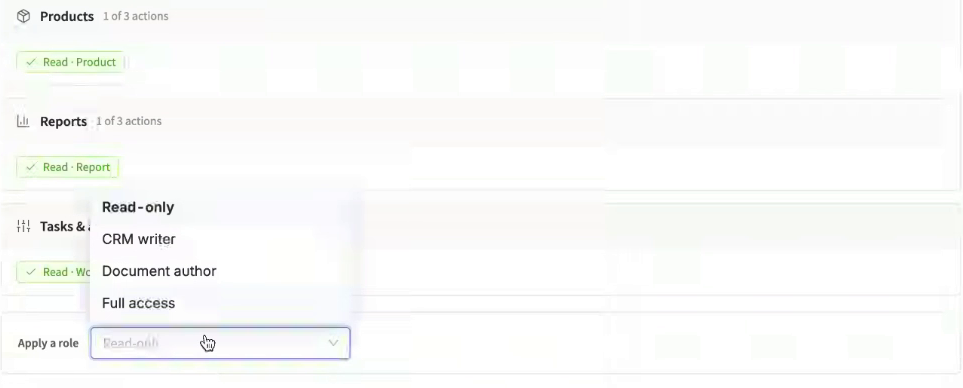
Figure 12. Select a preset using Apply a role.
The menu includes Read-only, CRM writer, Document author, and Full access. Inspect the actual selected actions after applying a preset. A preset name alone should not be used to decide whether a particular creation or update action is enabled.
Set individual permissions
1. Open the agent and click Edit permissions.
2. In Permission Builder, check or clear the specific actions needed for the workflow.
3. Scroll through all relevant groups. A quote workflow can involve clients, opportunities, documents, and products.
4. Review Permission summary, including the number and names of high-impact actions.
5. Click Save permissions after making changes. Use Cancel to leave those edits unsaved.
6. Return to Permissions and verify that the final actions match the intended selection.
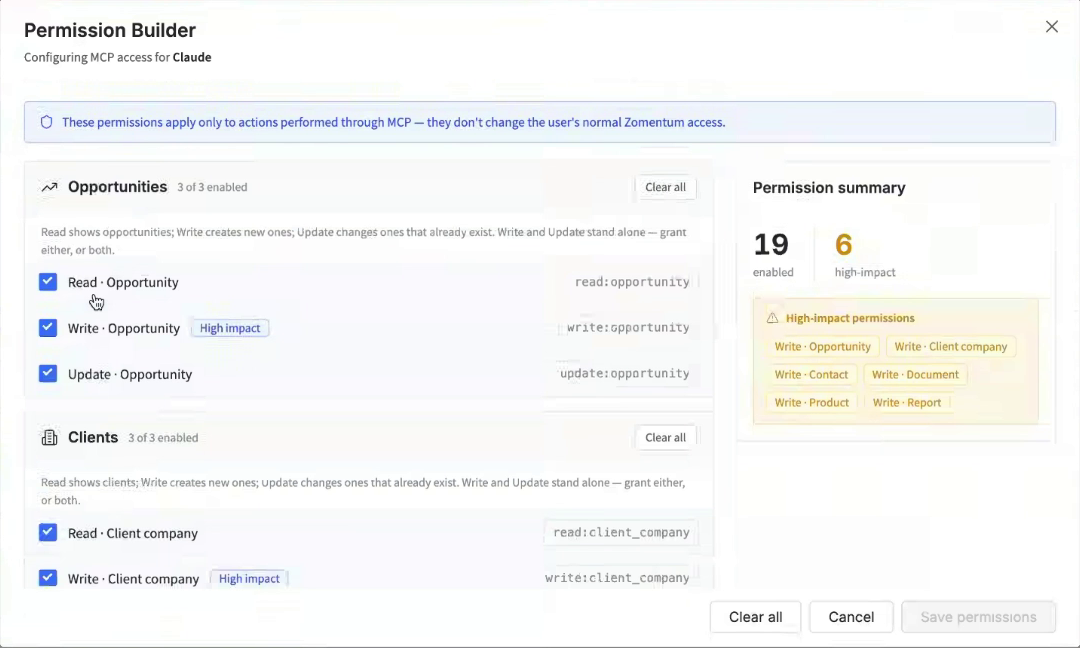
Figure 13. Review individual permissions and the high-impact summary.
Use Clear all carefully
A group's Clear all removes the selections for that group. The bottom Clear all clears the entire selection. Review the selection before saving, especially if other workflows use the same agent.
When Save permissions is unavailable
Check whether the selection differs from the saved configuration. If you have not changed any actions, there may be nothing to save. Verify the currently enabled actions on the agent detail page.
Match permissions to the workflow
Suggested starting permissions by task
Use this as a starting checklist. The complete request may use several tools and need additional scopes. Review any missing-scope error for the actual workflow. Do not grant Write Product simply to retrieve existing catalog items; enable product creation only when that is part of the task.
3 Create and review a quote
You can create a client, contact, opportunity, and linked quote through your connected AI client. The example in this guide uses Tesla Cars and an opportunity named Softwares for Tesla. Follow the steps with your own customer details.
Prepare the inputs
Check for existing records
Example prompt
Using Zomentum, check for an existing client [company name], contact [contact email], and opportunity [opportunity name]. Show matching records and ask me to resolve duplicates. Do not create anything yet.
Record the exact matching names or IDs. Reuse existing records when appropriate. If a creation response is interrupted, check Zomentum before retrying so the same request does not produce duplicates.
Separate the estimate from quote pricing
An opportunity estimate and a quote total can differ. For example, an opportunity may have a US$2,000 estimate while its quote totals US$430.96 per month. Review product selection, quantities, and billing frequency independently of the estimate.
Provide the contact’s full name and the intended pipeline and stage explicitly. Ask the AI client to confirm missing details before creation, so it does not infer a name from an email address or choose a pipeline stage for you.
Create the client contact and opportunity
Step 1 Submit the creation request
Create the related records in one request, or create them individually if you prefer to verify each record before continuing. Include explicit field values and replace every bracketed value in the example below.
Example prompt
Using Zomentum, create client [company name] with primary contact [full name] at [email]. Create opportunity [opportunity name] for that client with estimated value [amount] [currency], in pipeline [pipeline] at stage [stage]. Reuse the records I have already confirmed. Ask me for missing required details before creating anything.
Step 2 Review tool approvals
1. Review each approval the AI client presents. Confirm that the action and target records match your request.
2. Approve the intended action using the client’s available approval control. The example offers Allow once, Always allow, and Decline.
3. Wait for a completion response. A single business request can require several tool calls to prepare, update, and commit records.

Figure 14. Client creation tool approval in the connected AI client.
You may see a tool approval labeled Start entity draft with entity type client_company. This prepares the client creation action. Check that the requested action matches your instructions before approving it.
Expected result
The AI client reports a created client, contact, and opportunity with their identities and associations. A tool approval alone does not prove that all records were committed. Verify the completion result and the records in Zomentum.
Client-side approval does not grant a missing Zomentum permission. The agent must also have the required actions enabled in MCP Agents.
Verify the created records in Zomentum
Step 3 Compare the completion response
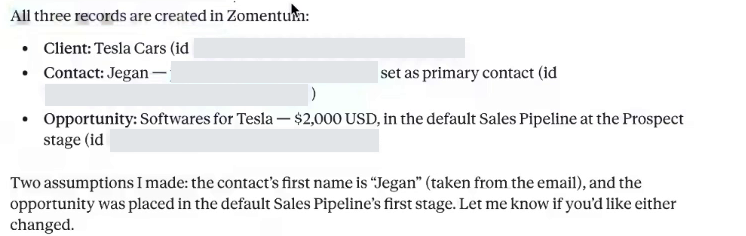
Figure 15. Confirmation of the created client contact and opportunity.
Check the response for the company, primary contact, opportunity name, estimated value, currency, pipeline, and stage. The example shows Tesla Cars and Softwares for Tesla with a US$2,000 estimate. Confirm or correct any assumptions before building the quote.
Step 4 Open the client record
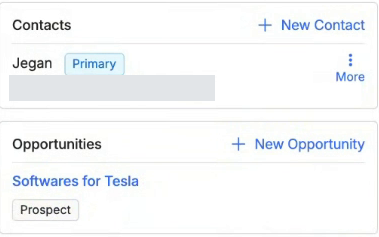
Figure 16. Client record showing the primary contact and linked opportunity.
1. Open Clients and select the intended company. Confirm that its Contacts section includes the intended primary contact.
2. In Opportunities, verify the linked opportunity. Open it and check the name, estimate, currency, pipeline, and stage.
3. Correct any unintended values before generating a quote. Retain the exact client and opportunity identities for the next prompt.
Expected result: the client, contact, and opportunity are present and linked to the intended company, with the names and contact details you provided.
Request the quote and review approvals
Step 5 Ask for proposal content products and a signature

Figure 17. Quote prompt requesting software proposal content and a signature block.
Ask the AI client to create a quote for the confirmed opportunity, using the required products and proposal content. Include the intended recipient and request an assigned signature block. Use this prompt as a starting point:
Example prompt
Using the confirmed opportunity [name or ID] for client [name or ID], create a quote named [quote title]. Use existing catalog products [items and quantities] with [currency and billing frequency]. Add proposal content covering [scope and approved terms]. Add a signature block assigned to [recipient name and email]. Ask before substituting products or inventing commercial terms. Keep the quote as AI Draft for review.
Step 6 Check the quote session
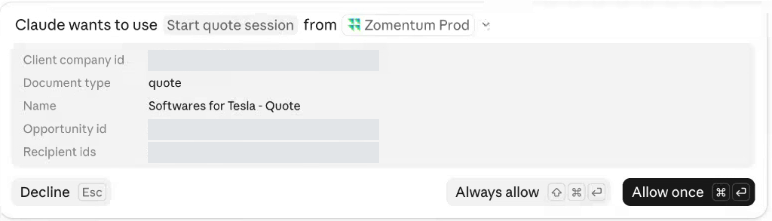
Figure 18. Start quote session approval with document type and linked records.
1. Review the quote type, document name, client, opportunity, and recipient in the approval details. Confirm that they refer to the records you verified.
2. Allow the intended quote action and any subsequent content or pricing operations when prompted. Review the catalog products the AI client selects for the quote.
3. Wait for the summary. Do not treat an intermediate approval or catalog search as a finished document.
Expected result: a quote is generated for the intended opportunity with content, products, pricing, and a recipient-assigned signature block.
Read the generated quote response
Step 7 Review the AI completion summary
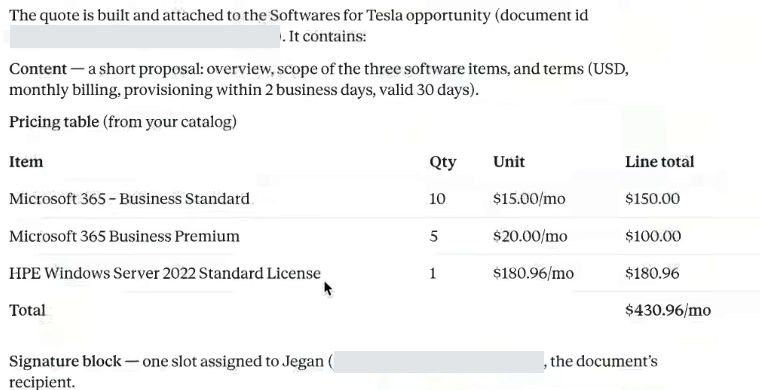
Figure 19. Generated proposal summary pricing and recipient assignment.
The completion response summarizes the proposal, products, pricing, recipient assignment, and linked document. In this example, three catalog products total US$430.96 per month and one signature slot is assigned to the contact.
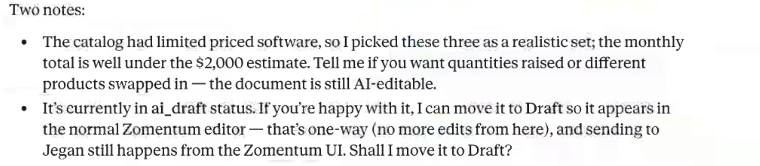
Figure 20. AI response explaining the AI Draft state and the move to Draft.
Check the assumptions before accepting the quote
• Confirm that the selected products meet the customer’s requirements. Check any substitutions, missing products, or assumptions in the response.
• Check quantities, billing frequency, unit prices, currency, tax, and discounts against the intended quote.
• Review generated proposal terms, including billing, delivery commitments, and quote validity. Replace sample wording with terms your organization has approved.
• Keep the document name, ID, or link. Confirm that its status is AI Draft so you can review and revise it before opening the editor.
Expected result: you know which document was created, what it contains, and which details need changes. Open the quote in Zomentum to verify the document itself before continuing.
Find the AI Draft in Documents
Step 8 Verify the generated document
1. Open Documents in Zomentum. Refresh the list after generation if needed.
2. Find the quote by title, client, or the document identity returned by the AI client.
3. Confirm the Type is Quote and the Client is correct. Check the Status column for AI Draft.

Figure 21. Documents list showing the newly generated quote in AI Draft status.
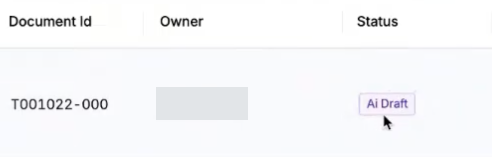
Figure 22. Close view of the document identity and AI Draft status.
A newly generated quote appears with a purple AI Draft label. The example shows Softwares for Tesla for client Tesla Cars. Match the document title, client, and document ID to the response in your AI client.
AI Draft is a distinct stage
AI Draft is the generated document awaiting review. It is not yet the ordinary Draft shown after the document is opened for manual editing. Keep AI revisions in this stage until you are ready to continue in the editor.
Step 9 Open the AI Draft preview
1. Click the quote title to open it.
2. Look for the AI draft banner. Its instruction is to review the generated draft and open it in the editor to start editing.
3. Scroll through the proposal, products, totals, and signature box before selecting Open in editor.

Figure 23. AI draft banner and Open in editor button.
Expected result: the generated content is visible under the AI draft banner, with Open in editor available. If the document is already Draft, use the editor workflow and do not assume AI Draft editing remains available.
Review the proposal content in AI Draft
Step 10 Inspect the generated proposal
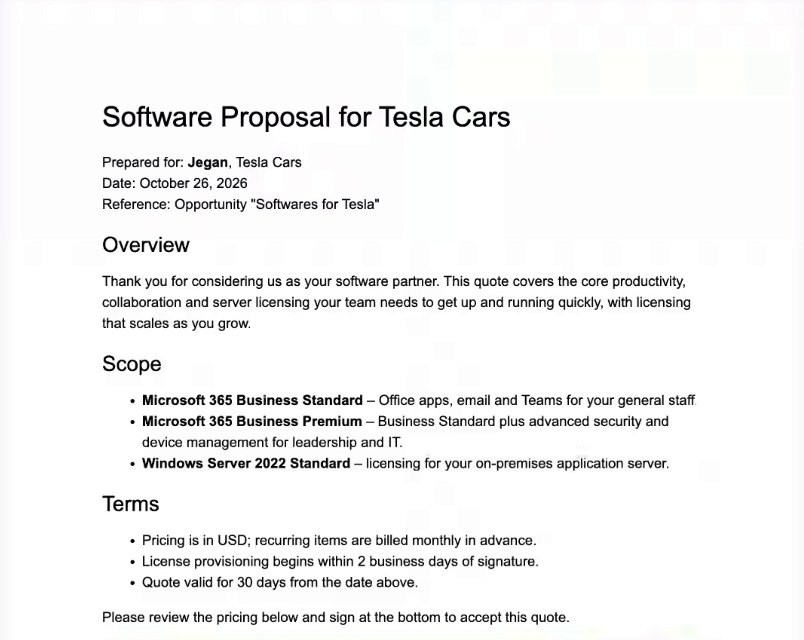
Figure 24. AI Draft preview of the generated software proposal.
1. Confirm the proposal title, prepared-for company, and recipient.
2. Read the overview, scope, and terms. Check that the promised work matches the products and services being quoted.
3. Remove or revise unsupported claims, exclusions, dates, validity periods, and delivery commitments before handoff.
Review the generated wording as you would any proposal. Confirm that the scope and commercial terms meet your organization’s requirements before sharing the document with a customer.
Expected result: the proposal describes the intended customer need and contains terms your organization has approved.
Review the quote products and pricing
Step 11 Check the product block
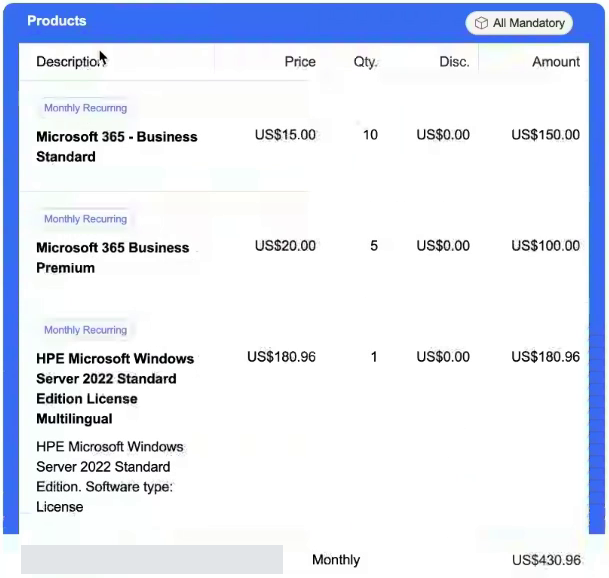
Figure 25. Quote product table with quantities prices and monthly total.
These sample prices explain the calculation. Your quote should use the appropriate values from your catalog. Verify each product, quantity, unit price, billing frequency, discount, and tax treatment. Check the arithmetic and confirm that recurring and one-time charges are classified correctly.
Review the signature box and recipient
Step 12 Check the signature assignment
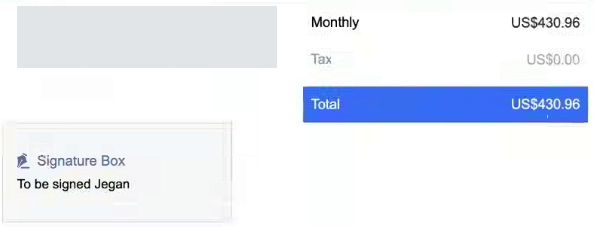
Figure 26. Quote total and the signature box assigned to the recipient.
The quote preview shows a Signature Box labeled To be signed Jegan below the US$430.96 total. This confirms that a signature field was prepared and assigned to the contact. It does not indicate that the document was sent or signed.
1. Confirm the signature box is present in the intended location.
2. Check the assigned contact and recipient email using the document’s recipient details. Resolve incorrect or duplicate contacts before sending.
3. Check that the proposal and pricing visible above the signature are the version the recipient should receive.
4. If the signature assignment or content needs an AI revision, request it while the quote is still AI Draft, then reopen or refresh the preview to verify the result.
Example prompt
For AI Draft quote [document name or ID], verify that the signature block is assigned to [contact name and email]. Correct the assignment if needed and keep the quote as AI Draft. Show the resulting recipient and document status.
Sending and signing are later actions
Creating a quote and assigning a signature field do not send the document or collect a signature. Complete your review, then send the document through Zomentum when it is ready for the recipient.
4 Continue in the document editor
Step 13 Finish AI revisions before handoff
Example prompt
Update AI Draft quote [document name or ID]. Change [specific product quantity or proposal wording]. Keep the client, opportunity, recipient, currency, and billing frequency unchanged. Keep the document as AI Draft and show the revised totals and changes for review.
1. Identify the exact AI Draft by name or ID in the revision request. State each change explicitly.
2. Review the response and compare the updated preview in Zomentum. Recheck quantities, totals, terms, and recipient assignment.
3. Continue only when the AI Draft contains the version you want to edit manually.
Step 14 Select Open in editor

Figure 27. AI draft banner and Open in editor button.
1. In the AI draft banner, click Open in editor when ready.
2. Wait for the document editor to load. Confirm that the formatting toolbar and editing controls appear.
3. Continue edits in Zomentum. Moving from AI Draft to Draft is a one-way handoff, so finish your AI revisions before opening the editor.
Expected result: the document opens for manual editing and becomes Draft. Continue editing the document in Zomentum after this handoff.
Verify the editor and Draft status
Step 15 Confirm the handoff
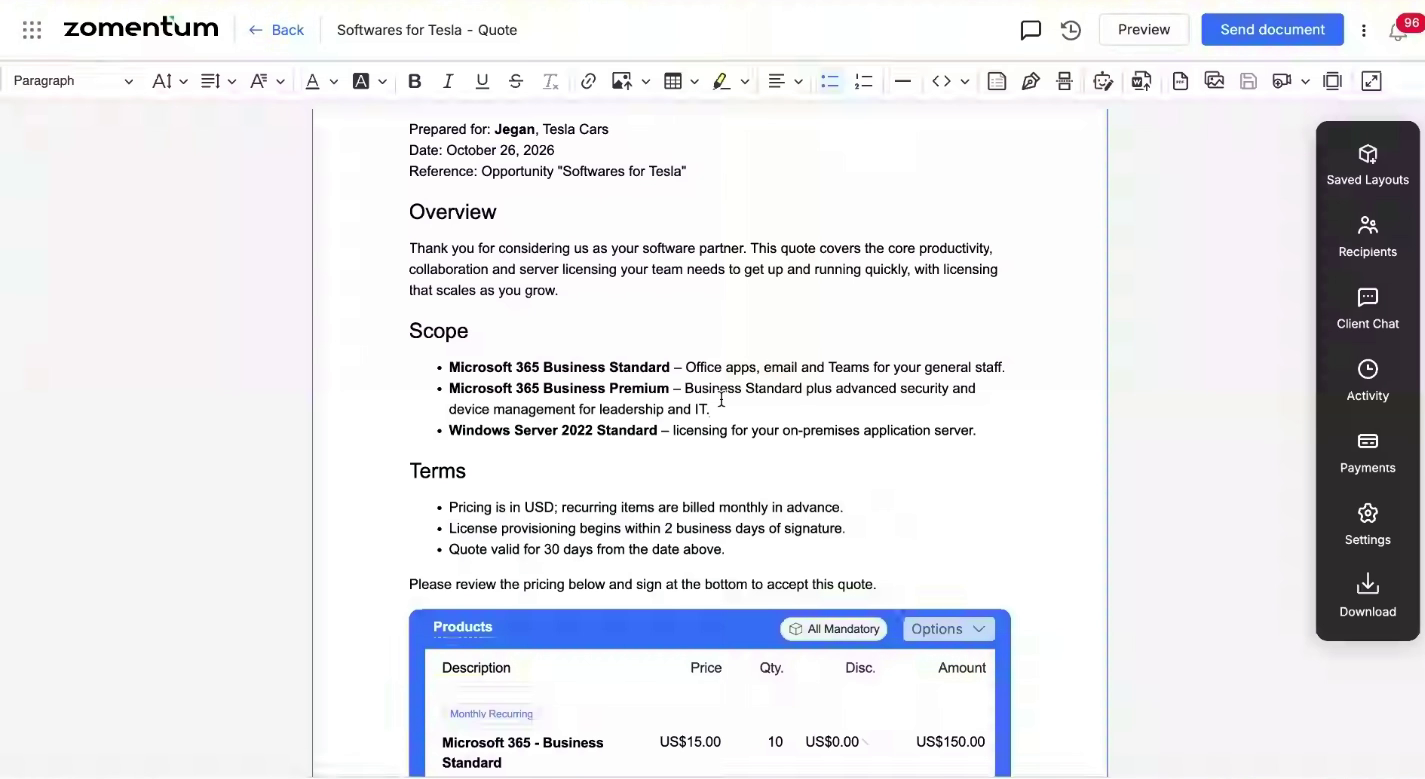
Figure 28. Quote opened in the Zomentum document editor.
The document editor provides a formatting toolbar, editable content, and document controls. Use these controls to make manual changes after the AI Draft review stage.
1. Confirm the quote title and linked client and opportunity are still correct.
2. Make intended manual changes and check the saved-state indicator before leaving the page.
3. Return to Documents and locate the same document. Confirm that its status is Draft.

Figure 29. Document status after opening the quote in the editor.
The same document number T001022-000 now shows Draft. Use the document number or link to confirm continuity when the list truncates a long quote title.
Recheck totals after manual edits
Recheck totals after every quantity, price, discount, or tax change. For example, increasing the server-license quantity from one to two changes the sample monthly total from US$430.96 to US$611.92. Resolve any validation warnings before proceeding.
Complete the quote review
Use these checks after generation and again after manual changes. A correct conversational response is only one part of the workflow; the final Zomentum document and its relationships must also be correct.
Records and relationships
• Client company is the intended customer and any duplicate matches have been resolved.
• Primary contact and recipient details are correct.
• Opportunity name, estimate, currency, pipeline, and stage are correct.
• Quote links to the intended client and opportunity, with the expected document title and identity.
Proposal and commercial details
• Scope, deliverables, exclusions, dates, and commercial terms are approved.
• Products, quantities, billing frequency, currency, prices, discounts, and taxes match the agreed quote.
• Line totals and document total are correct, including recurring and one-time amounts.
• Signature block is assigned to the intended recipient. No unsigned field is being mistaken for a completed signature.
Status and next action
• The document is AI Draft while you are requesting AI revisions.
• After the handoff, it opens in the editor and shows Draft in Documents.
• Manual changes are saved and validation messages are resolved.
• The quote has been reviewed before the intended Zomentum sending action. Generation alone does not mean the customer received it.
If the result is incomplete
Identify the missing record, content block, product, or signature assignment. Check the relevant permission and activity-log result. Request the smallest correction that solves the issue. Check for a partially created quote before restarting the entire workflow.
5 Diagnose access and review logs
Understand a blocked creation request
A Read-only agent can retrieve information but cannot create a client company. If Write Client company is not enabled, a creation request can be blocked with a write:client_company error while a client lookup still succeeds.
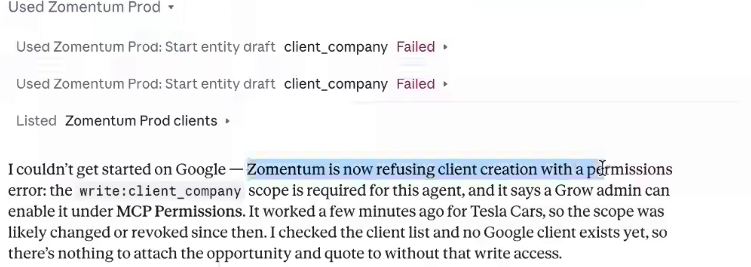
Figure 30. Client creation blocked by a missing permission.
Enable the required permission
1. Read the error and note the exact missing scope. Match the request to the agent used by the connected client.
2. Open Settings > MCP Agents, select that agent, and review Permissions or Advanced Scopes.
3. For write:client_company, review Write Client company in Permission Builder. An administrator should enable it only when the creation workflow is intended.
4. Save the intended change and verify the enabled actions. Retry the blocked step, then check its resulting record and log entry.
Do not infer that the connection is broken simply because a write request fails. An authenticated, Active agent can retrieve records and still be blocked from creating them.
Approvals and permissions work together
Allow once or Always allow in the AI client controls that client’s approval behavior. It does not override Zomentum’s granted scopes. A request can be approved in the client and still appear as Blocked in the Zomentum activity log.
Expected result: the error identifies the missing permission, and the corrected action succeeds with the intended access. Check each additional scope if the complete workflow uses more than one record type.
Inspect the agent Activity Log
1. Open Settings > MCP Agents and select the agent involved in the request.
2. Select Activity Log. Match the timestamp and action to the request you are investigating.
3. Read Status and Reason together. An Allowed result and a Blocked result describe different outcomes even when they occur in the same conversation.
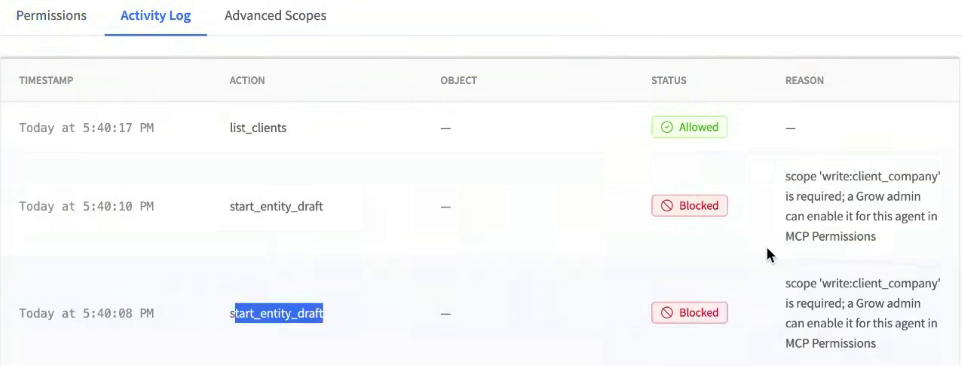
Figure 31. Agent Activity Log with Allowed and Blocked requests.
For example, list_clients can be Allowed while start_entity_draft is Blocked because write:client_company is required. Compare the action and reason to identify which permission the workflow needs.
Check raw scopes when needed
Use Advanced Scopes on the agent to inspect the raw permission names. Match the exact scope from the error to the corresponding plain-language action. For example, write:client_company corresponds to creating a client company.
Tool labels can be more technical than the requested business action. Use the request time, action, scope, and intended record together when explaining a failure.
Use the account Audit Log
1. Open Settings > MCP Agents and select Audit Log.
2. Use All, Allowed, or Blocked to narrow the results.
3. Match the agent or user, timestamp, action, object, and reason to the request.
4. Use Export CSV when you need the displayed audit history for further review.
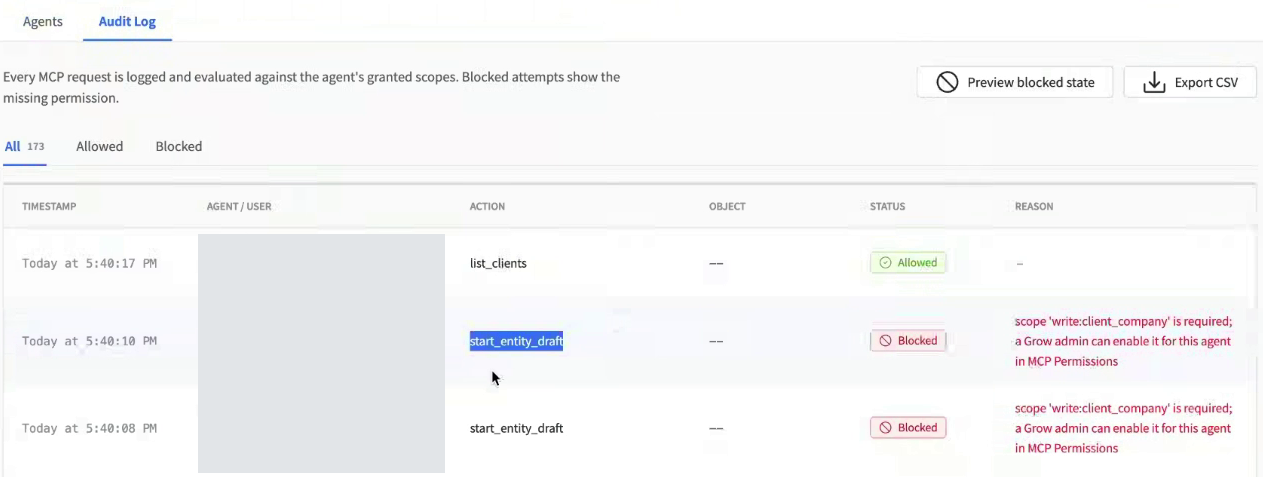
Figure 32. Account Audit Log with filters request outcomes and permission reasons.
Read the outcome in context
Every MCP request is logged and evaluated against the agent’s granted scopes. Blocked attempts include the missing permission in the Reason field. Use the status and reason together to understand each result.
The account view helps identify which connection made a request when several agents are in use. The individual Activity Log is useful once you have identified the agent. Neither log should be read as proof that a customer-facing quote was sent or signed.
Details to retain when investigating
• The task requested and approximate request time.
• The intended agent and its current permissions.
• The action, status, and full reason from the matching log entry.
• The relevant record or document identity and whether any earlier steps completed.
Expected result: you can explain which operation succeeded or failed and the permission that needs attention, without rerunning the entire creation workflow blindly.
6 Manage capacity and troubleshoot
Growth includes 3 MCP agents
The Growth plan includes 3 MCP agents. Your account’s total available capacity reflects its plan and any additional agent slots. Review the used and available slots in MCP Agents before connecting another tool.
Review available agent capacity
1. Open Settings > MCP Agents and review the agent count and slot-capacity message.
2. If capacity is full, decide whether an existing agent can be disabled or whether the account needs an additional slot.
3. Use Add agent slot if you intend to purchase more capacity. Review the account’s displayed billing details and pricing before confirming a purchase.

Figure 33. Capacity warning when no agent slots are available.

Figure 34. Add agent slot and Remove a slot controls.
The interface warns that new agents will be blocked until a slot is added or an agent is disabled. It also exposes Remove a slot. Review usage and the account’s displayed billing conditions before reducing capacity.
Disable an agent
Figure 35. Agent controls include Edit permissions and Disable.
1. Open the intended agent and select Disable. Follow any confirmation shown.
2. Check the resulting status in the agent list.
3. Verify that the agent no longer performs the actions you intended to stop. Review capacity again if you disabled it to free a slot.
Use your account’s Billing Details and plan information to review additional-slot pricing and subscription changes.
Troubleshoot connection and permissions
The MCP client cannot add the server
Check the address against https://api.zomentum.com/v1/ai/mcp. Paste only the URL into a URL field. Remove surrounding JSON or quotation marks. Reopen the detected authentication settings after the URL is accepted.
Sign in does not complete
Confirm the intended account and its configured sign-in method. Complete any access approval presented. Return to the client and check its connected indicator. If a password reset is needed, finish the reset and reconnect before testing again.
The client is connected but the agent is missing
Make a read request so the client calls MCP, refresh the Agents list, and verify the account used during sign-in. Check existing entries before creating another connection.
A request reports a missing scope
Capture the exact scope and inspect the matching agent’s Activity Log. Review the corresponding permission in Permission Builder or Advanced Scopes. Save the required authorized access and retry the failed step. Client approval alone does not enable the missing scope.
Read works but creation fails
Read, Write, and Update are independent. Check Write for the entity being created. A request that creates a company, contact, opportunity, and document can require several groups. Verify the missing scope rather than changing every permission.
A role was changed but the task still fails
Review the actual enabled actions after applying the role, confirm that the connected client is using that agent, and match a fresh request to its log. A preset name is not a substitute for checking the actions selected for the workflow.
Save permissions is unavailable
Check whether the selection differs from the saved permissions. If nothing changed, there may be nothing to save. Verify the current permission chips before making another edit.
A new agent is blocked by capacity
Review the account’s used and available slots. Growth includes 3 agents. The capacity warning directs you to add a slot or disable an existing agent when the account is full.
Troubleshoot quotes and document editing
The AI says the quote exists but you cannot find it
Open Documents, refresh, and search using the returned title or document identity. Confirm the account and client. Check for AI Draft status and any list filters. Inspect the activity log before repeating the generation request.
The quote is AI Draft rather than Draft
This is the initial state shown after generation. Open the quote preview, review its content, products, total, and signature assignment. Finish AI revisions, then select Open in editor when ready to continue manually.
The AI can no longer revise the quote
Check whether the quote has already moved from AI Draft to Draft. AI revisions end after this handoff. Continue making changes in the Zomentum document editor.
Products quantities or totals are wrong
While the quote is AI Draft, request a precise correction using its document identity. Review the new response and preview. After handoff, edit in Zomentum and recheck line totals, frequency, discount, tax, and the document total.
A signature field is missing or assigned incorrectly
Check the recipient and signature assignment. Request the correction while the document is AI Draft, or update it in the editor after handoff. An assigned signature box remains unsigned until the recipient completes the signing workflow.
A request stopped partway through
Check the existing client, contact, opportunity, and document, then inspect the request’s log entries. Reuse completed records and retry the failed operation. Avoid creating duplicate records to recover from an interrupted response.
Frequently asked questions
How many MCP agents are included in Growth
Growth includes 3 MCP agents. Check your account for purchased additional slots and the resulting total capacity.
Is this limited to the AI client used in the screenshots
MCP is the connection protocol. Use a compatible MCP client and its supported server and authentication setup. Menu names and approval controls may differ between clients.
Does connected mean the agent has full access
No. Connection and authentication are separate from the actions granted in Zomentum. Check the agent’s permissions and the result of the actual request.
Does Write include Update
No. Write creates a record and Update changes an existing one. Review each action separately, along with Read when the workflow needs to locate or inspect records.
Does a generated quote first appear as Draft
A generated quote first appears as AI Draft. Opening it in the editor moves it to Draft. Complete AI revisions before that handoff.
Can the quote be revised through AI after opening the editor
Moving to Draft ends AI editing through the quote-generation flow. Continue manual changes in the Zomentum document editor after the handoff.
Where can an administrator check a blocked request
Use the agent’s Activity Log or the account Audit Log under MCP Agents. Read the Status and Reason fields and match the exact missing scope to the agent’s permissions.