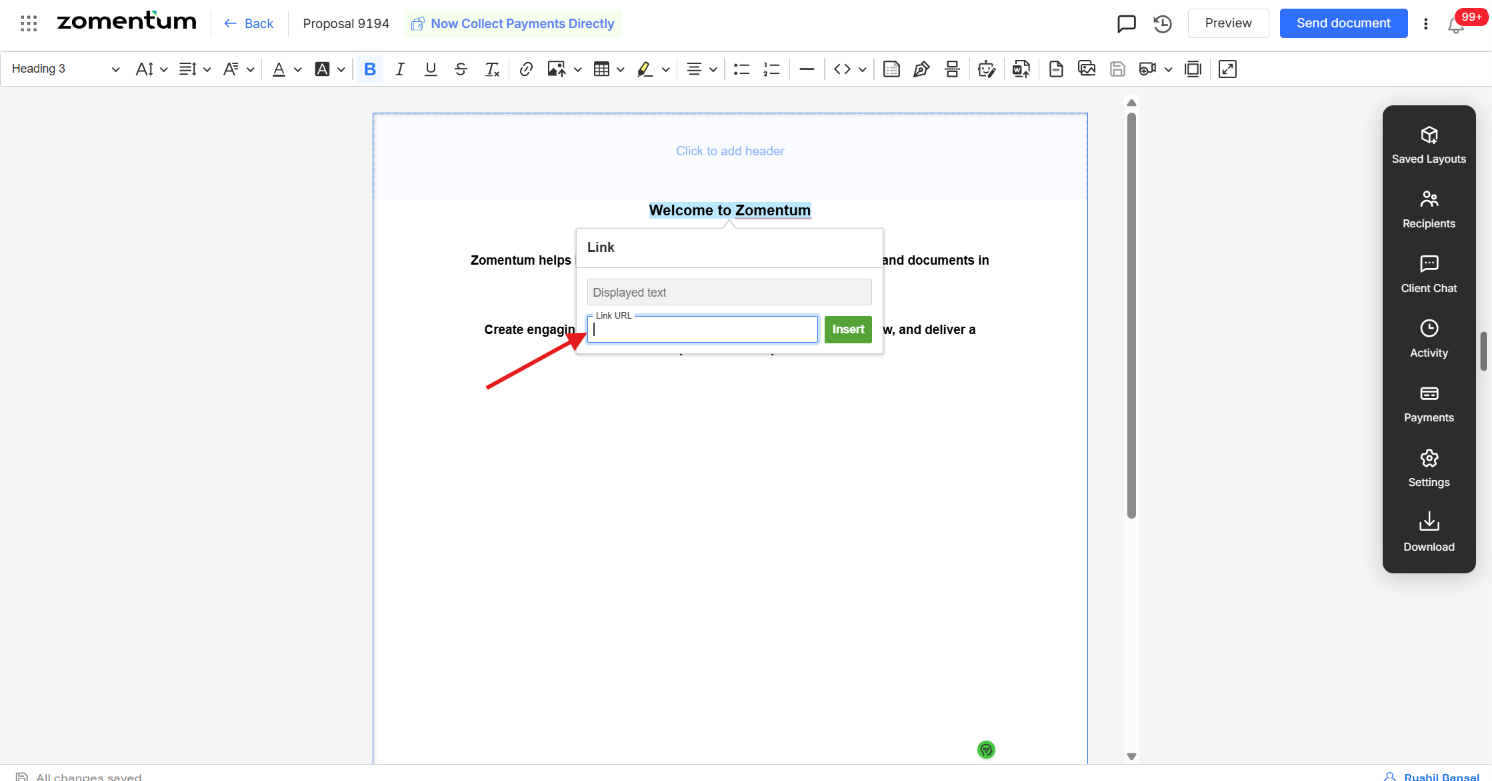
Zomentum's document editor lets you turn any word or phrase into a clickable link, so you can point clients to a website, resource, or additional information without cluttering your document with a raw URL.
Before you begin: This article assumes you're already in the document editor. If you haven't created a document yet, see Creating and Editing Documents.
Step 1: Select the Text
In the editor, type the text you want to hyperlink, then highlight (select) it.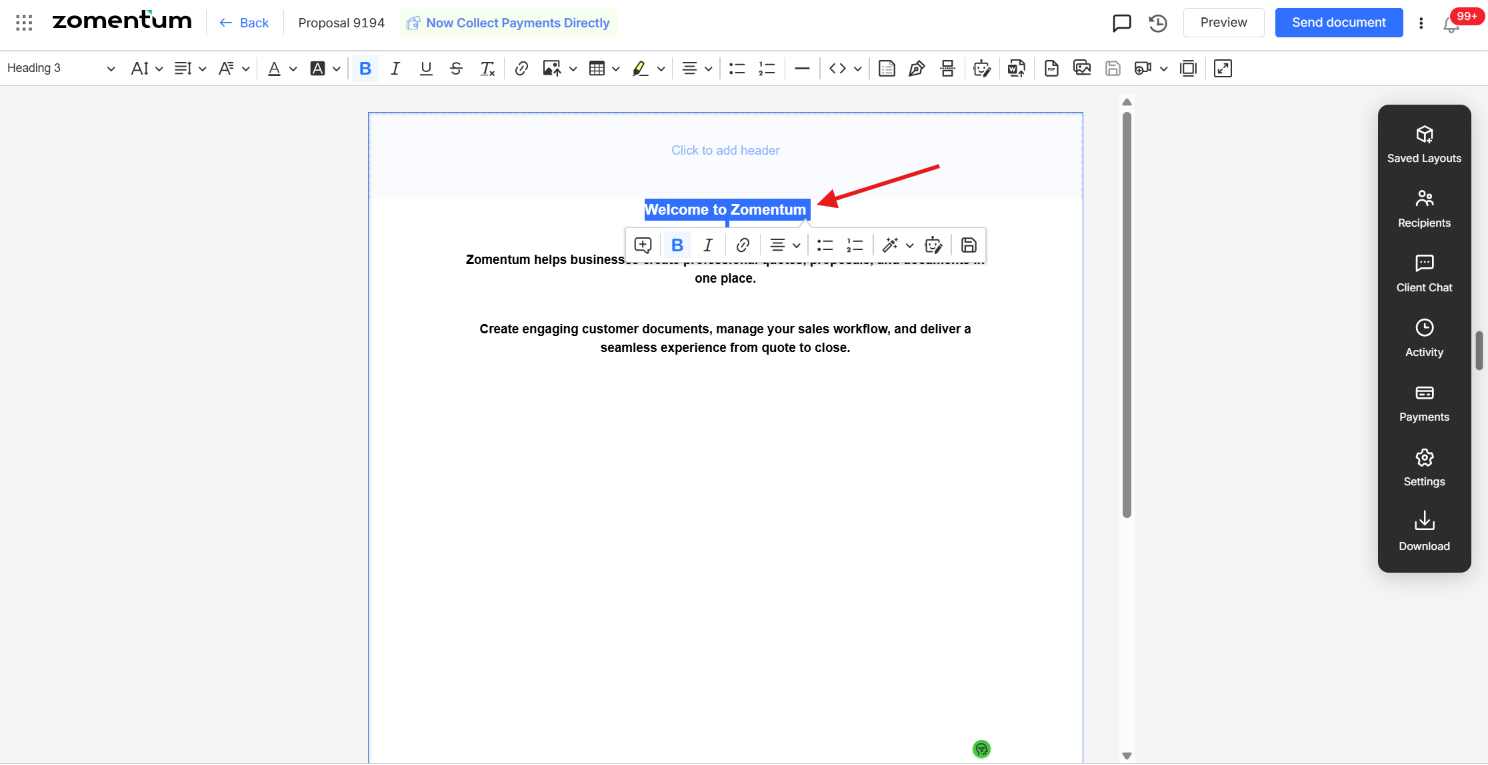
Step 2: Open the Link Option
Once your text is selected, you can add a link in either of the following ways:
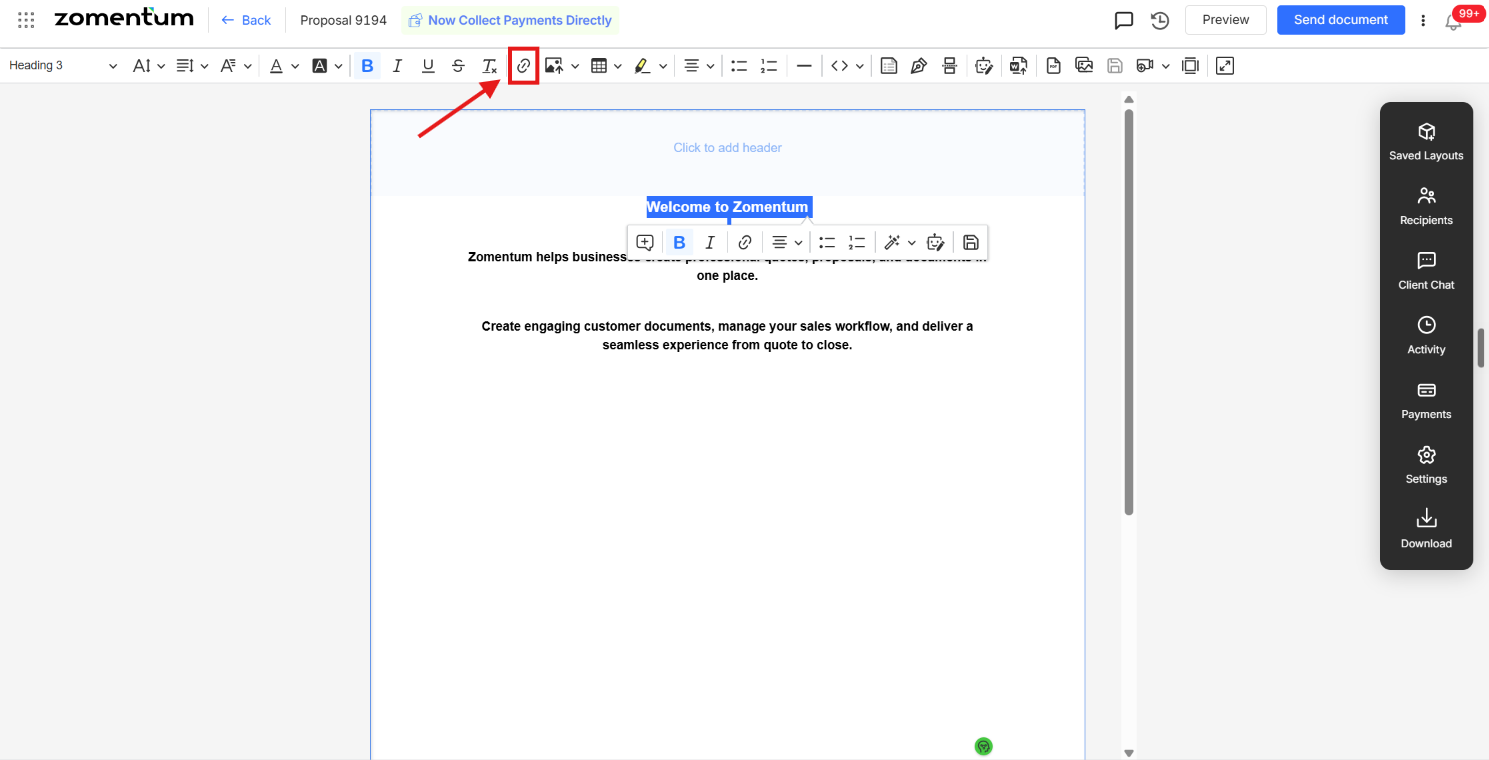
From the toolbar: Click the Link icon in the navigation bar at the top of the editor.
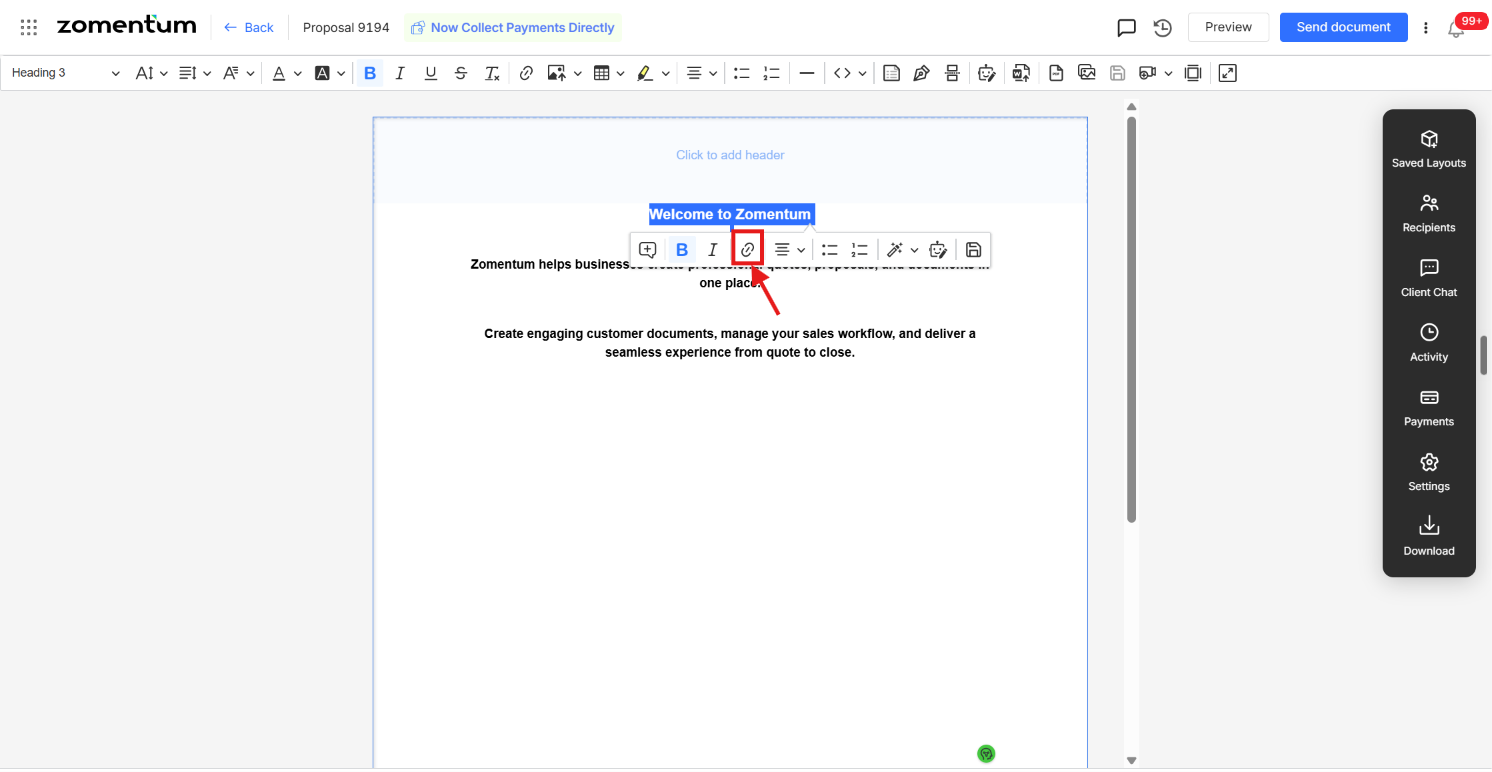
From the selection pop-up: As soon as you select the text, a small pop-up appears. Click the Link icon in that pop-up.
Step 3: Add the URL
Either method opens a link pop-up. The Display Text field is pre-filled with the text you selected, so all you need to do is enter the destination address in the Link URL field and click Insert to apply the link.