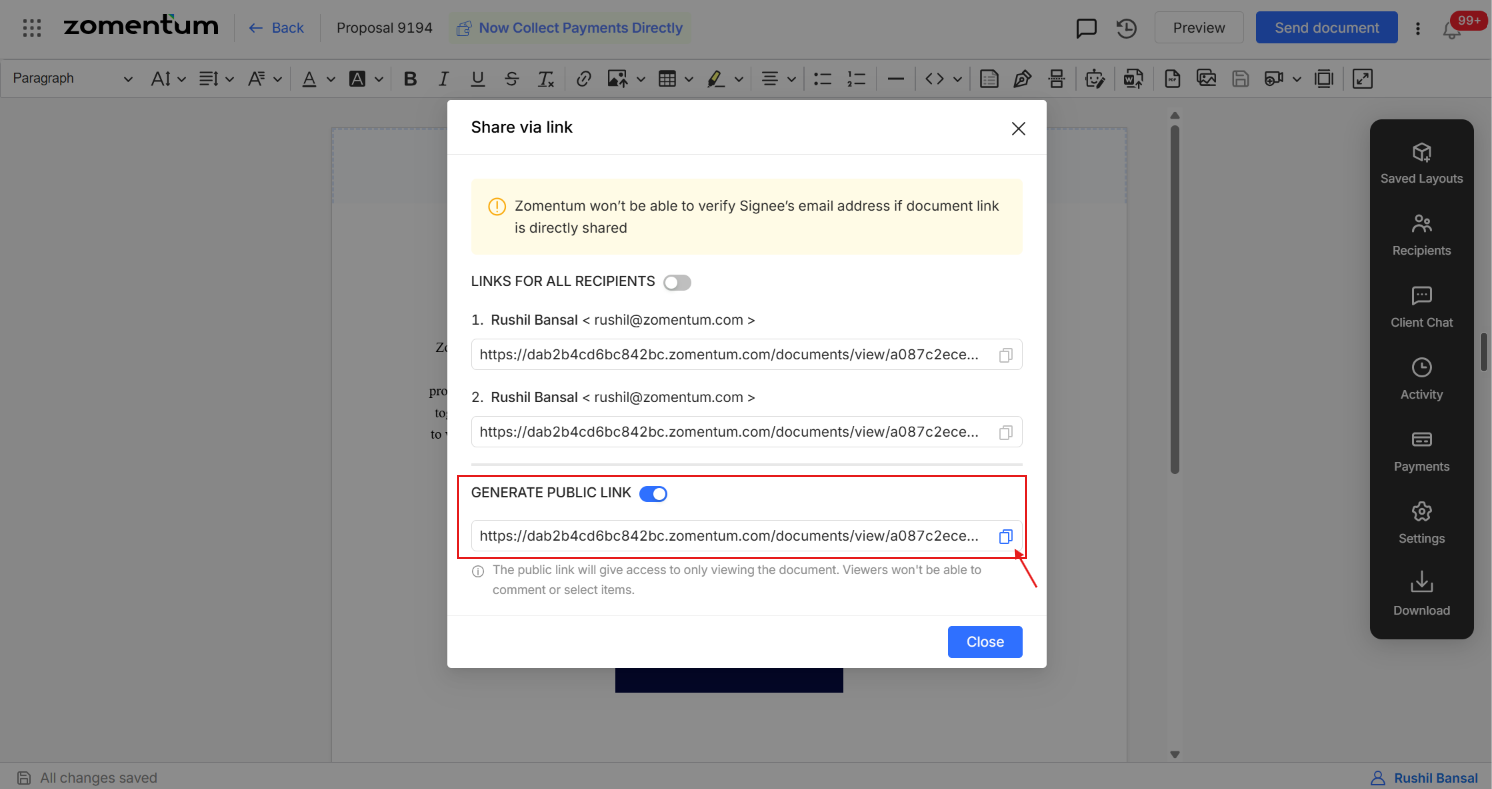
If you prefer not to send a document by email, you can generate a link and share it with your customer through any channel you like.
When to Use Share via Link
Sharing a link is useful when you want to send the document through a chat message, a client portal, or a conversation where email is not convenient. It is also helpful when a customer has not received your email or would simply like to open the document directly.
Generating a Link
Open the document.
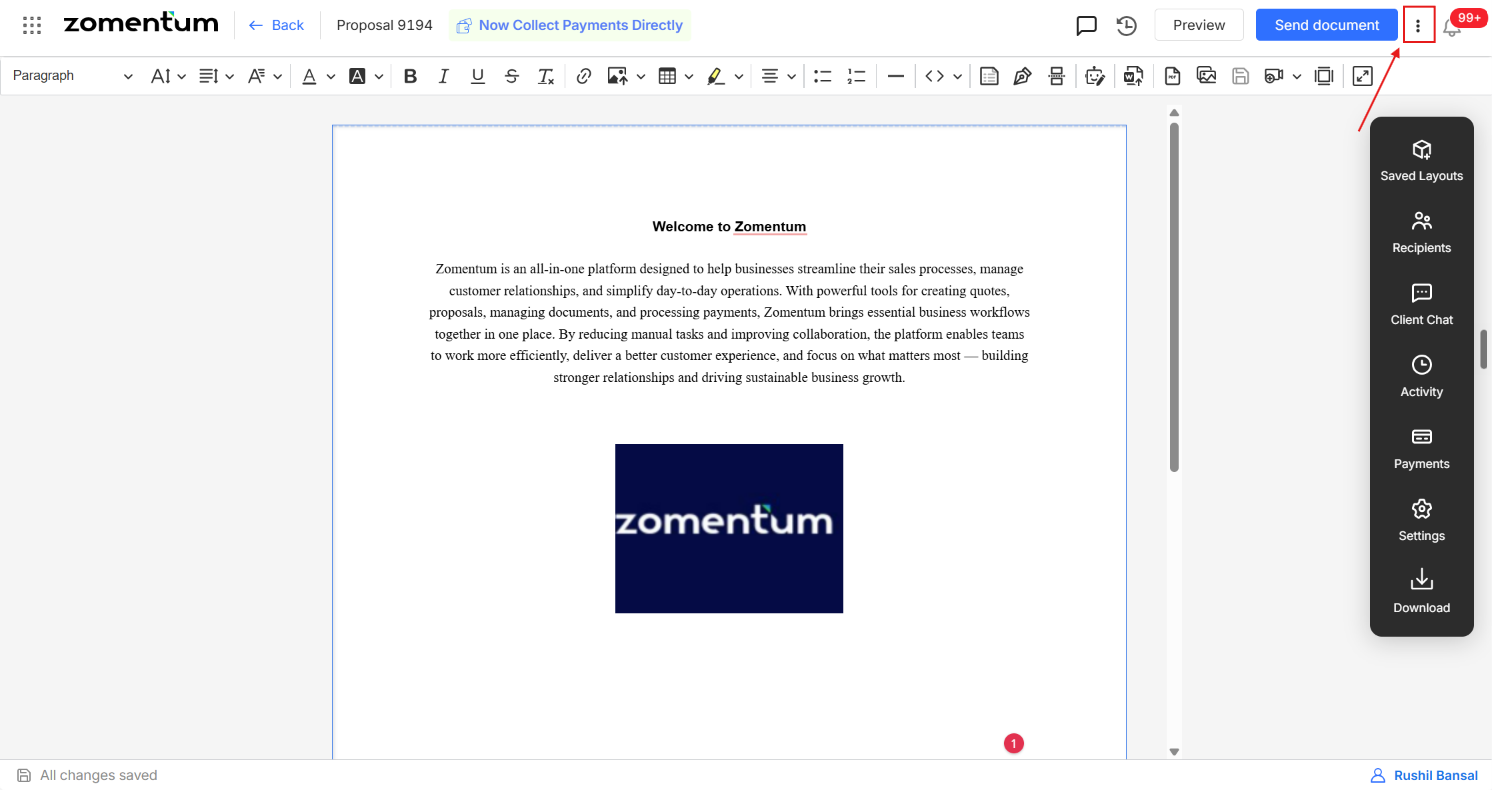
Click the three dots in the top-right corner.
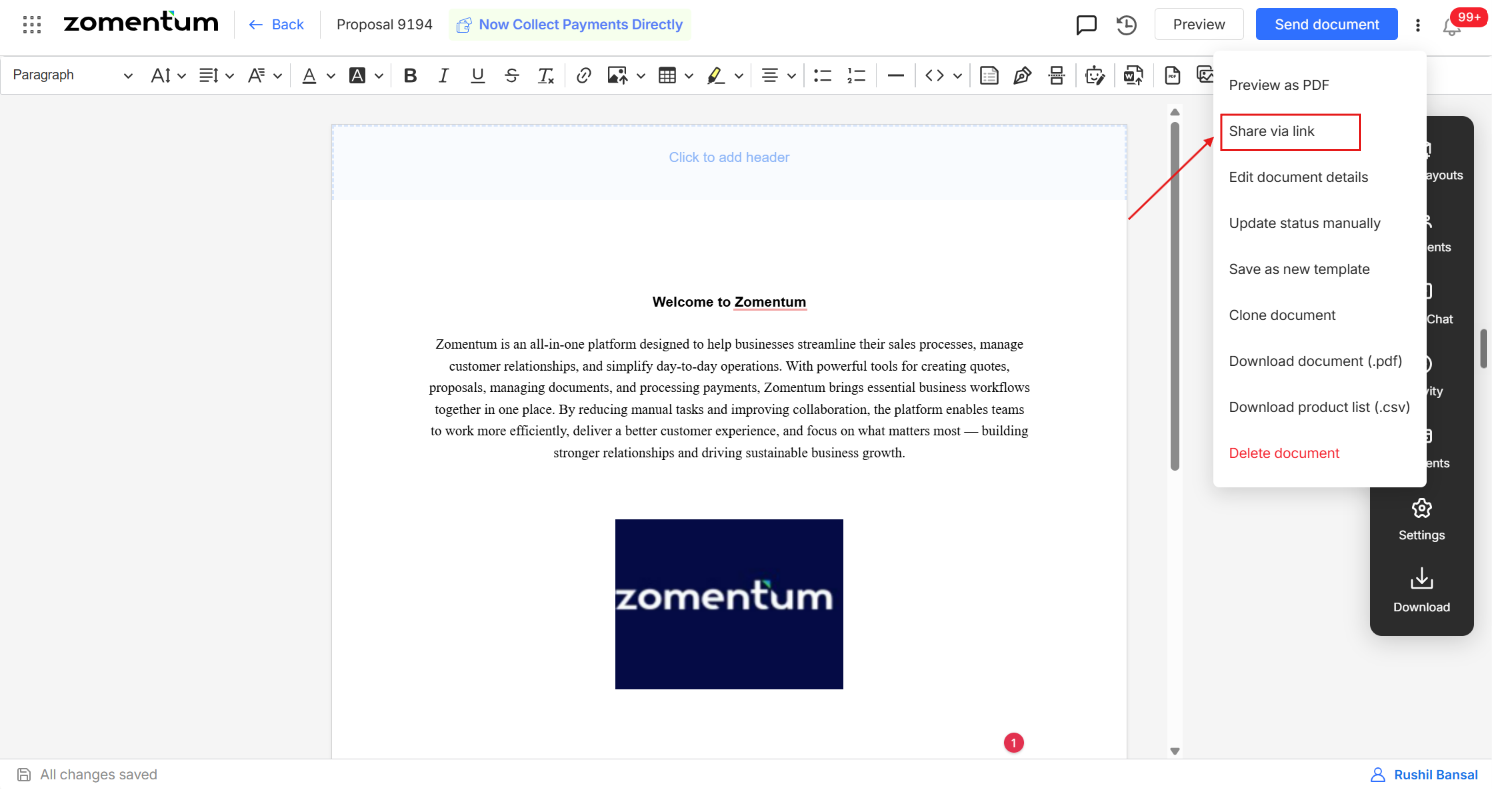
Select Share via Link.
In the pop-up that appears, choose the type of link you want to generate.
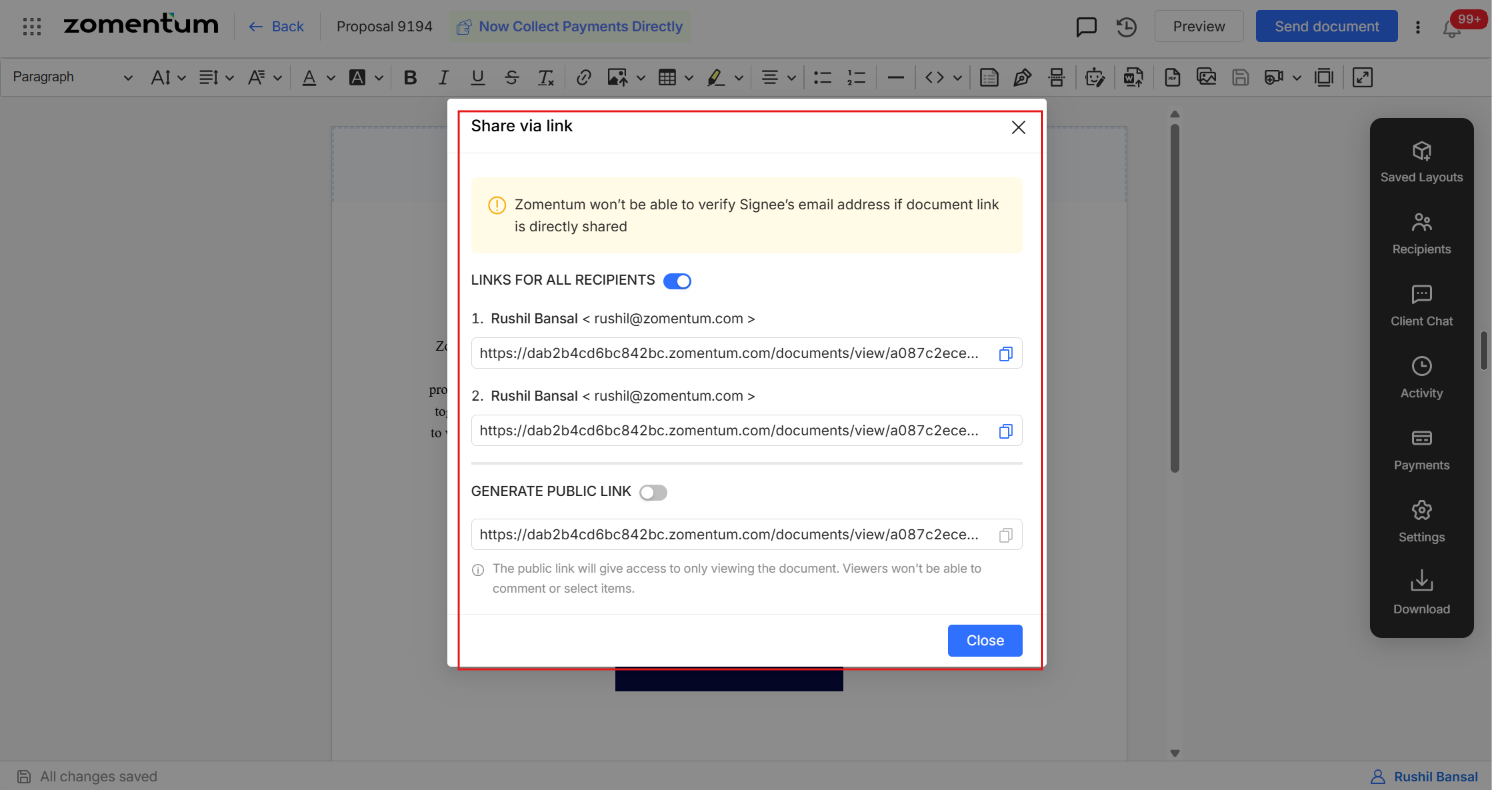
Links for All Recipients
This option generates a separate link for each recipient. For example, if the document has two recipients, two links are created, one for each person, so that each recipient sees their own view of the document.
A link works only for the recipient it was generated for. If a recipient forwards their link to someone else, the other person will not be able to view the document.
This option is ideal when privacy matters. For example, if the document has two signature blocks assigned to two different people, each signee gets a client-specific view that cannot be opened by the other.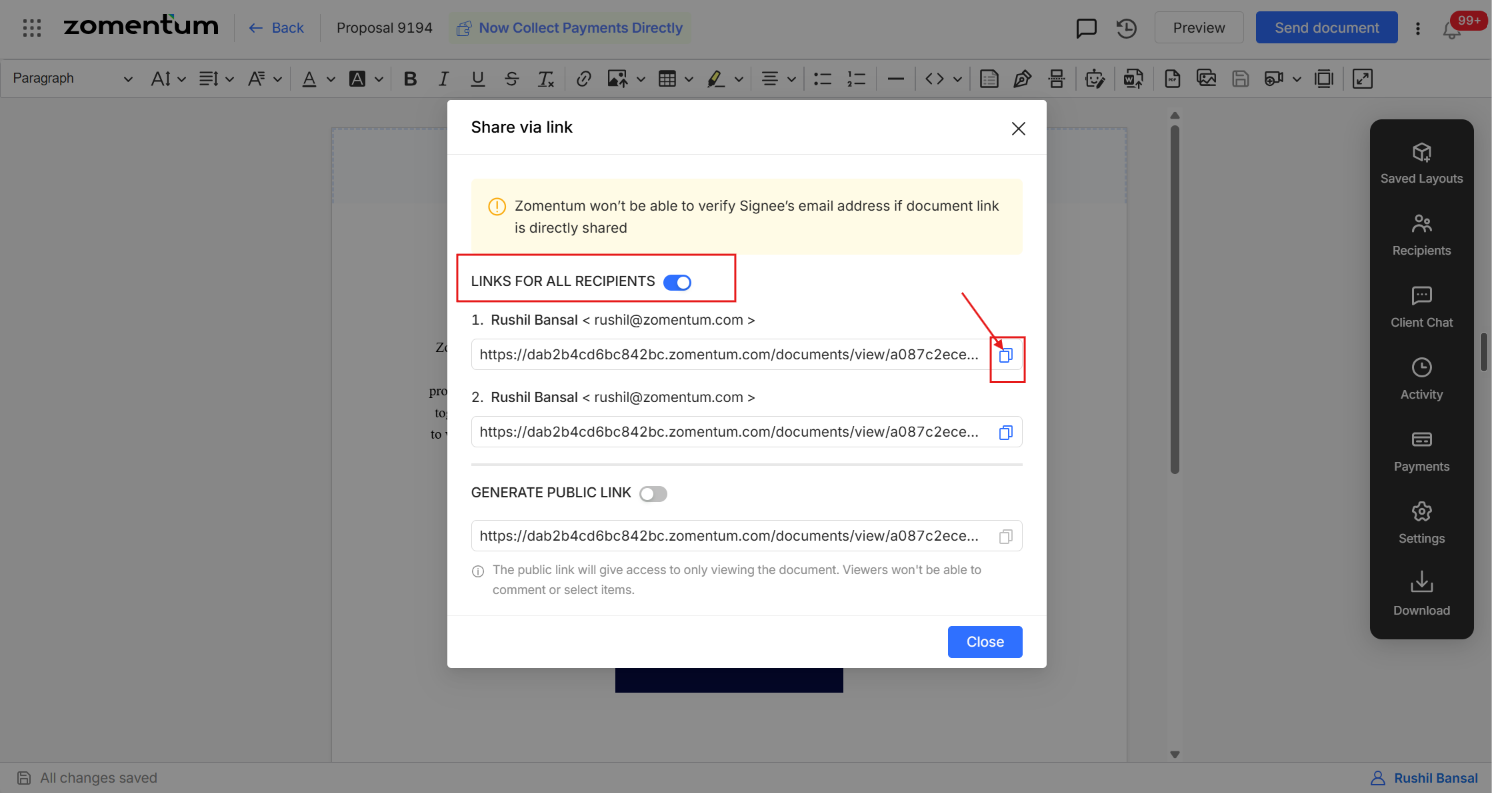
Generate Public Link
This option generates a public link that anyone can open, whether or not they are a recipient of the document.
A public link gives view-only access. People who open it cannot comment on the document or select items.