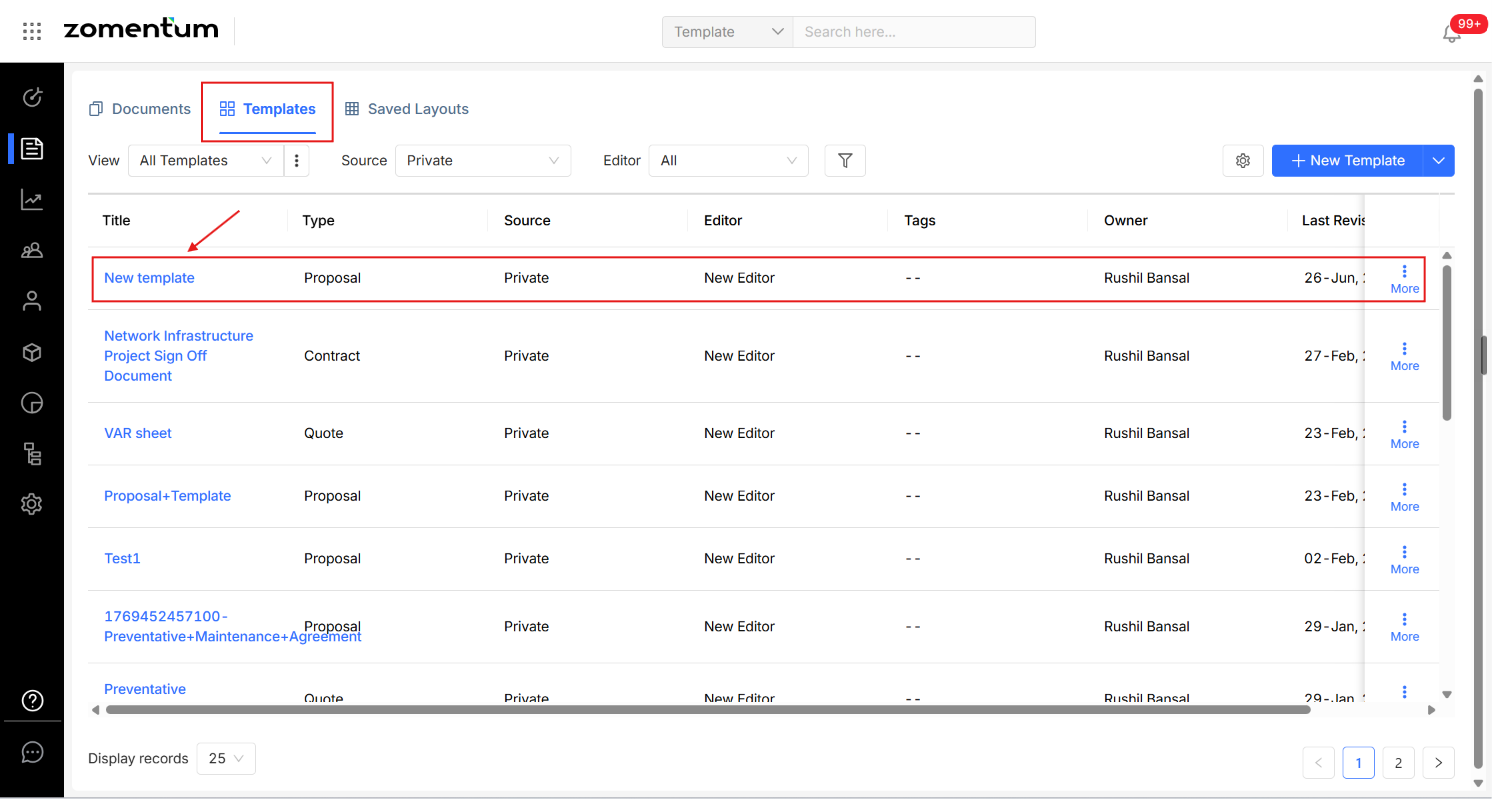
You can save any document as a reusable template, either from inside the document or from the Documents module, so you don't have to start from scratch next time.
Saving a Template from Inside the Document
Open the document.
Click the three dots in the top-right corner.
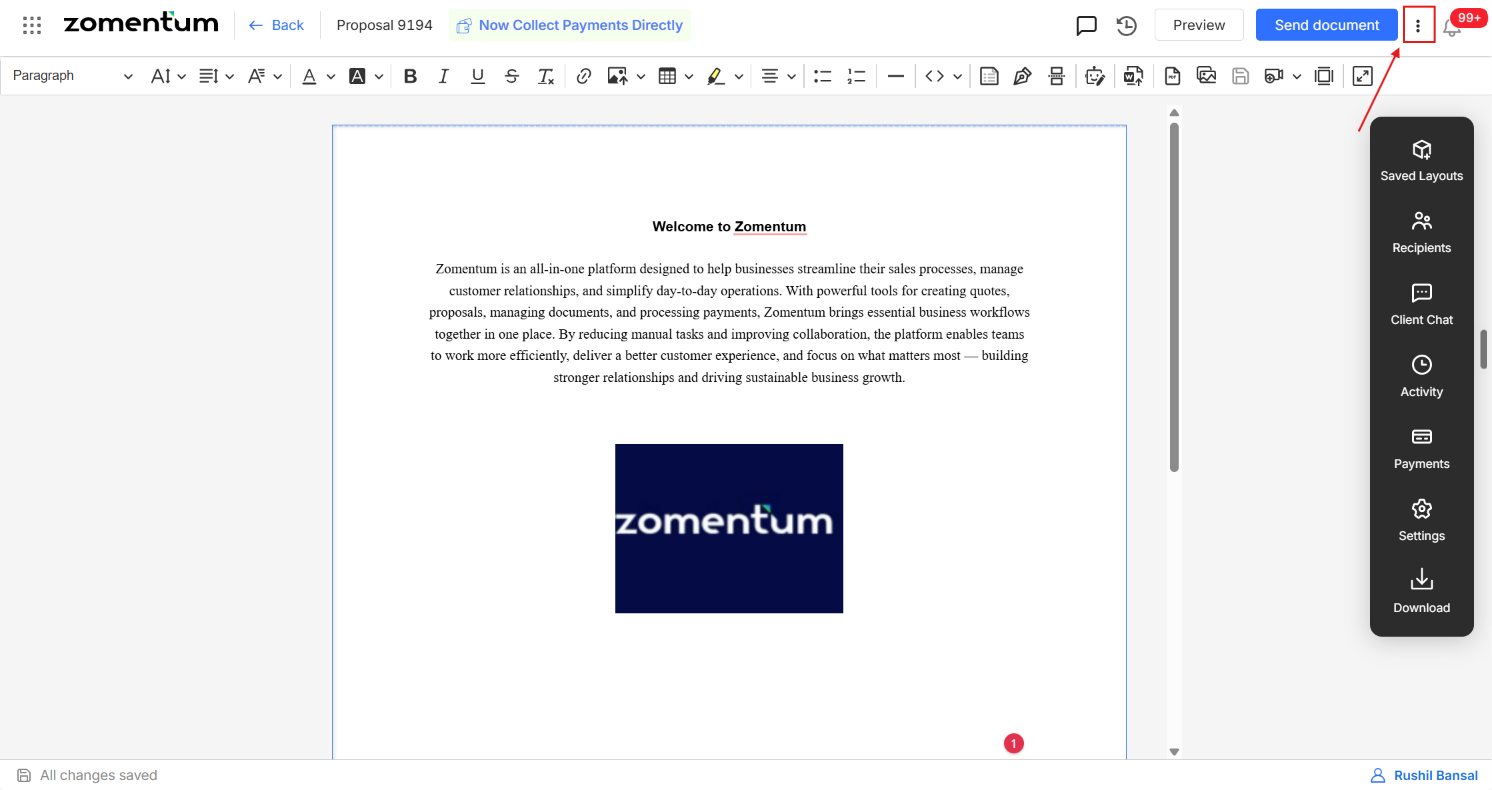
Select “Save as New Template”
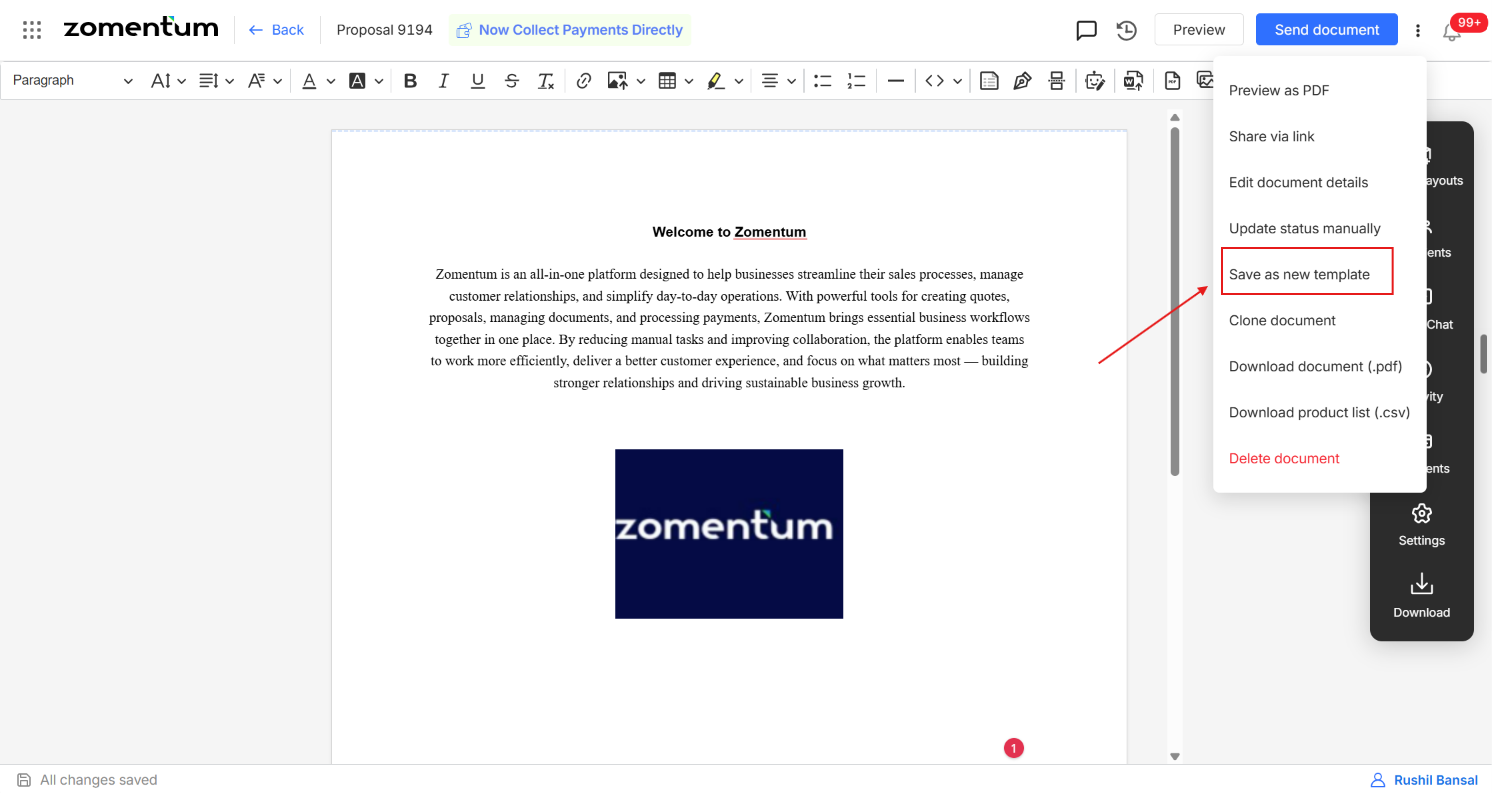
In the pop-up that appears, enter a name for the template and save it.
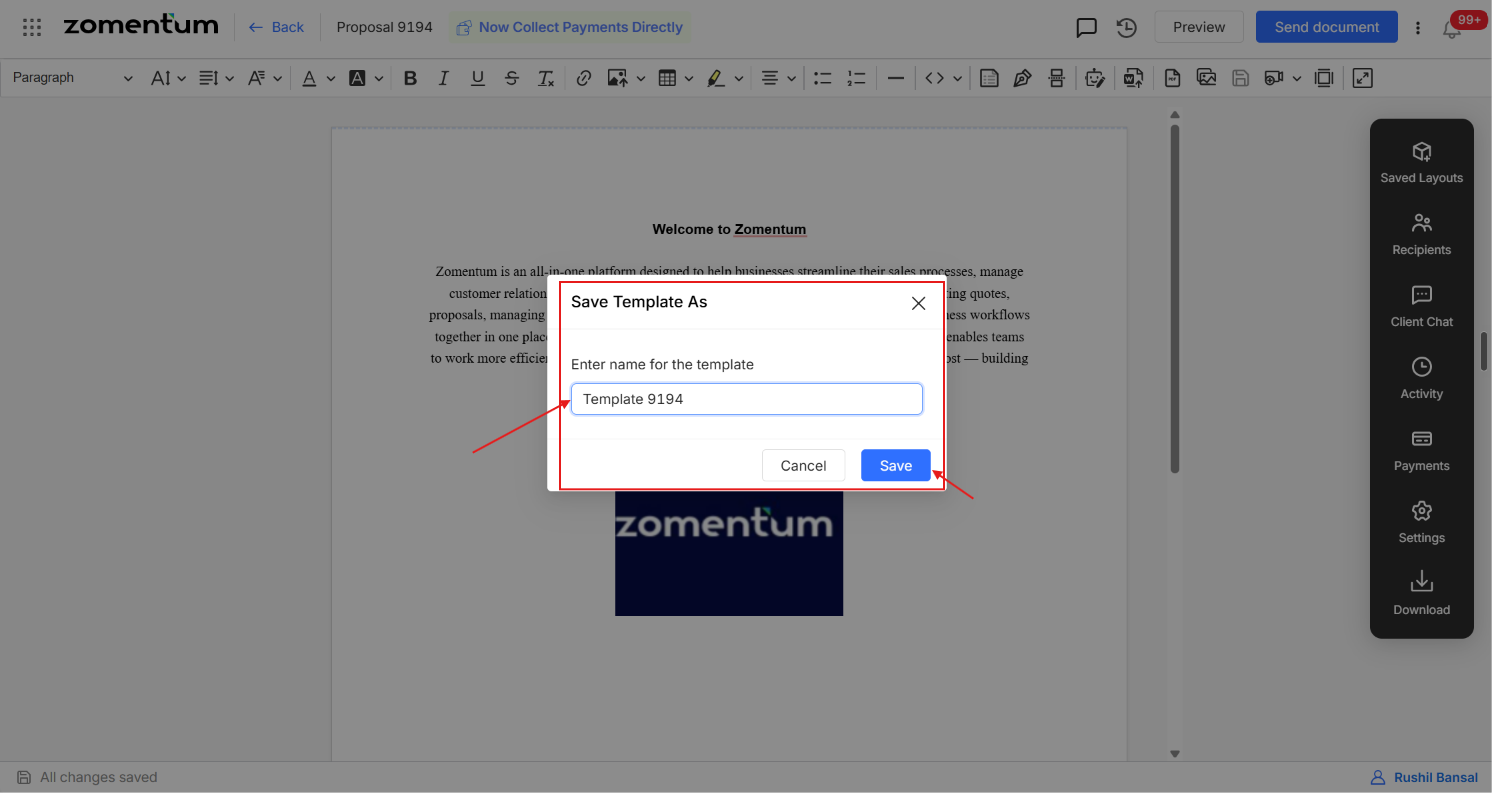
Saving a Template from the Documents Module
Go to the Documents module.
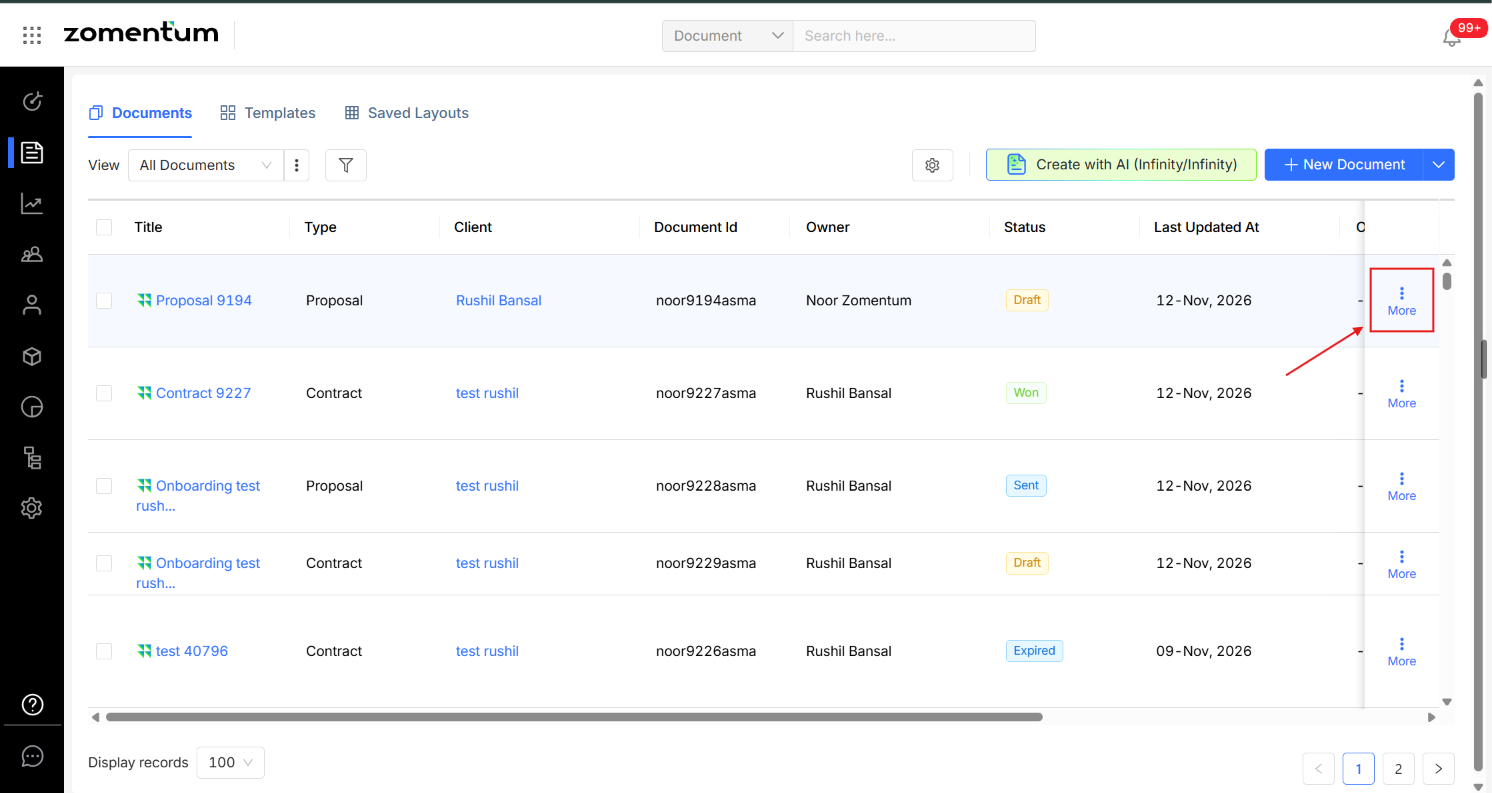
Click the three dots next to the document you want to save as a template.
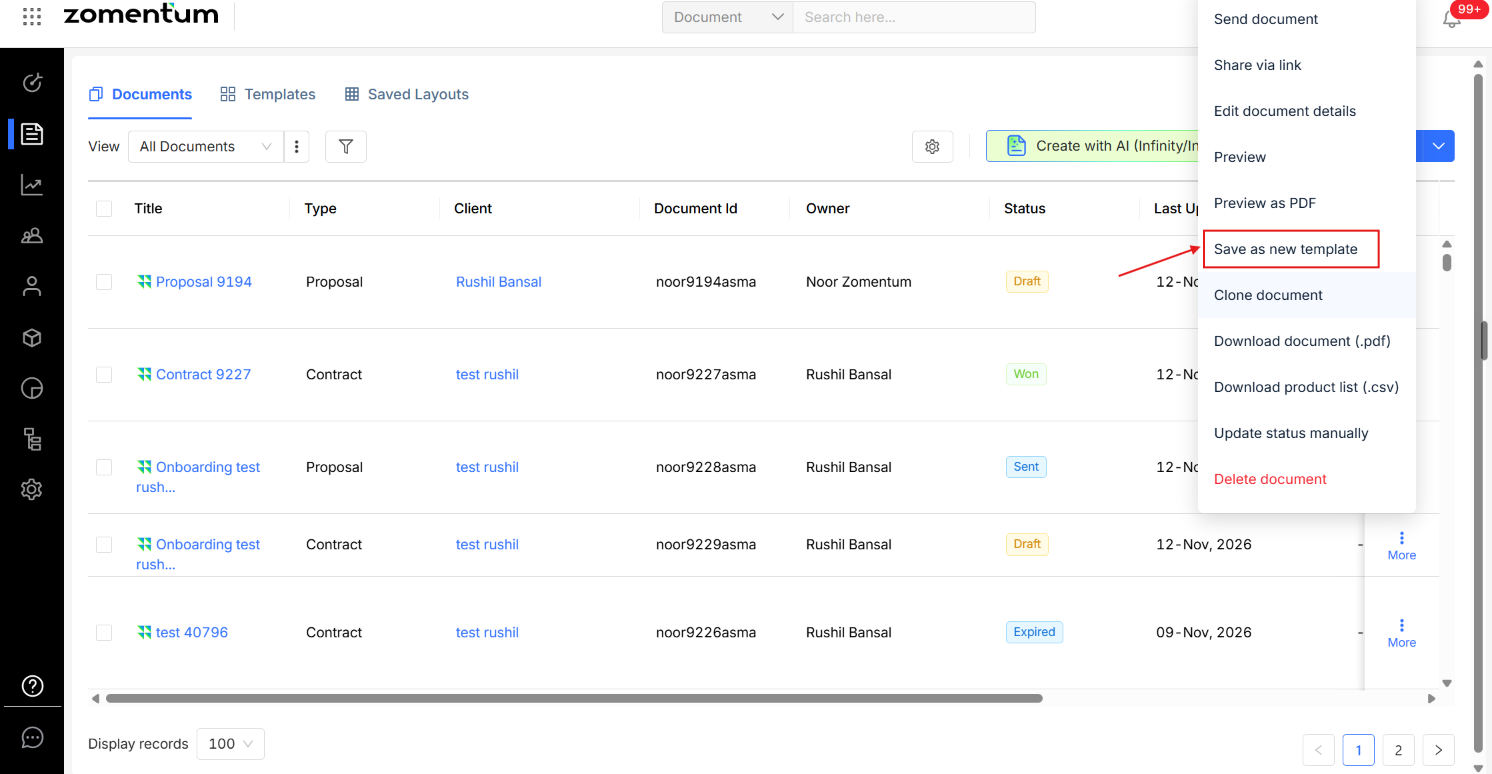
Select Save as New Template.
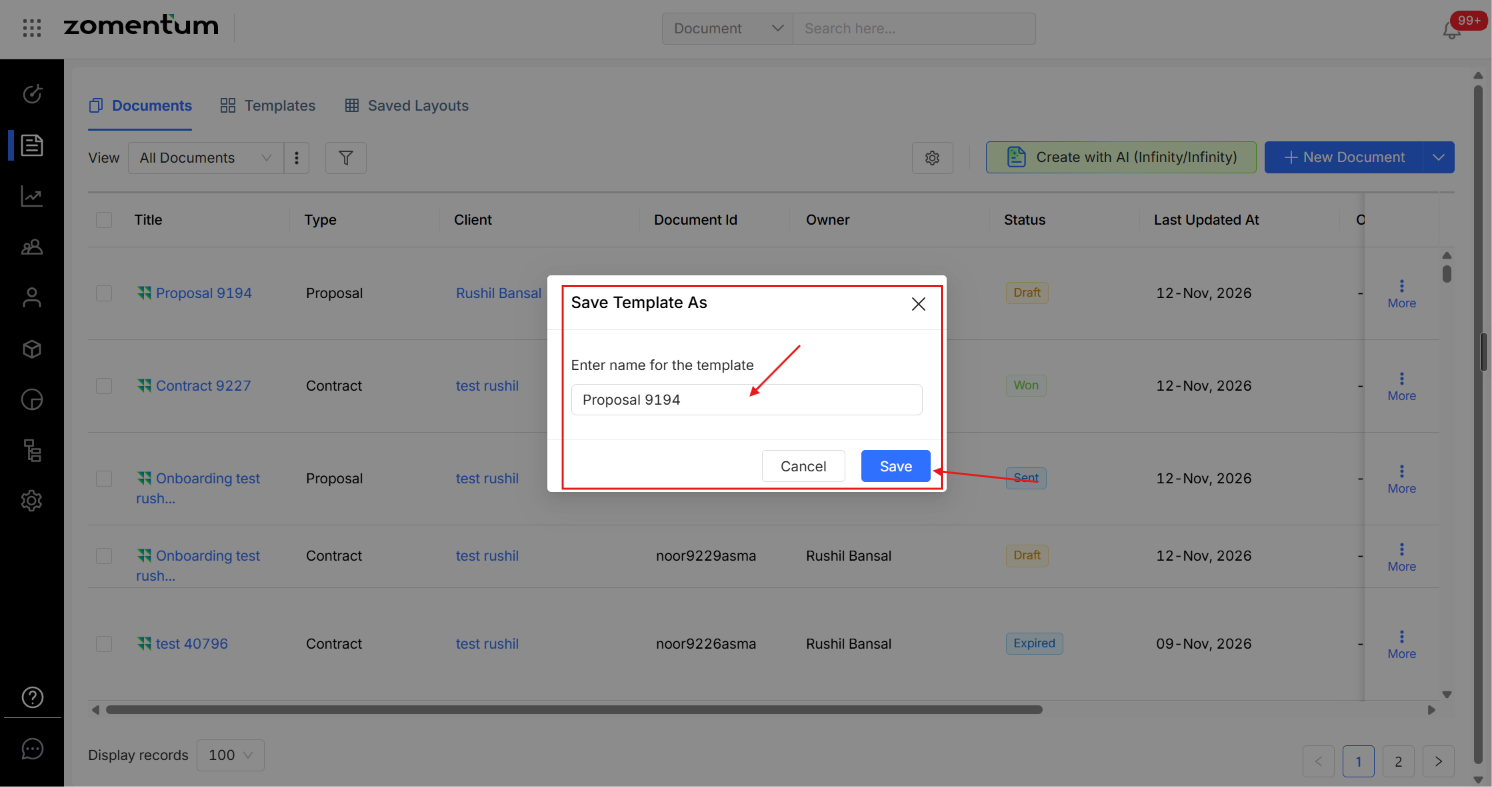
In the pop-up that appears, enter a name for the template and save it.
Which Document Type Will the Template Belong To?
The template is created under the same document type as the original document. For example, if you save a Proposal document as a template, the new template is created as a Proposal template.
Finding Your Template
To open a template you have saved:
Go to the Documents module.
Open the Templates section.
Your newly created template appears at the top of the list. You can also scroll through the list, search by name, or apply filters to find it.