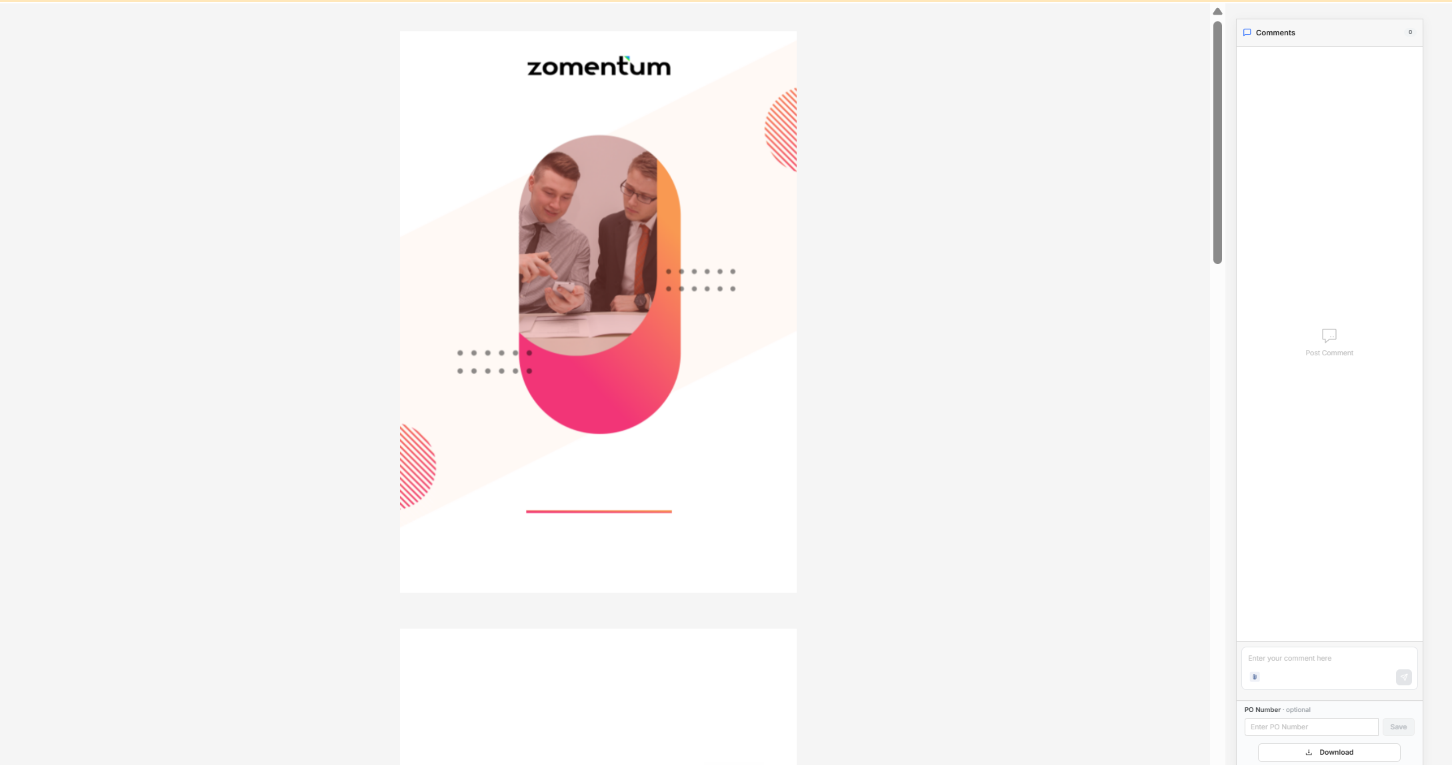
To add a cover image, use the Cover Image option at the top of the editor. Choose your image, switch it to full page, and set it as the cover. The image then fills the entire page, from end to end.
How to Add a Cover Image
Click Cover Image. In the toolbar at the top of the editor, click the Cover Image option.
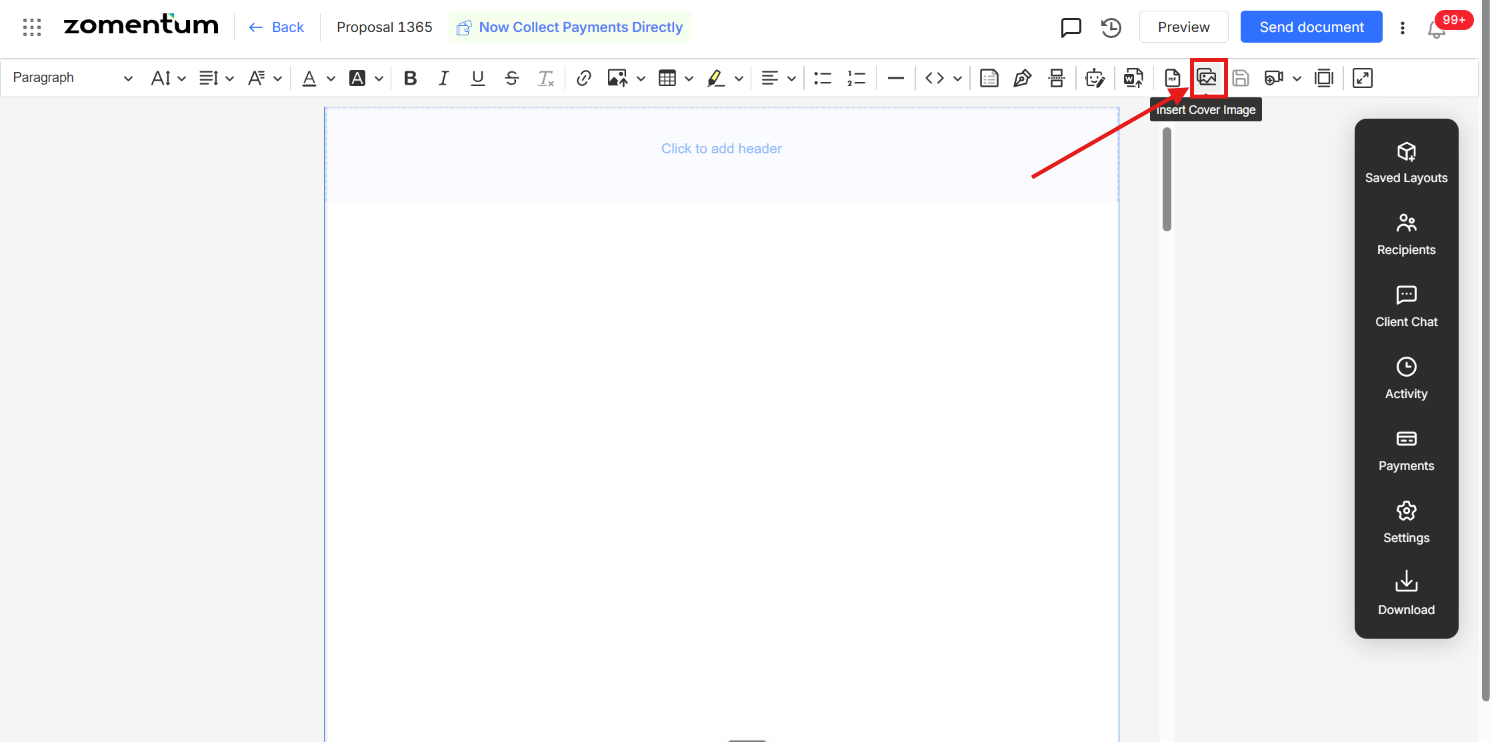
Choose your image. Select the image you want to use.
Open the image toolbar. Click the cover image. A small toolbar opens above the image.
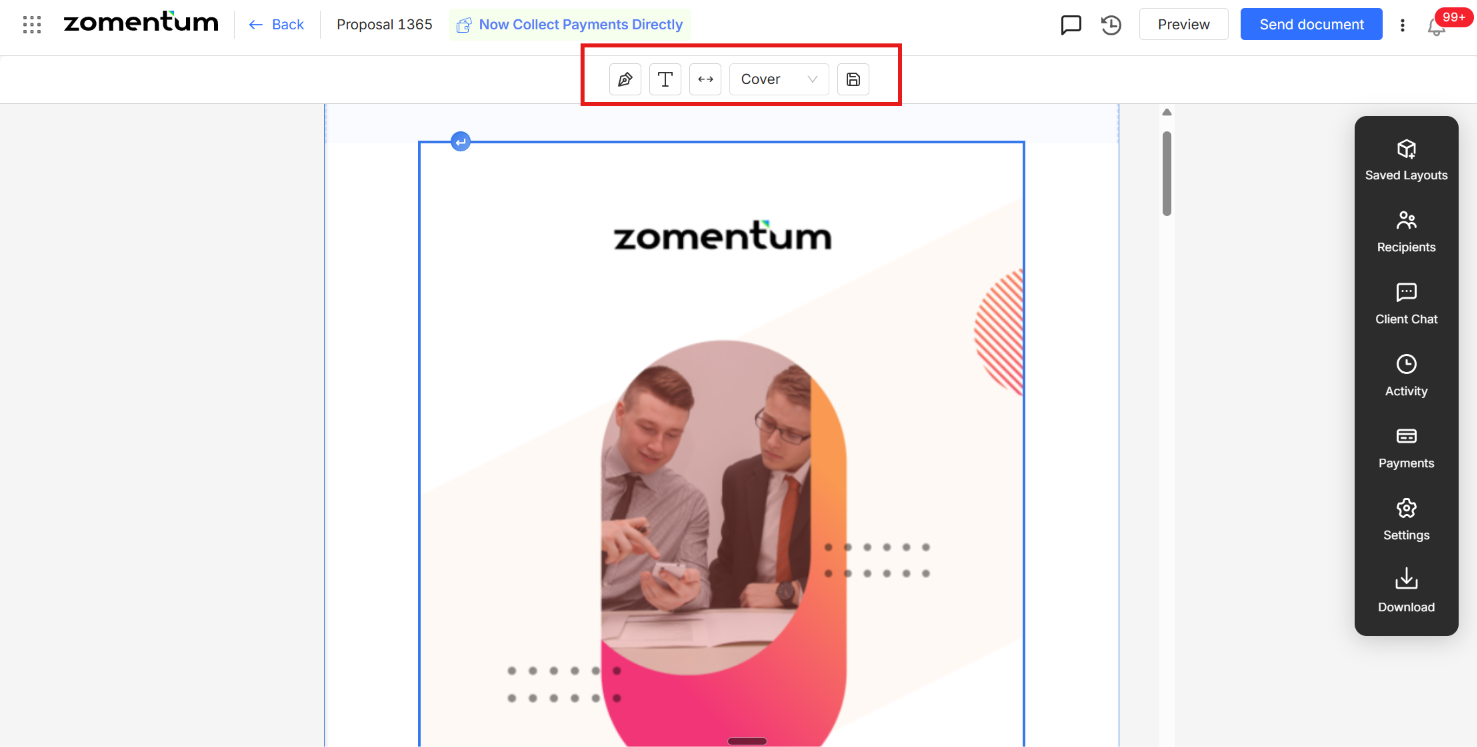
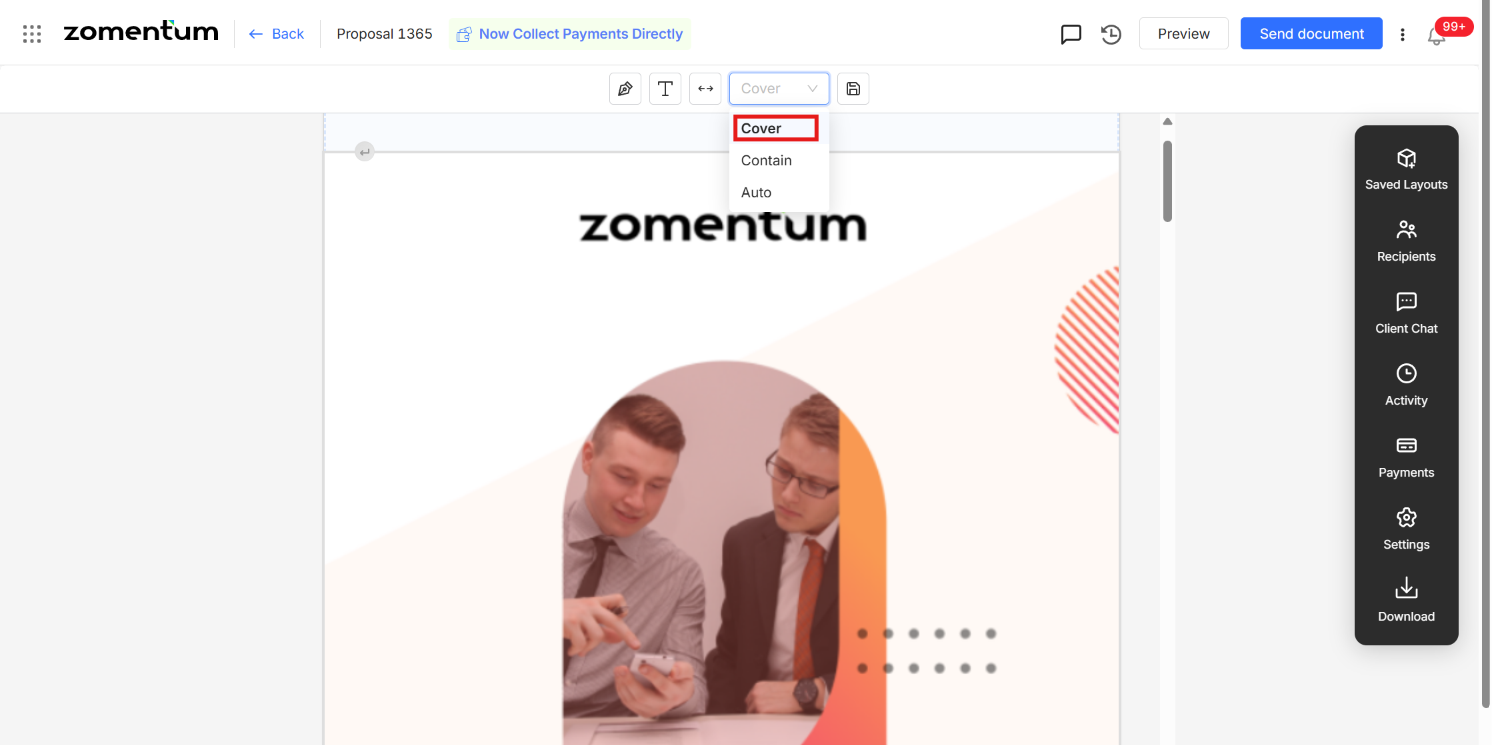
Click the two arrows (Toggle Full Page). At the top of the small toolbar, click the two arrows. This toggles full page, so the image fills the page from end to end.
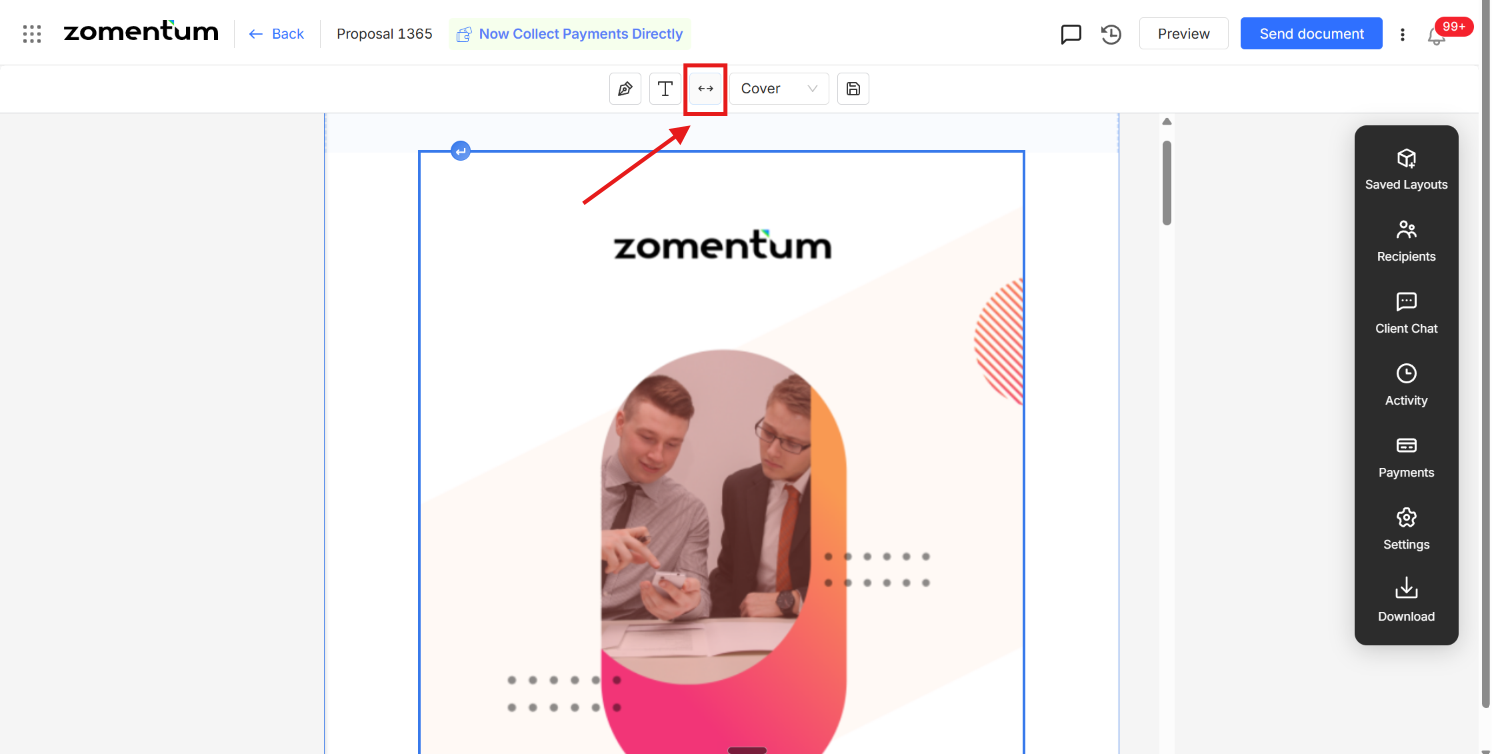
Choose Cover. You now have three options for placing the image: Cover, Content, or Auto. We recommend Cover, so the image goes end to end and fills the entire page.
Preview the result. Click Preview to see how the cover image looks.