
If a document is in the signature process, you can cancel the signature by using Force Cancel Signature. This cancels the signature process for the document, so you can make changes to it before your client signs.
When to Use This
Use Force Cancel Signature when a document is out for signature but you need to change it first. After the signature is cancelled, you can update the document and send it to your client again.
How to Force Cancel a Signature
Open the Documents module. Go to the Documents module and find the document you want to force cancel.
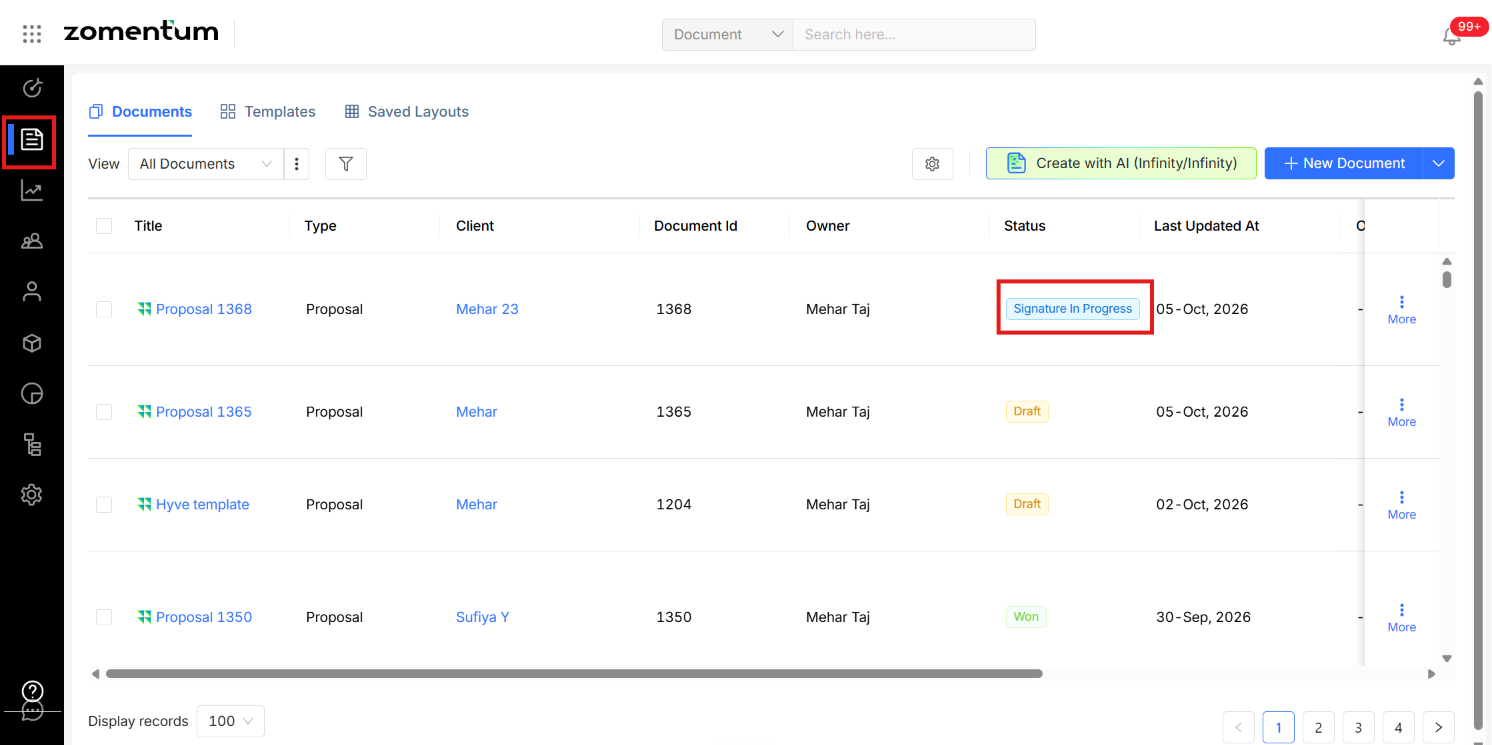
Click the three dots (More). Click the three dots next to that document to open More.
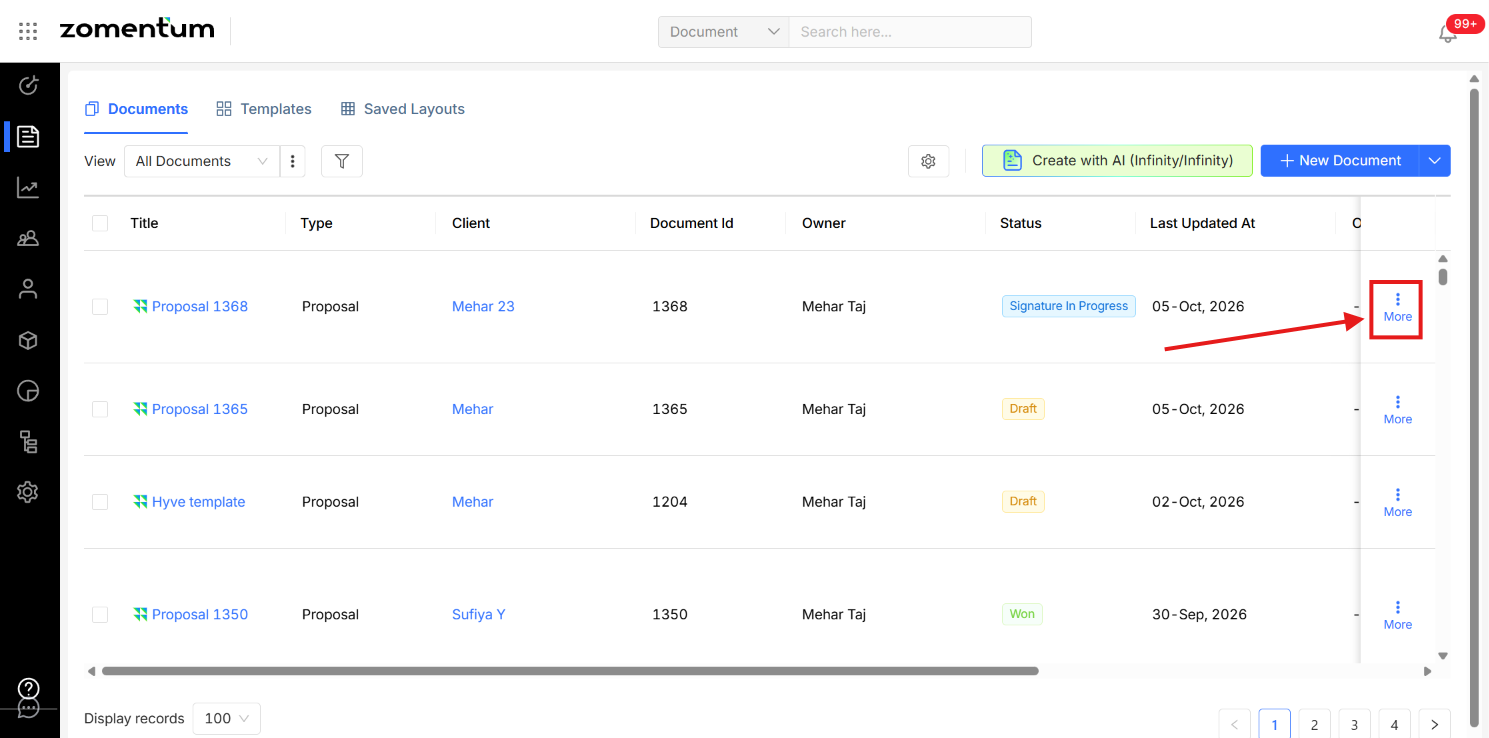
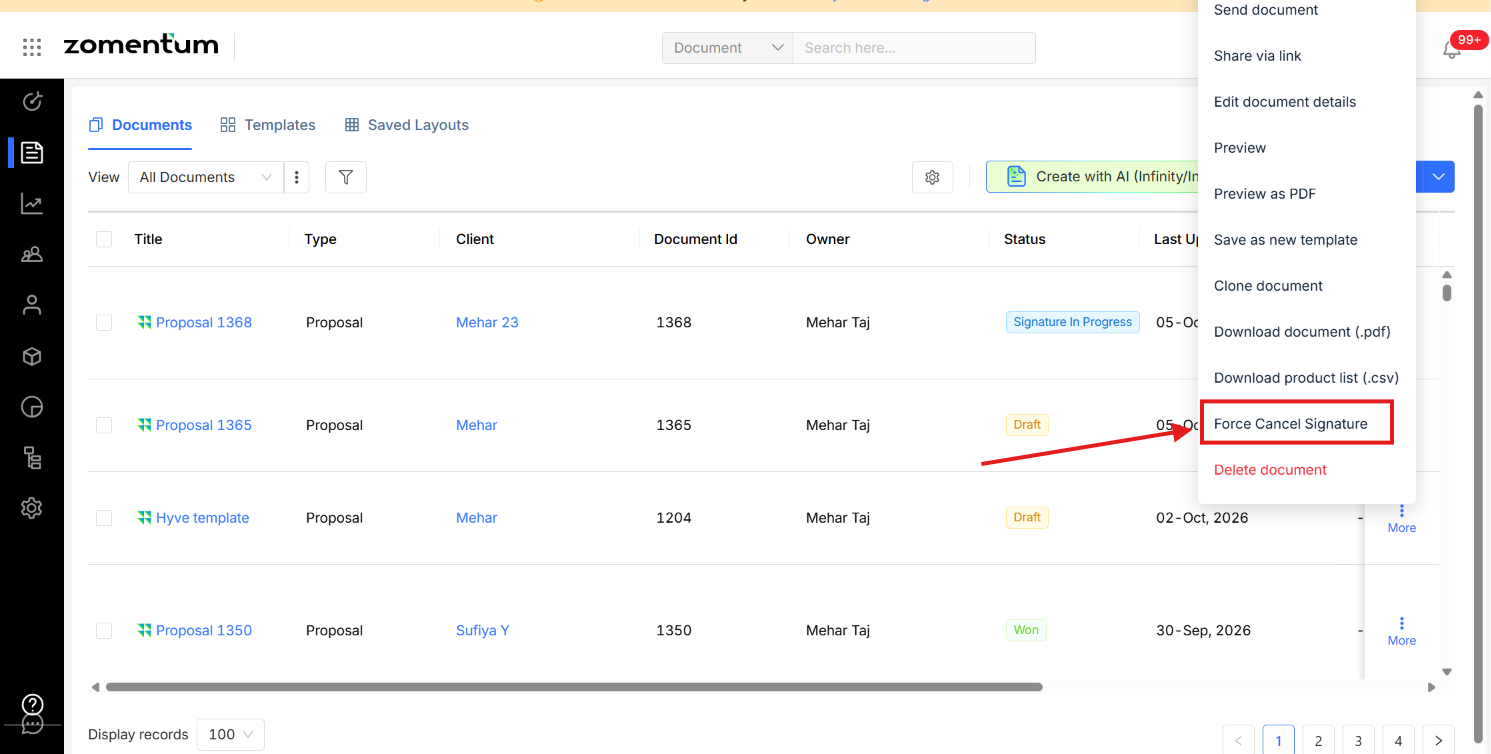
Click Force Cancel Signature. Select the force cancel option from the menu.
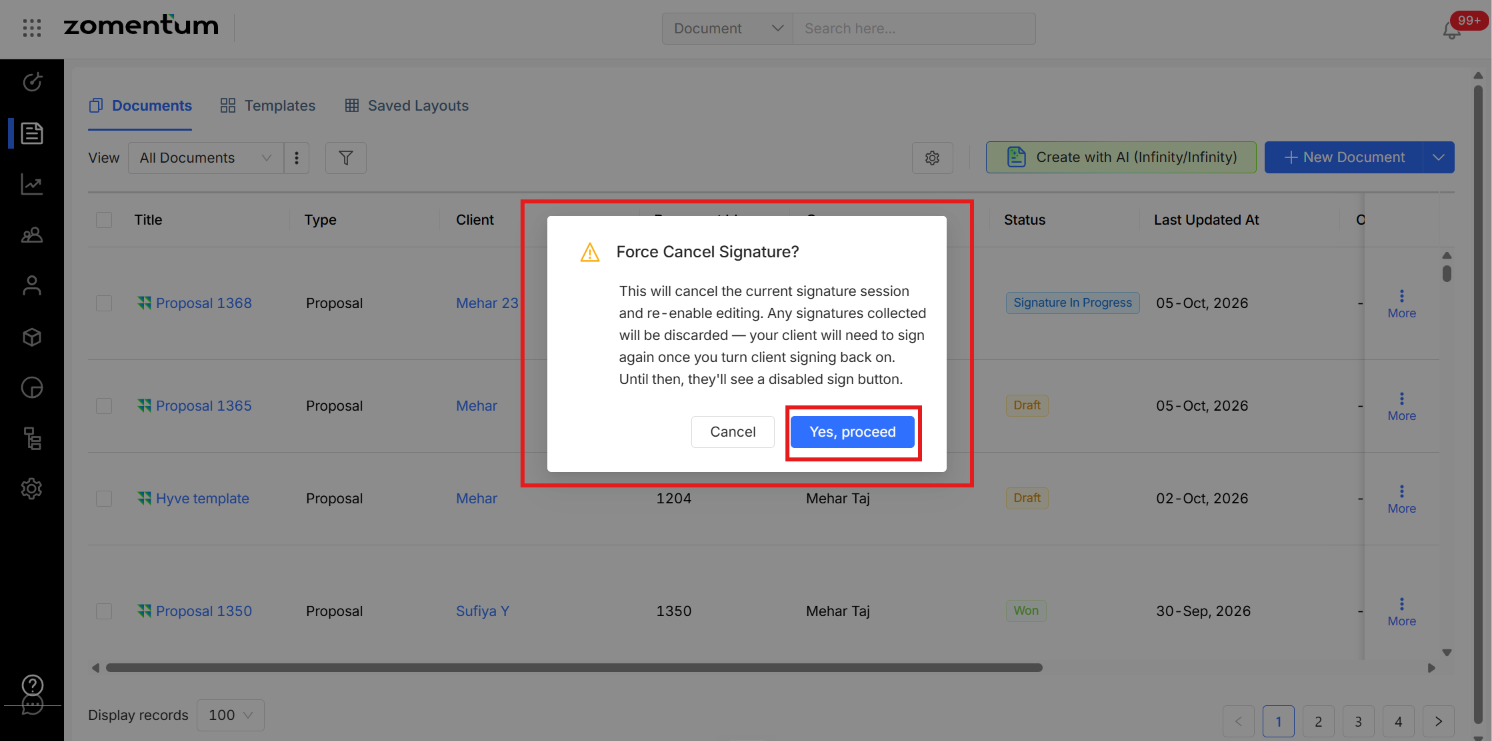
Click Proceed in the pop-up. A pop-up appears explaining that forcing the cancellation will cancel the current signature session and re-enable signing. To continue, click Proceed.
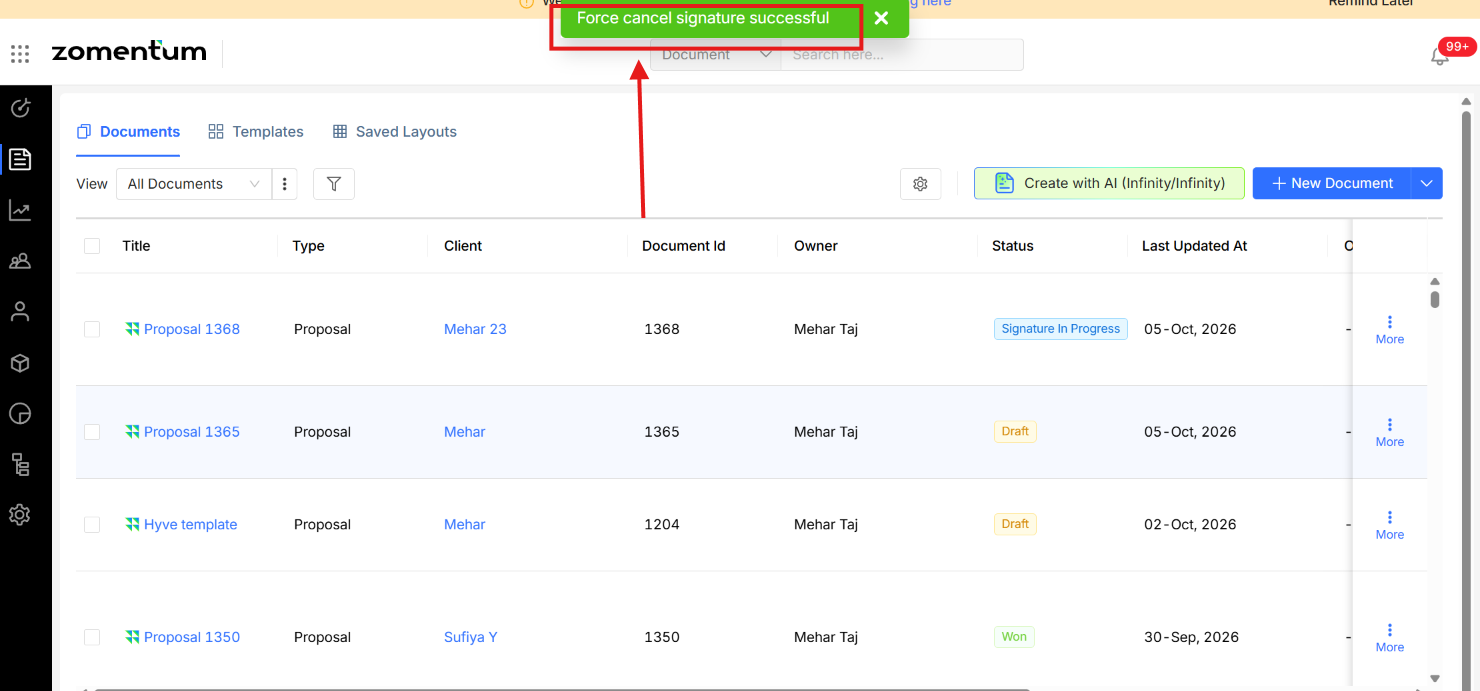
Confirm the force cancel. After you click Proceed, a message appears at the top of the screen confirming that the force cancellation is done.
Check the status. The document's status returns to its previous status, Viewed.
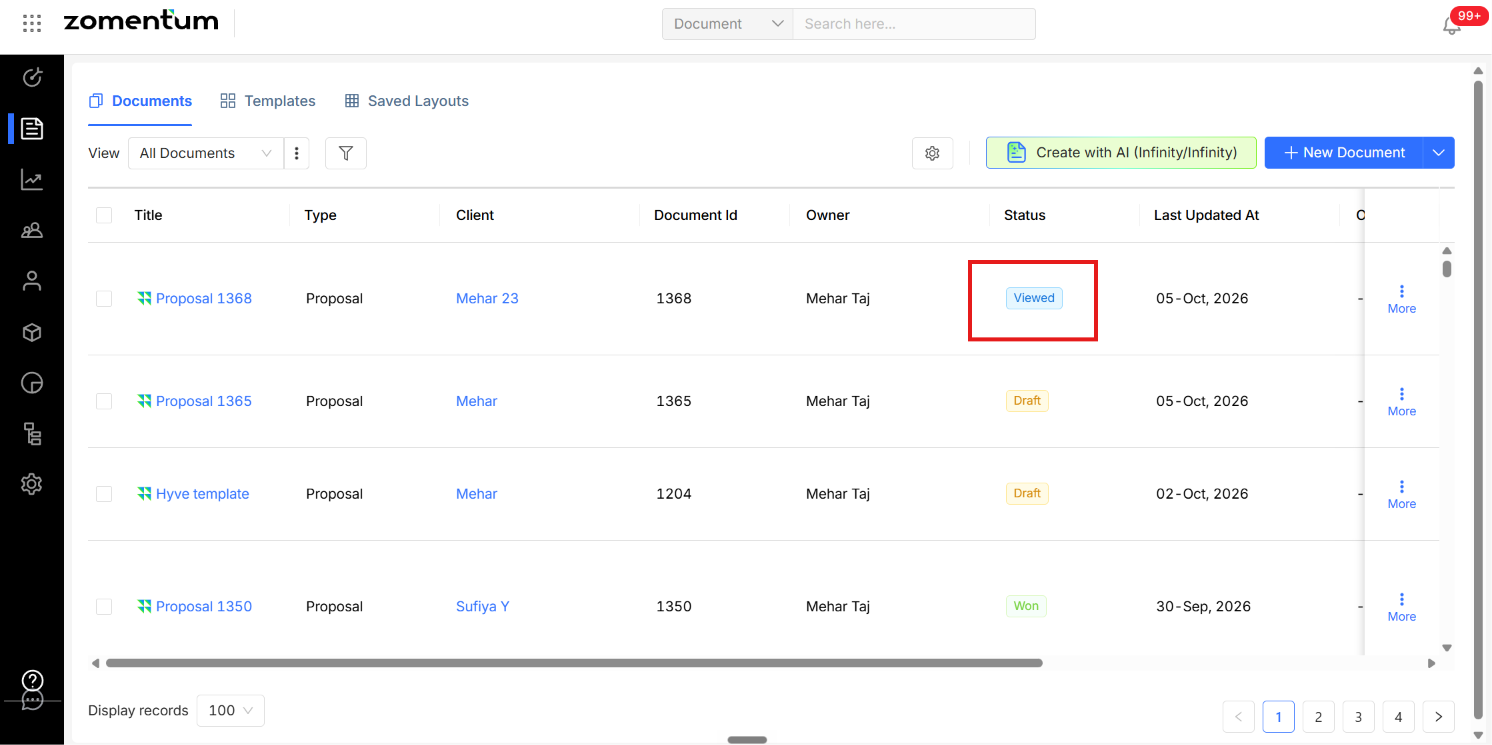
Result: The document is force cancelled and its status is back to Viewed. You can now make your changes and send the document to your client again.