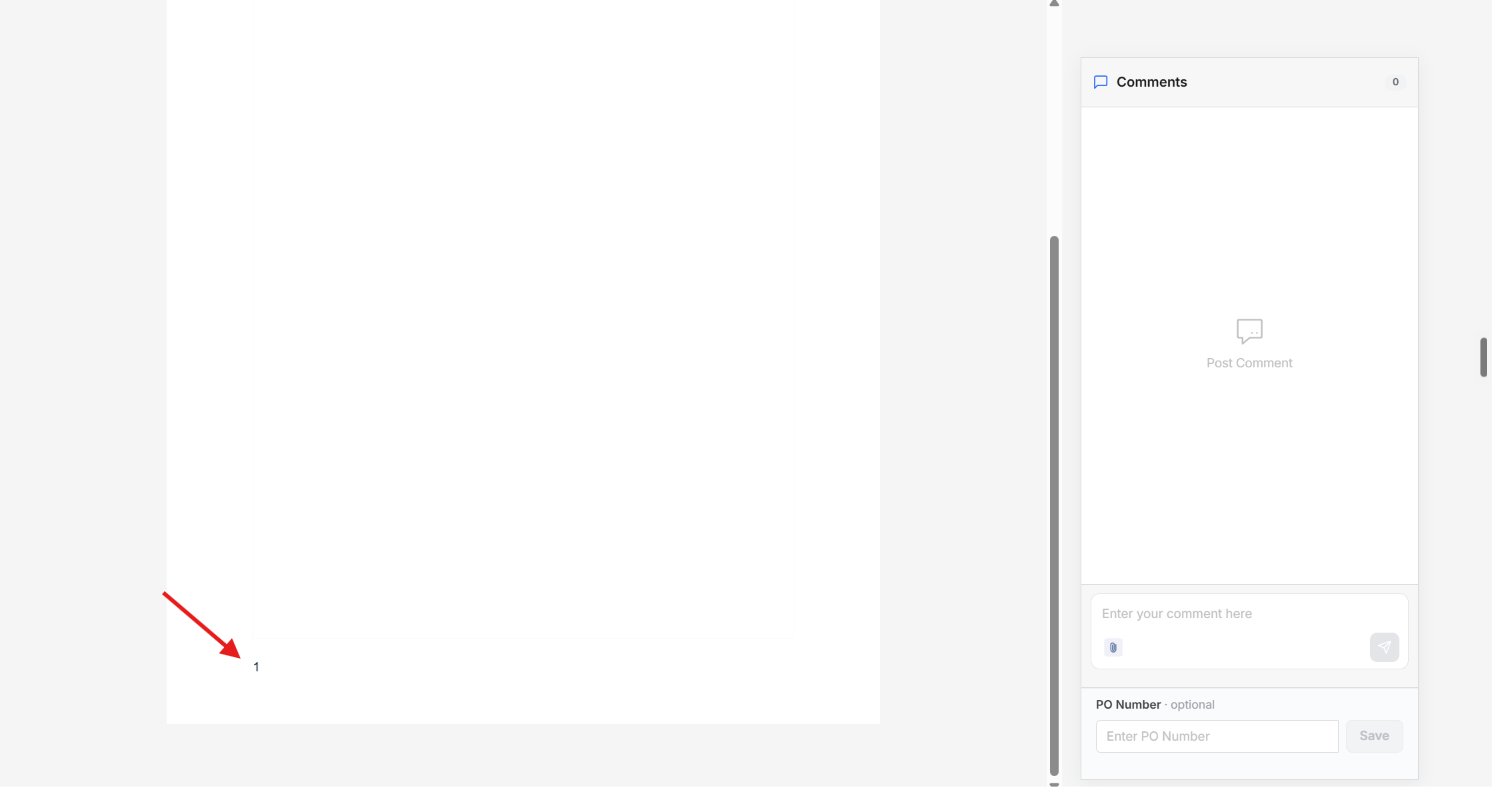
Yes. You can add automatic page numbers to any document directly from the footer, so every page is clearly numbered for your recipient.
Adding Page Numbers to the Footer
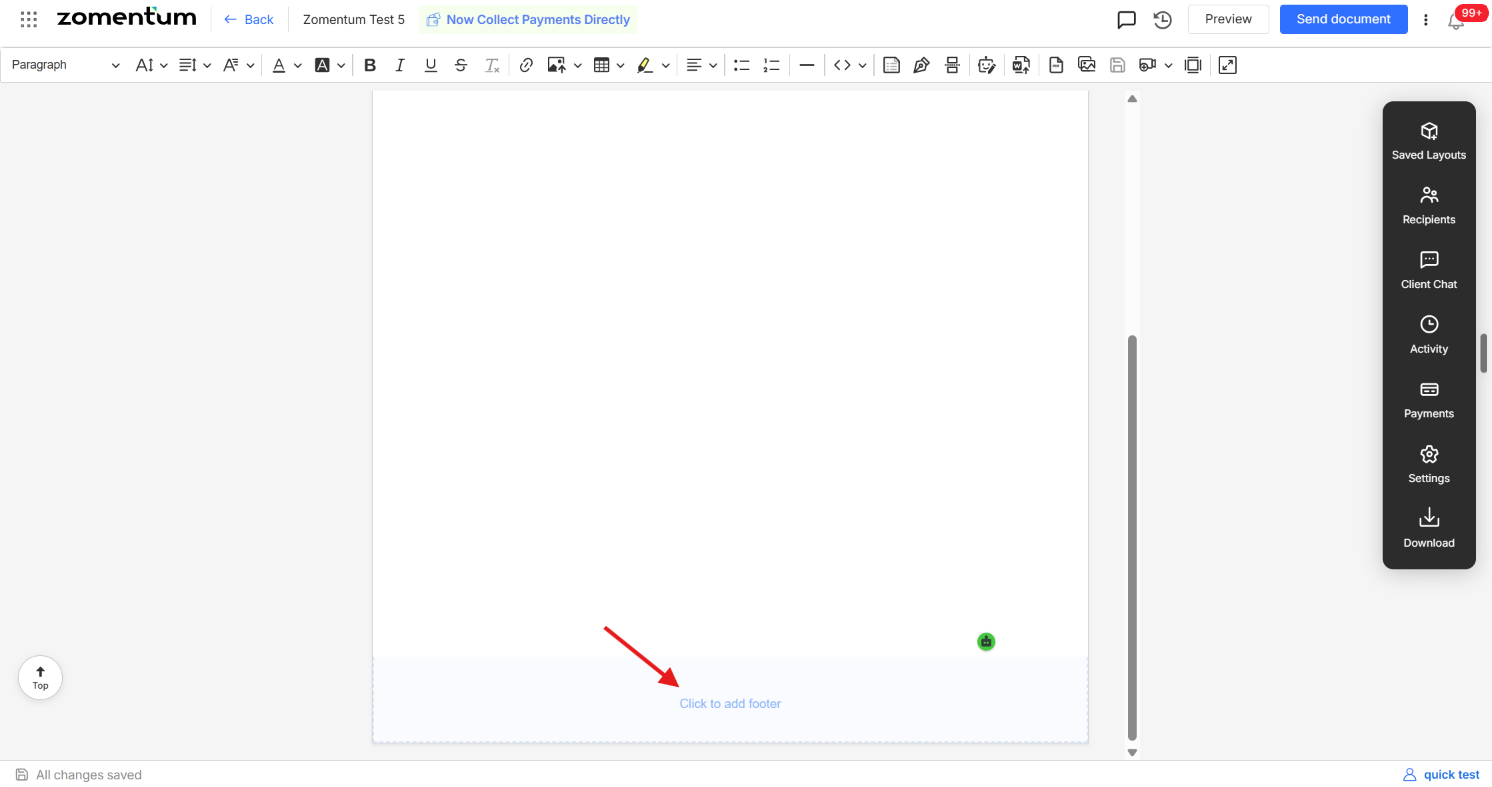
Open your document in the editor and scroll down to any page or page break.
Click into the footer area at the bottom of the page to activate it.
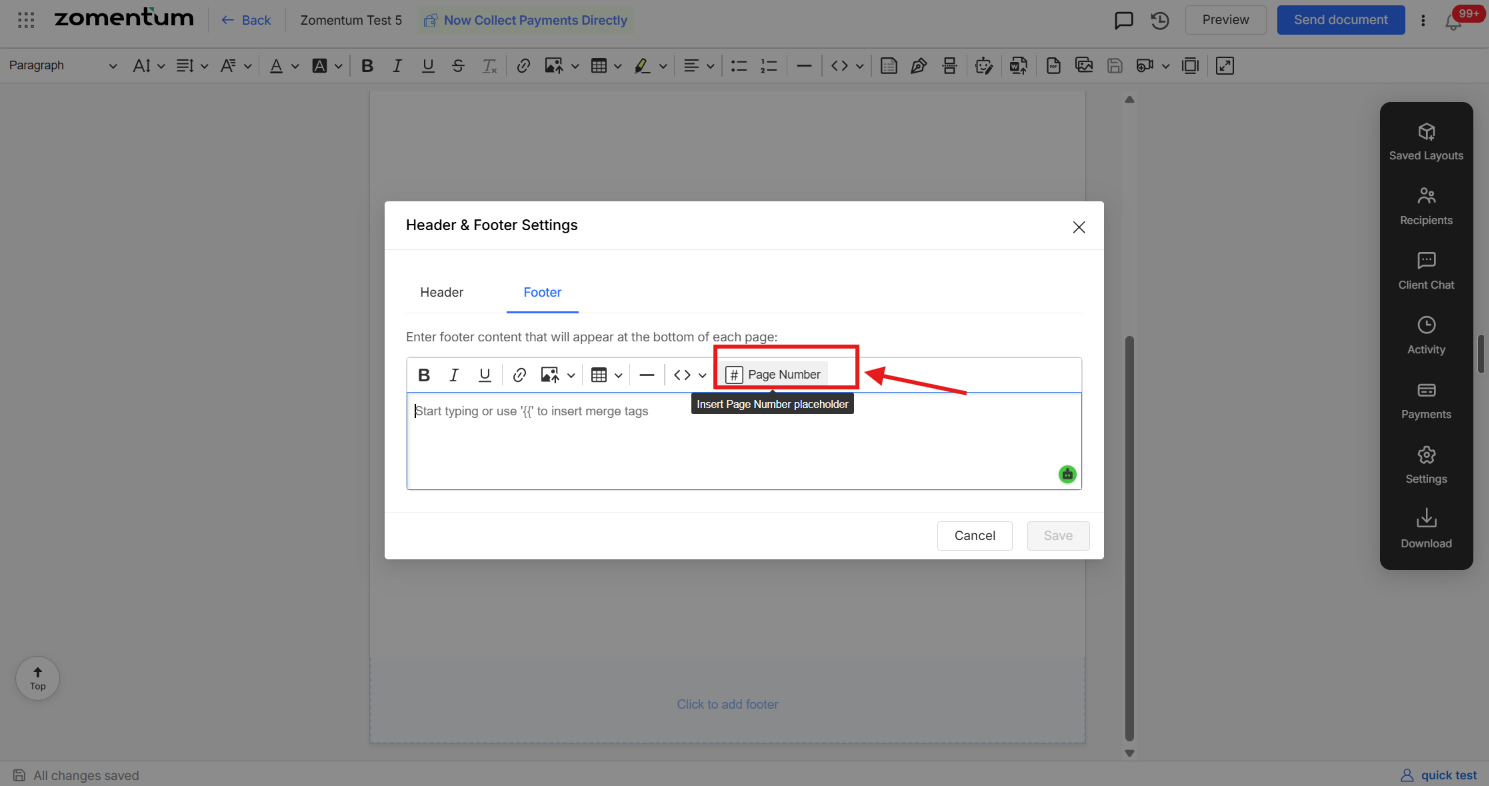
In the footer toolbar, click the “#” icon to insert a page number at the cursor's position.
The page number is automatically applied to every page of the document, and updates on its own if pages are added or removed.
Note : In Draft mode, the editor only displays the # placeholder in the footer rather than the actual page number.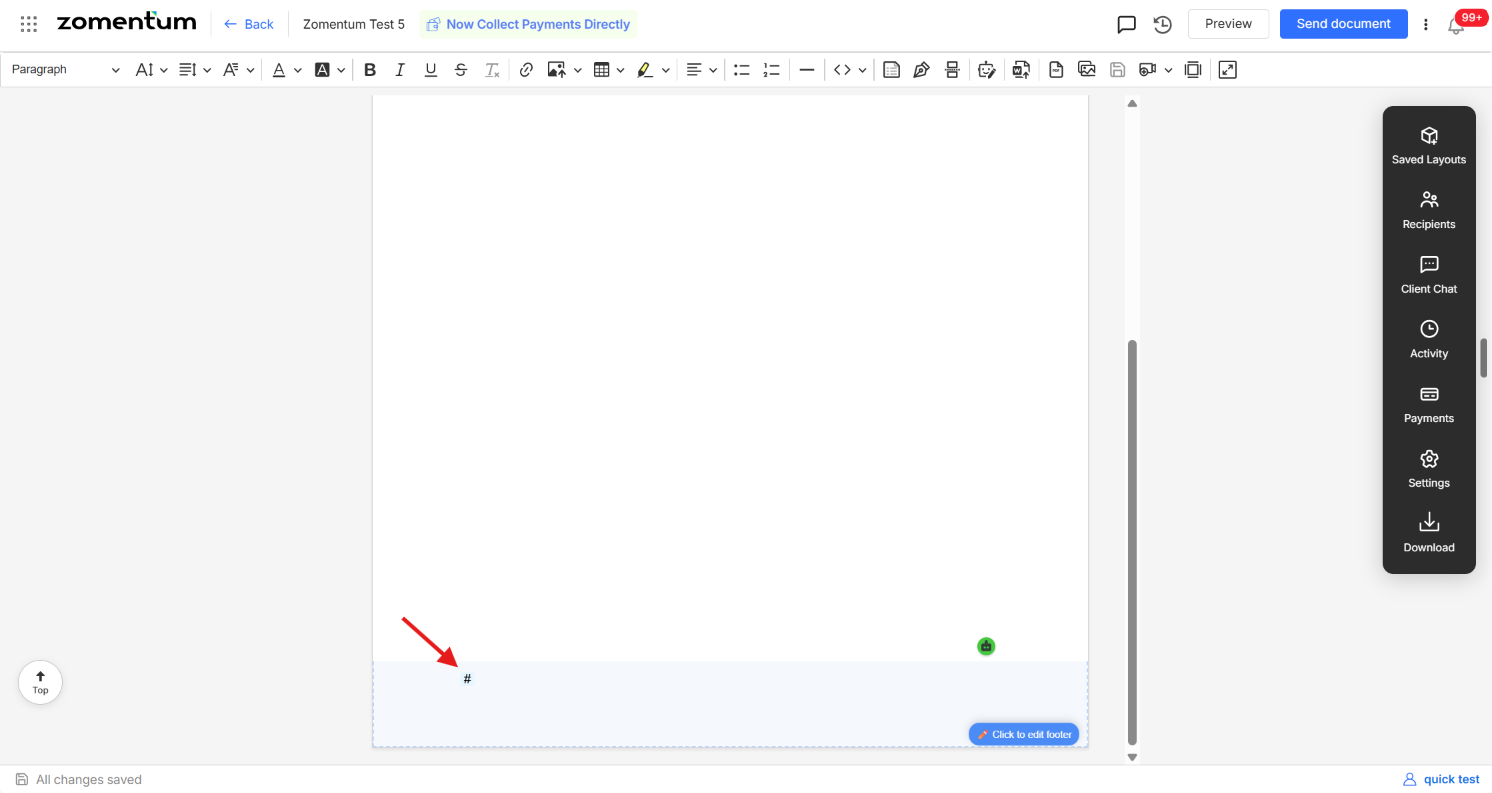
To view the real page numbers as your client would see them, click the three-dot menu icon in the top-right corner and select “Preview as PDF” to preview the document as a PDF.