
When a document reaches its expiry date, it automatically moves into the 'Expired' status. Your recipient will no longer be able to view or sign the document until the expiration date is extended.
What Happens When a Document Expires
The document's status automatically changes to "Expired" on the Documents dashboard.
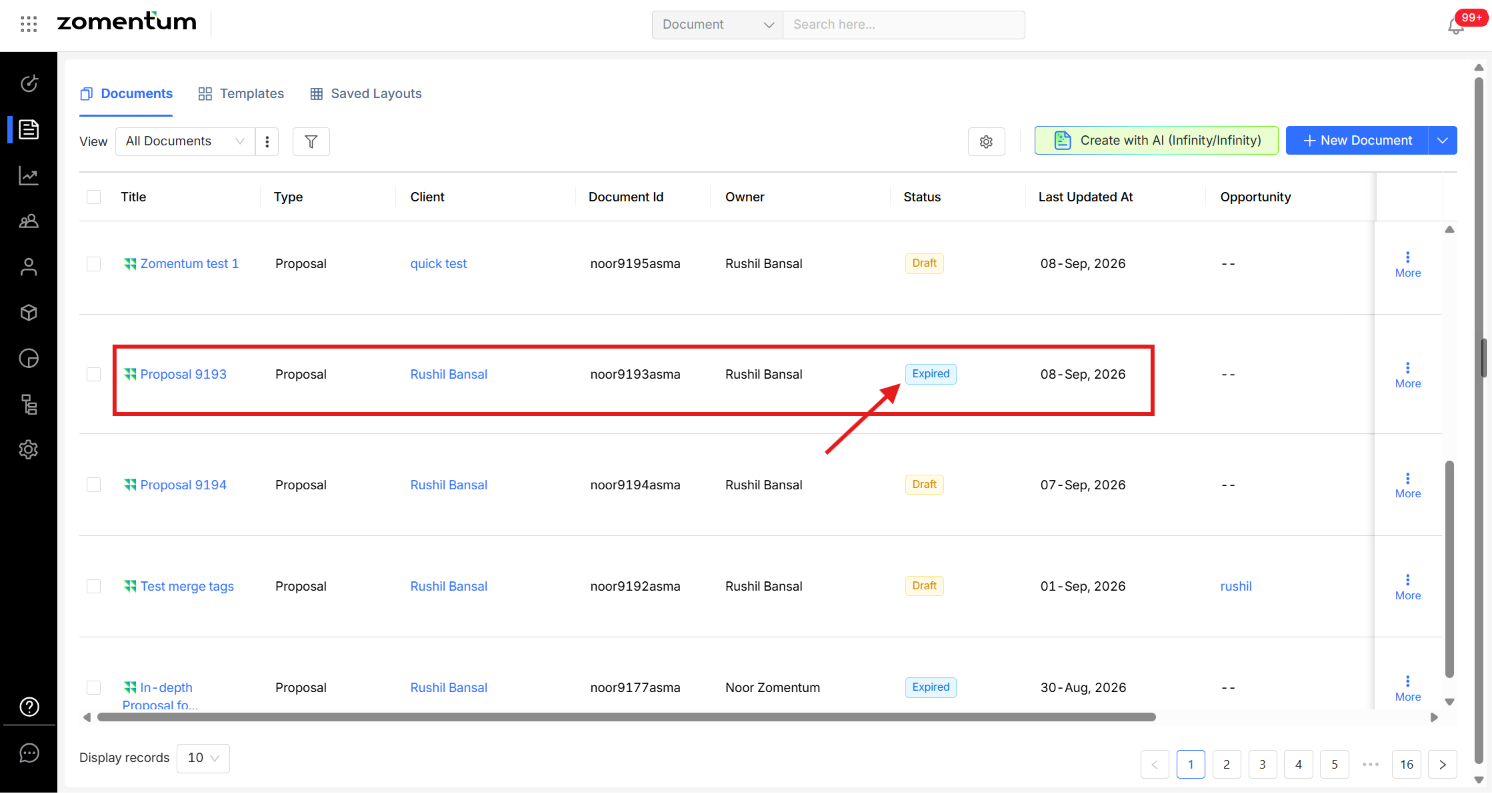
Note: You cannot change the expiry date directly from the Documents page. From there, you can only mark an expired document as Lost.
Your recipient can no longer open, view, or sign the document once it has expired.
Client’s View :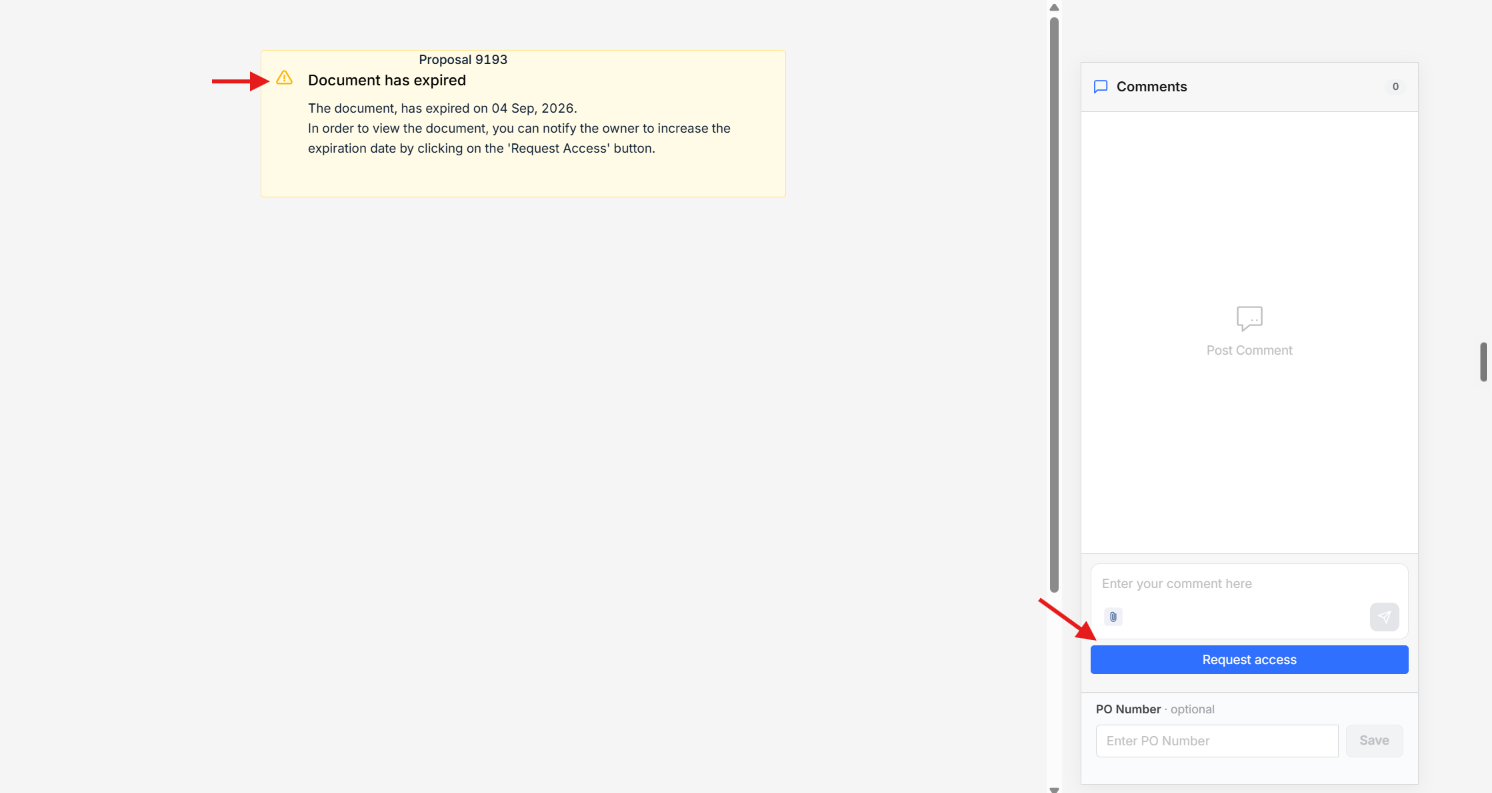
To make the document accessible again, you can use either of the following options:
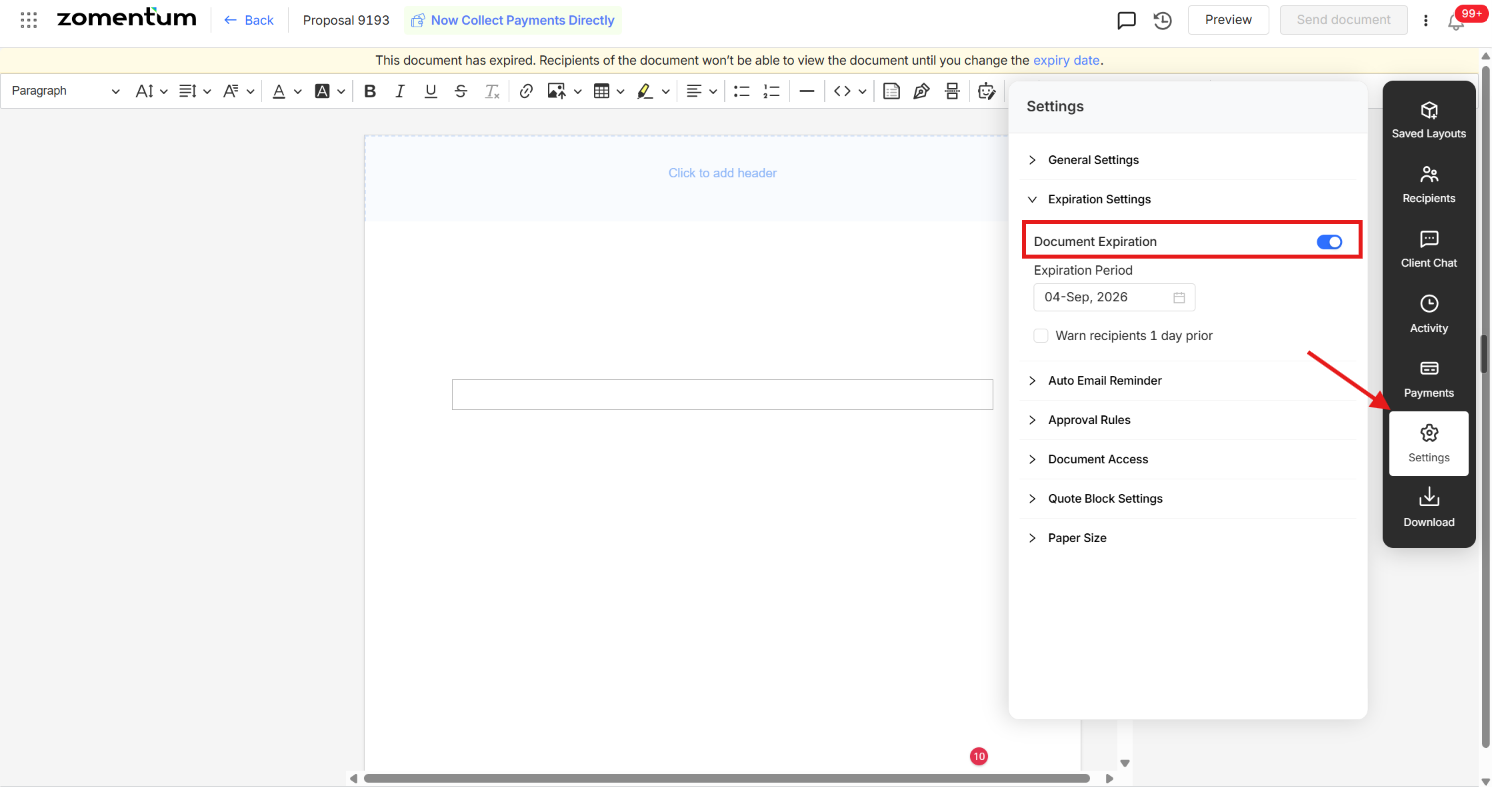
- Open the document and go to its Settings panel, where you can update the expiry date.
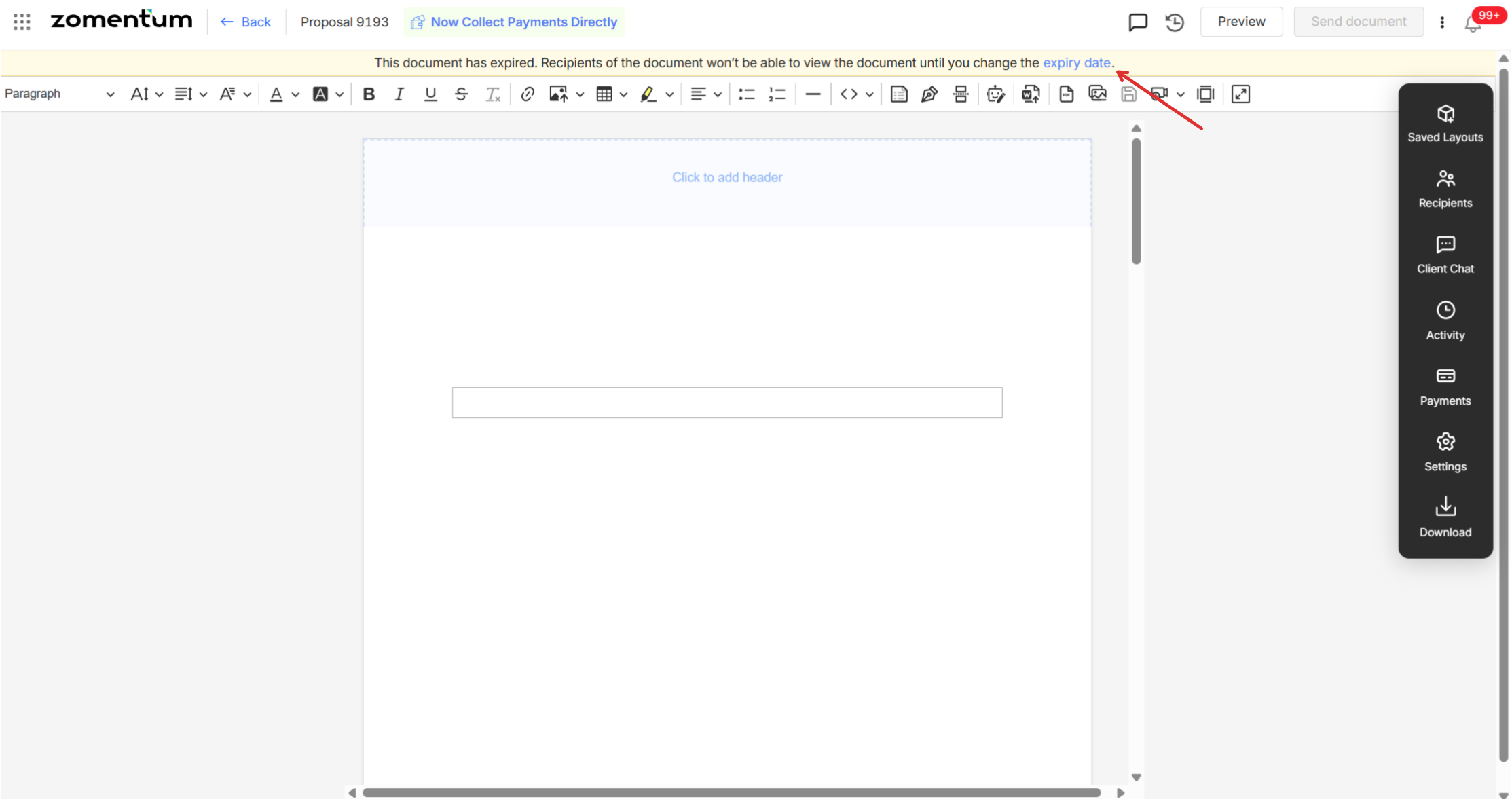
- Update the expiry date directly from the yellow notice banner displayed at the top of the page.
- Open the document and go to its Settings panel, where you can update the expiry date.
- Using either option, you can change the expiry date from within the document itself. Once updated, the document becomes accessible to your end client again, and they can review and approve it.
Note : After you extend the expiry date, the document returns to the status it had before it expired. For example, if the document was in the Viewed status, it will go back to Viewed, and if it was in the Sent status, it will go back to Sent.