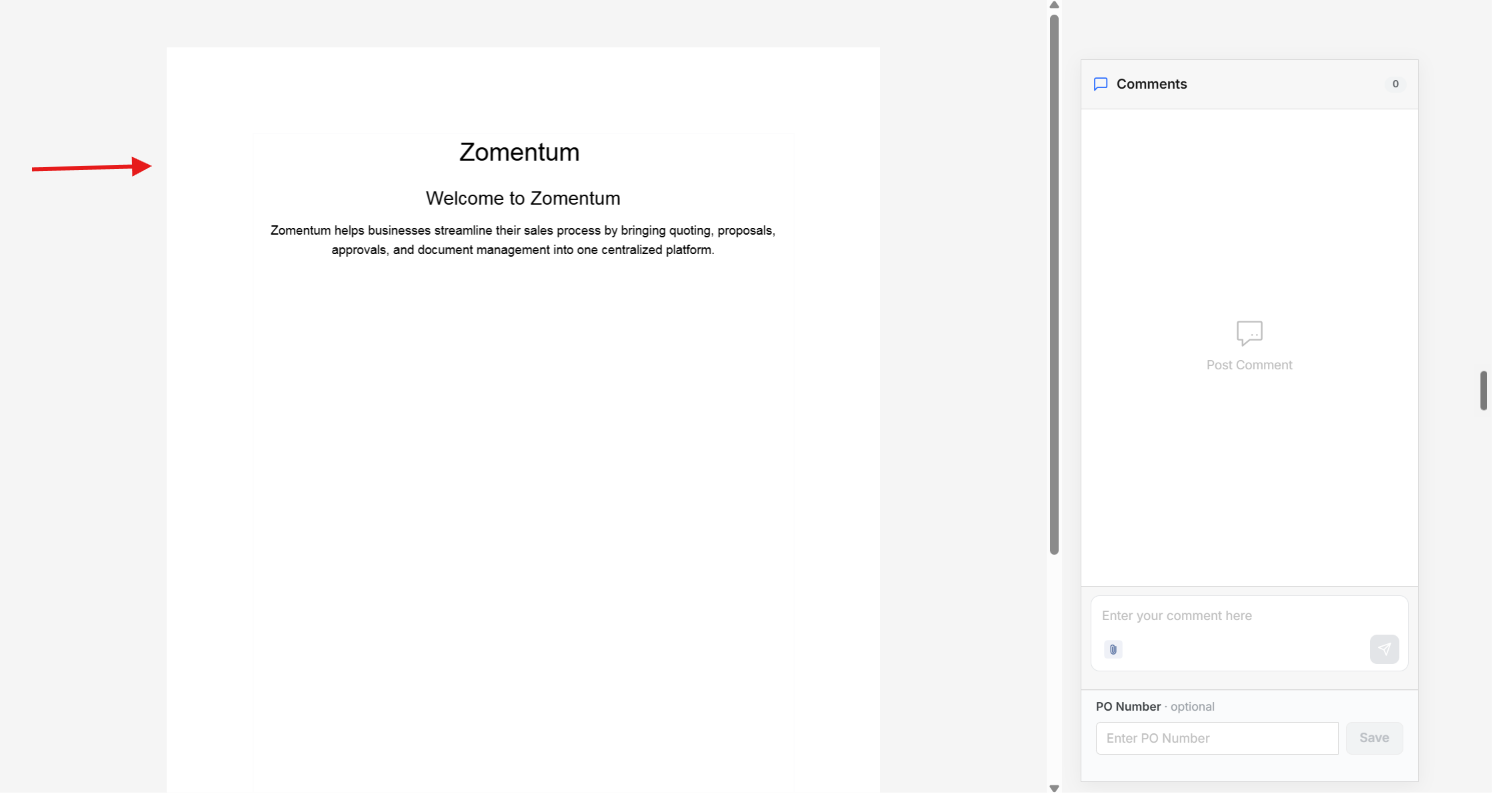
Before sending a document to a client, you can preview it to see exactly how it will appear on their end. There are two ways to do this: a standard preview, and a preview as PDF.
Option 1: Standard Preview
Open the document you want to review.
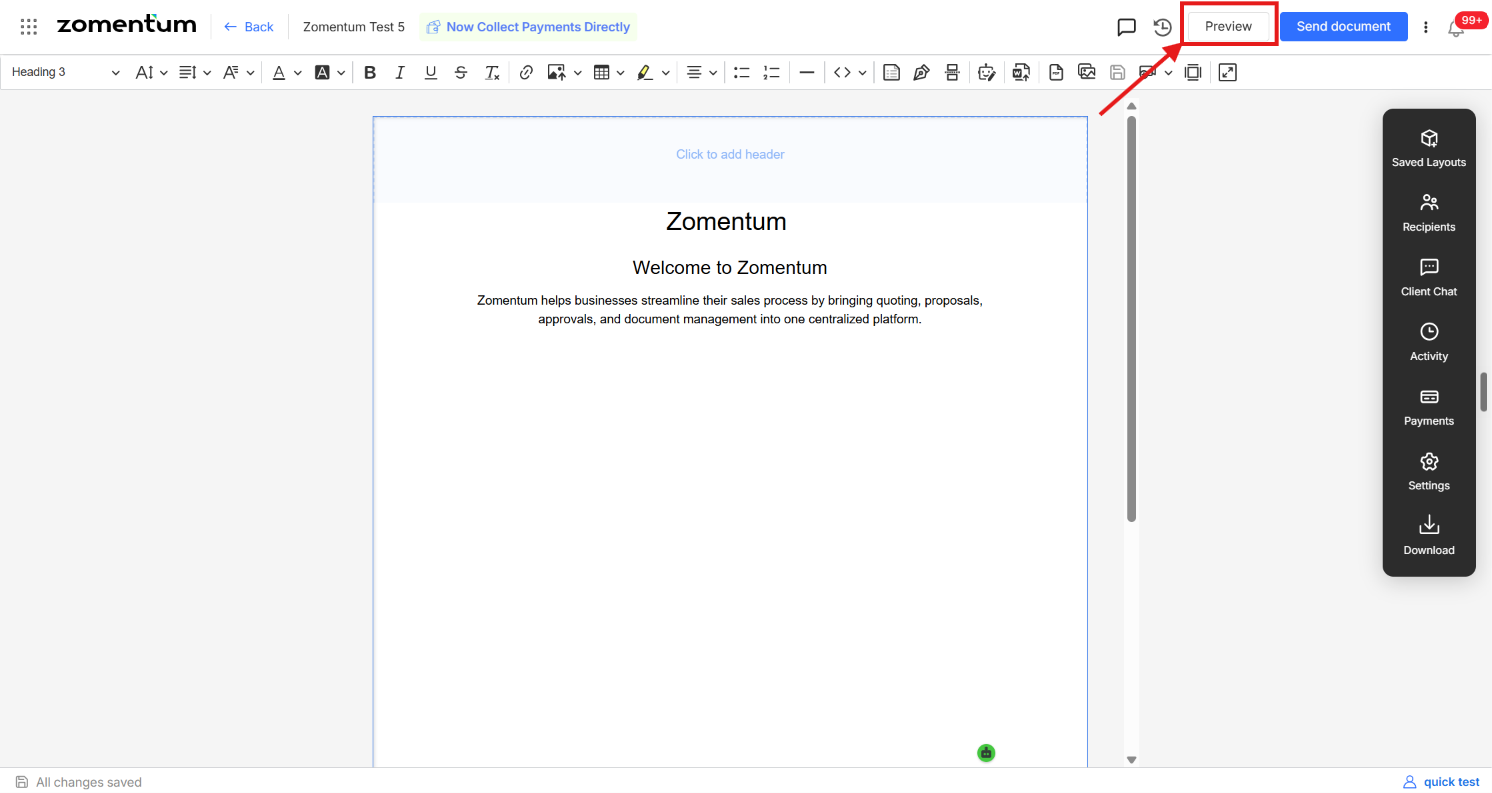
In the top panel, click the Preview button on the right side.
A new tab opens showing a live preview of the document exactly as the recipient will see it.
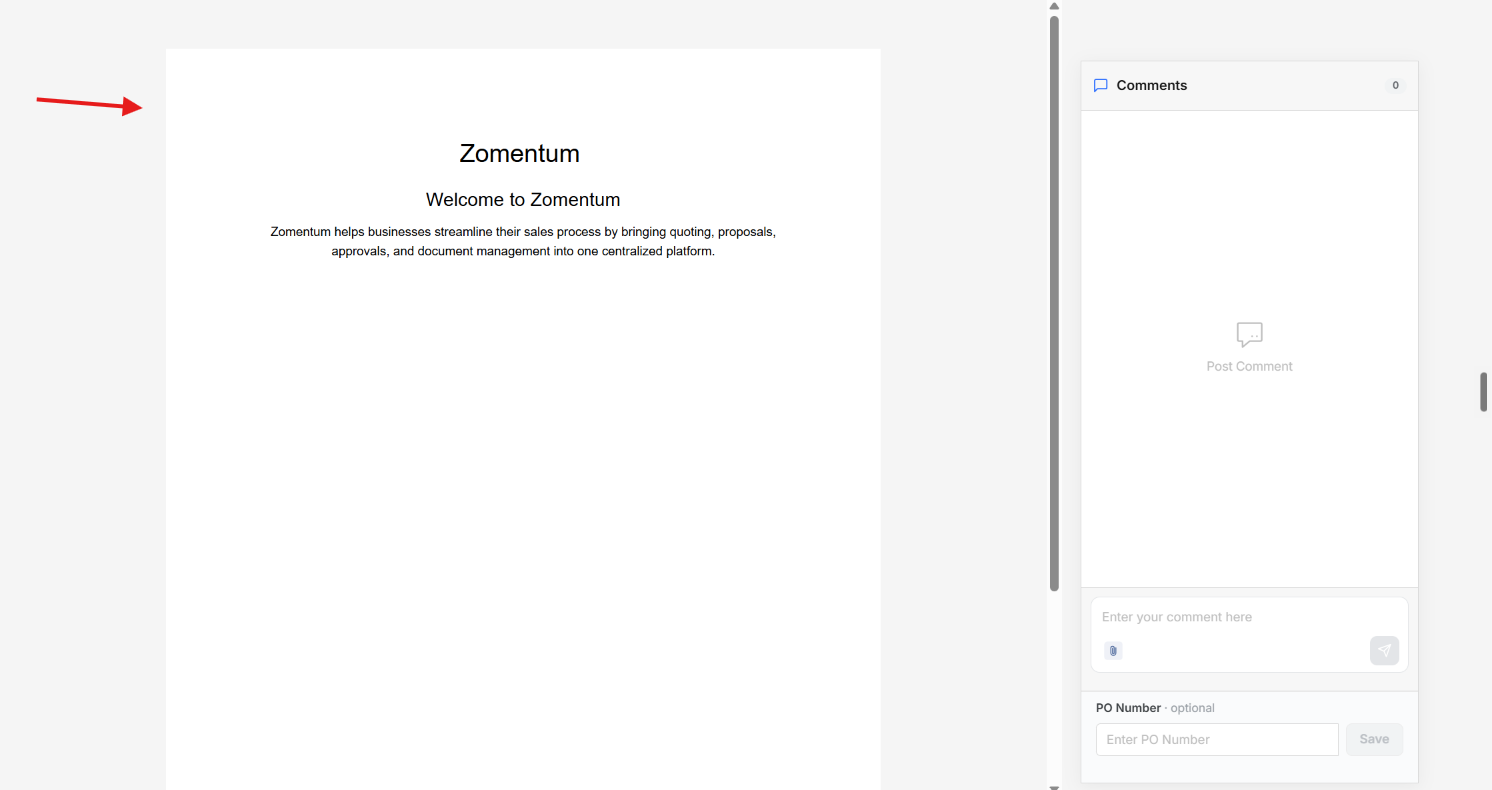
Option 2: Preview as PDF
Click the three dots (⋮) in the top-right corner of the document.
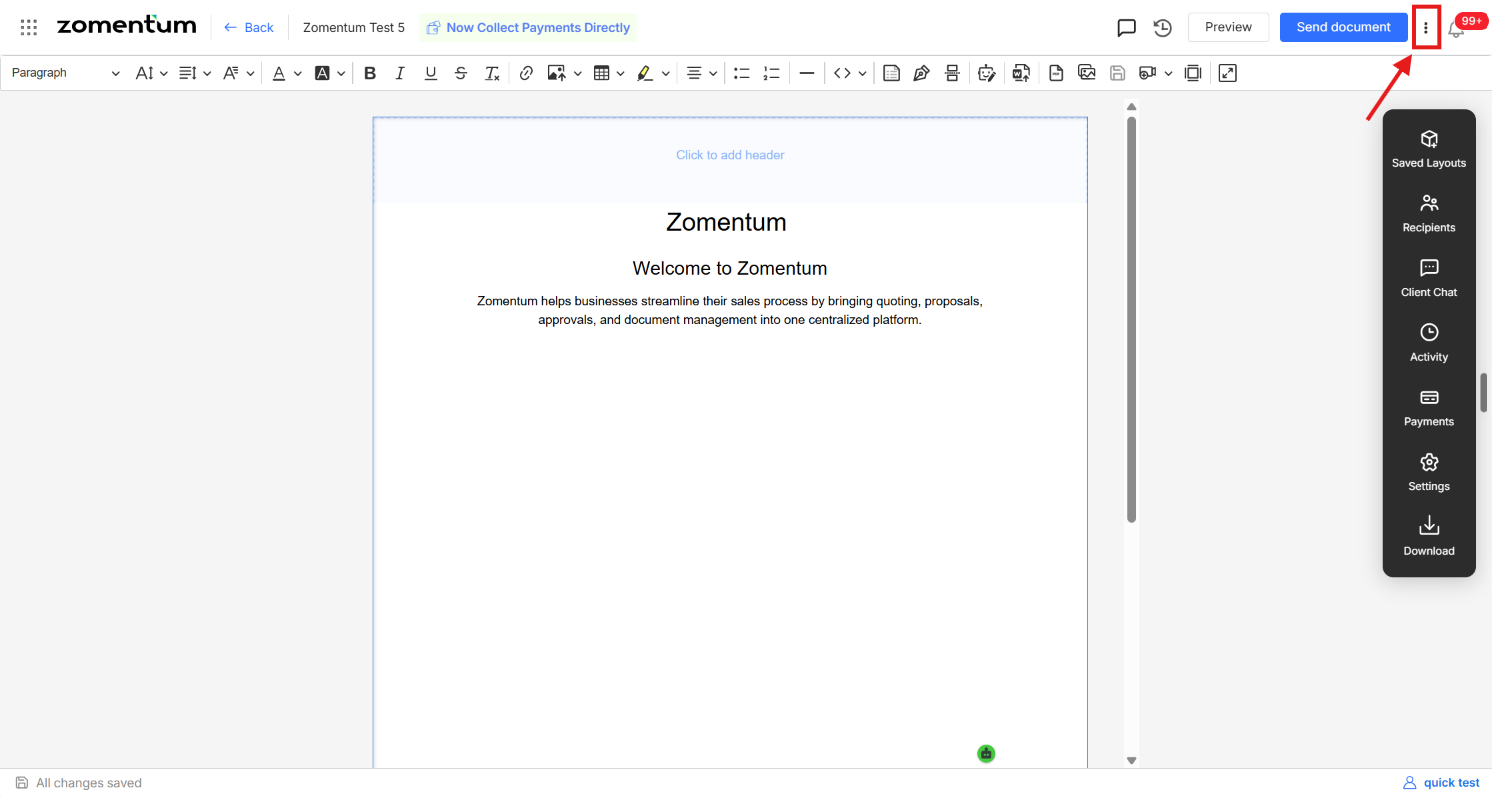
Select Preview as PDF.
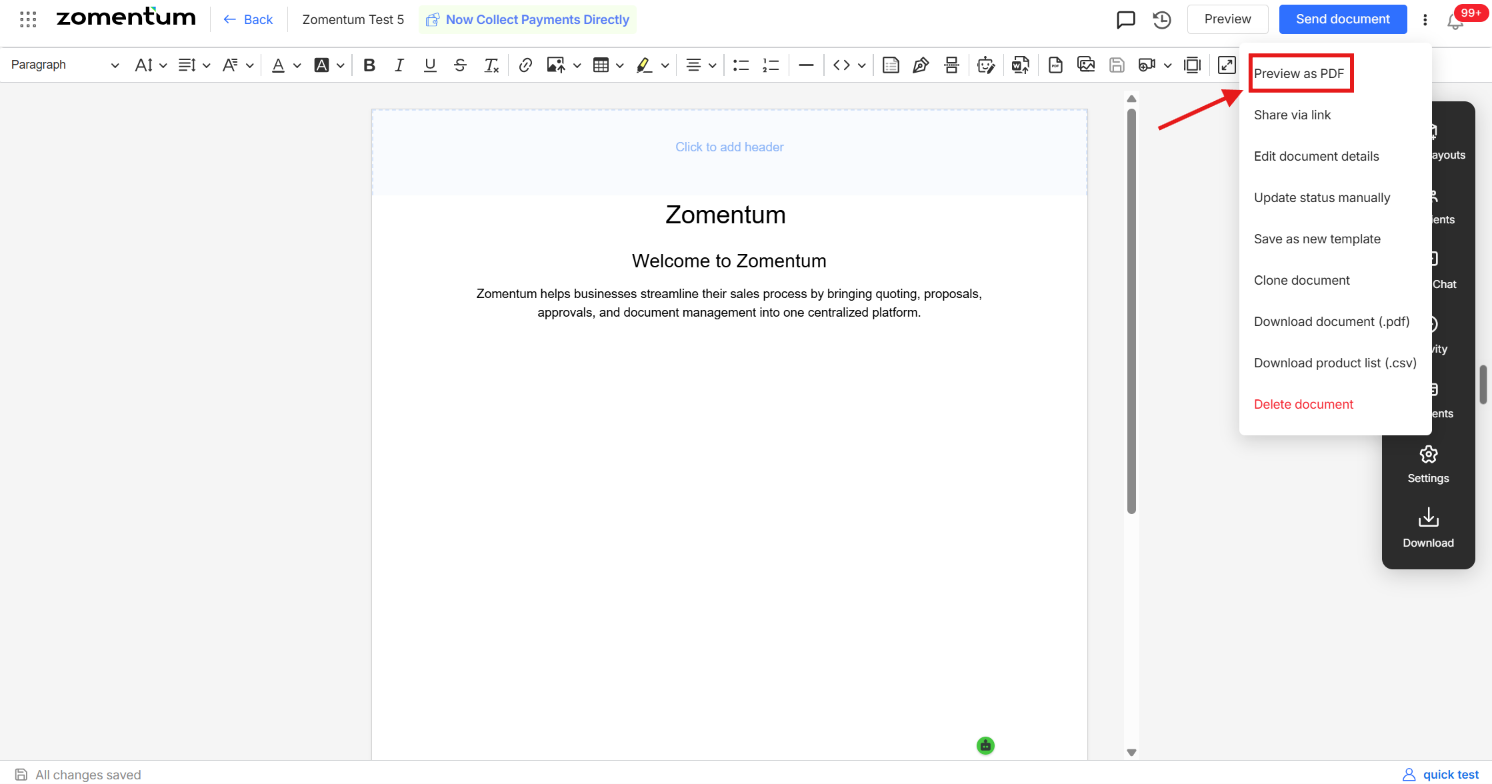
A new tab opens with a PDF version of the document, showing exactly how your client will see it when downloaded or printed.