
You can control how tax is displayed in the Quote Block summary by setting a tax display preference. This applies globally, so once set, all your documents will follow the same format.
Before you begin: This setting applies at the account level and affects how tax appears across all documents, not just the one you're currently editing.
Step 1: Open Tax Display Preferences
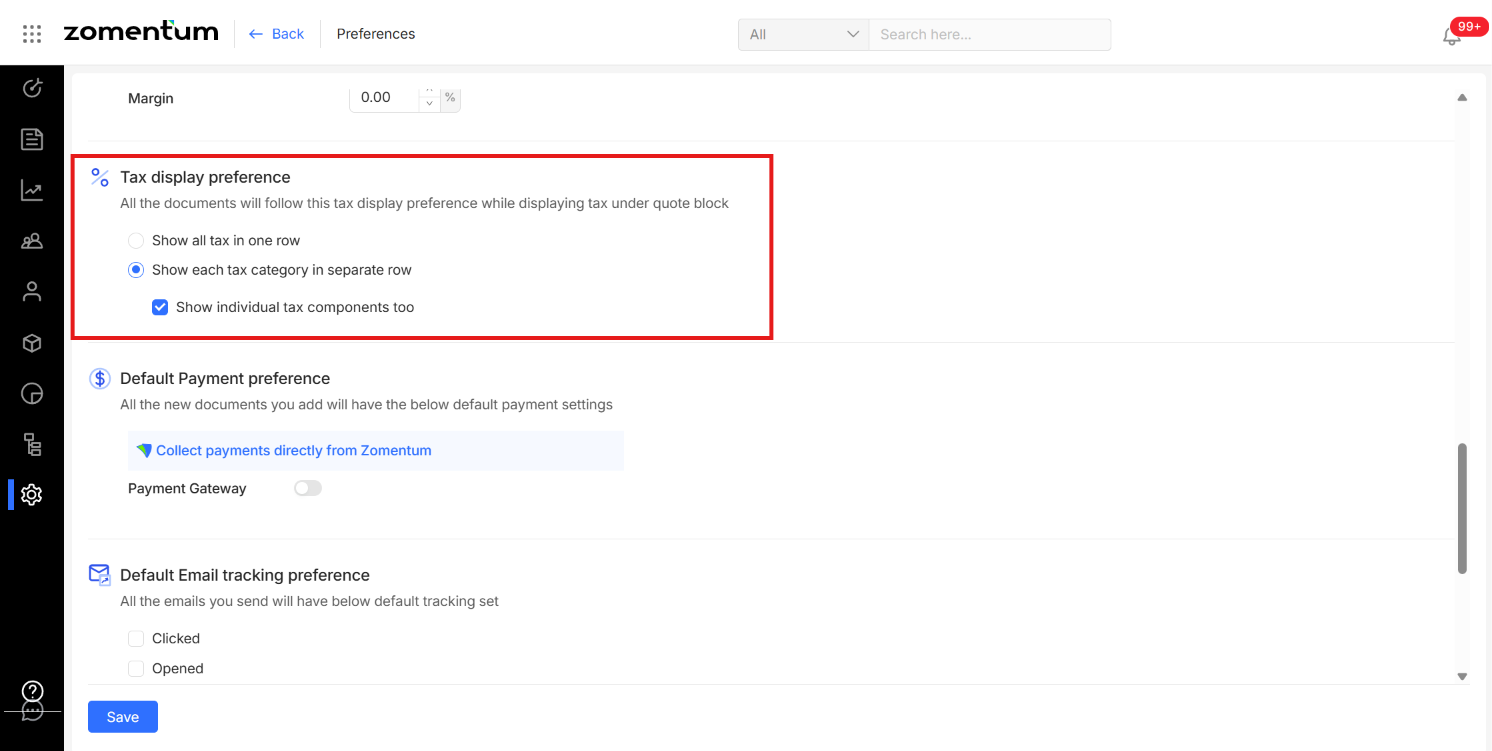
Navigate to Settings > Preferences > Tax Display Preference.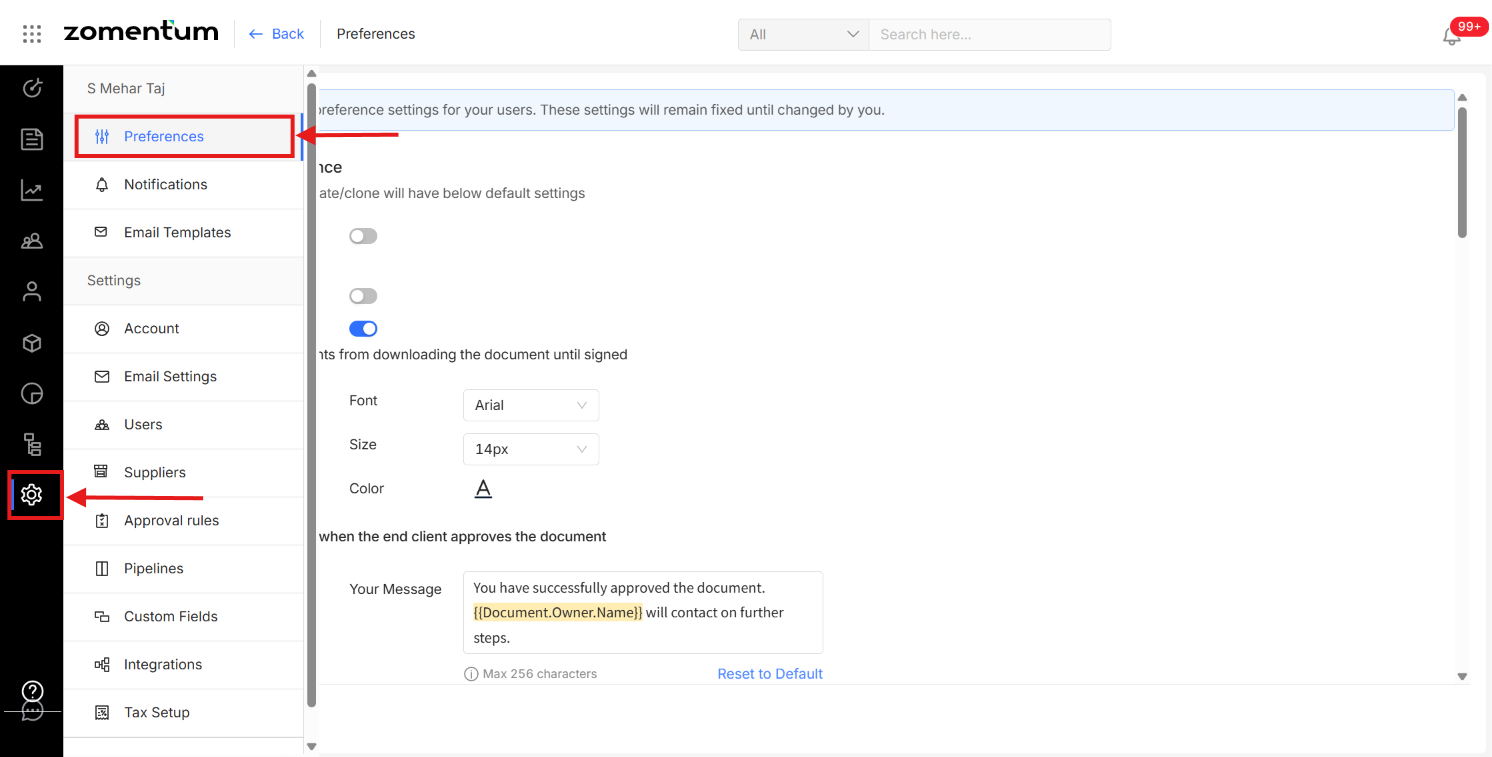
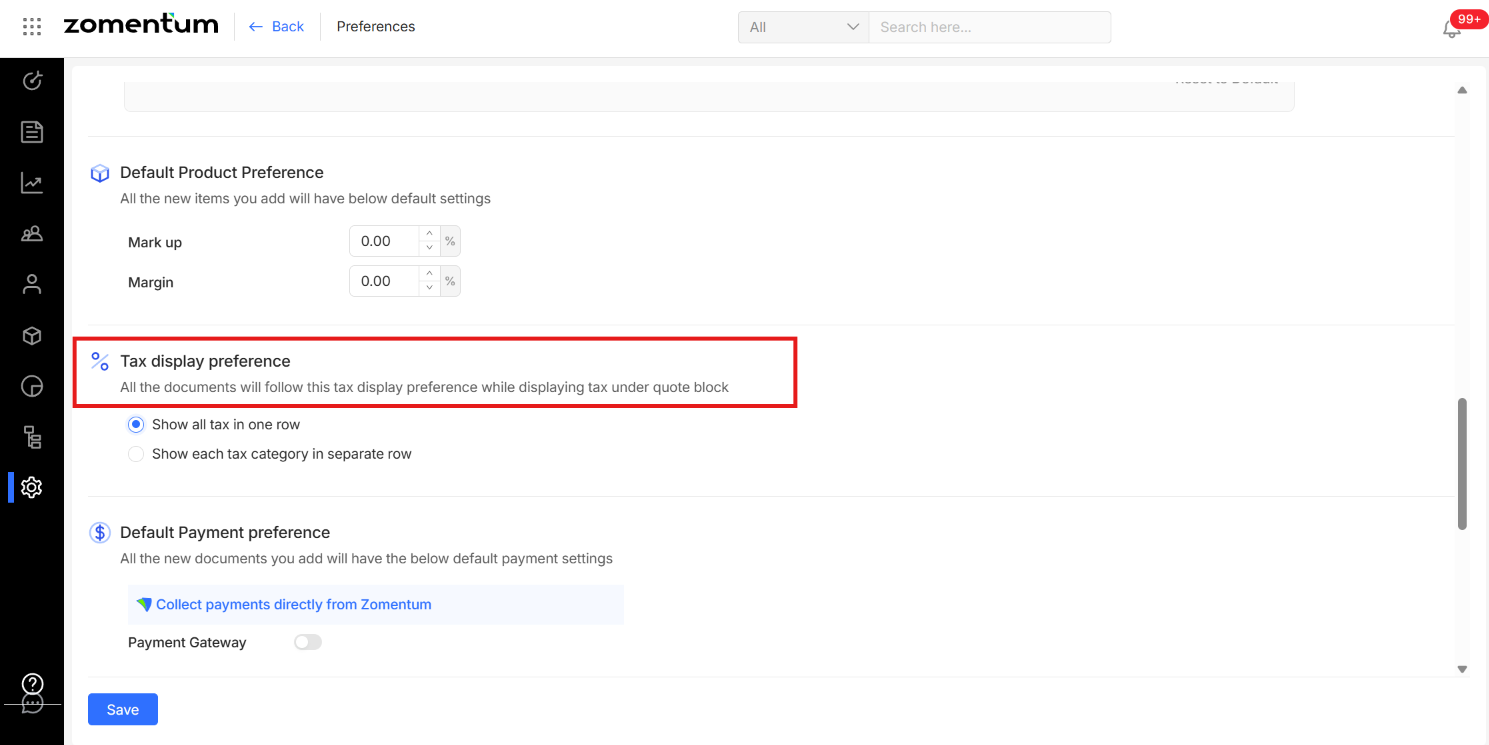
Step 2: Choose Your Display Format
From here, you can choose one of two options:
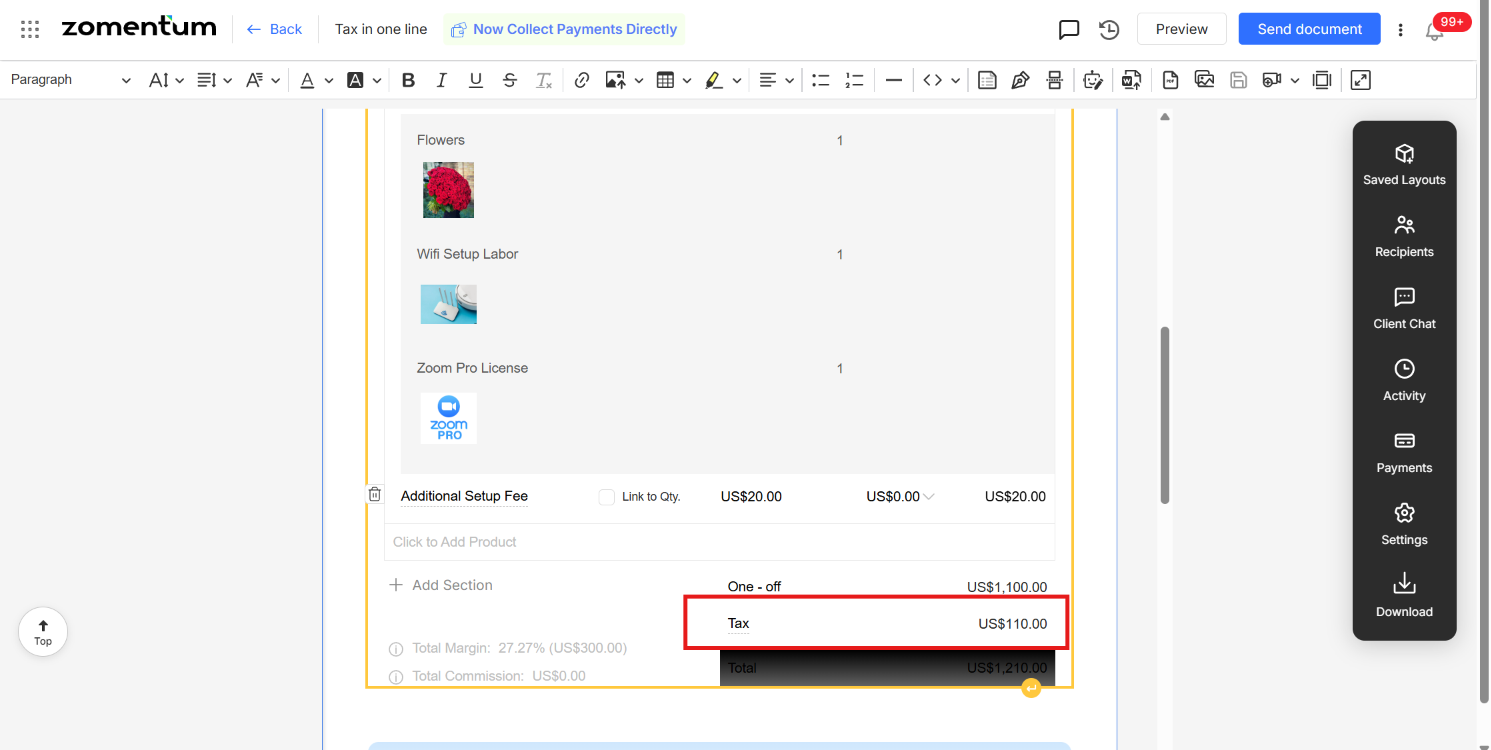
Show all tax in one row - all applicable taxes are combined and shown as a single line in the Quote Block summary.
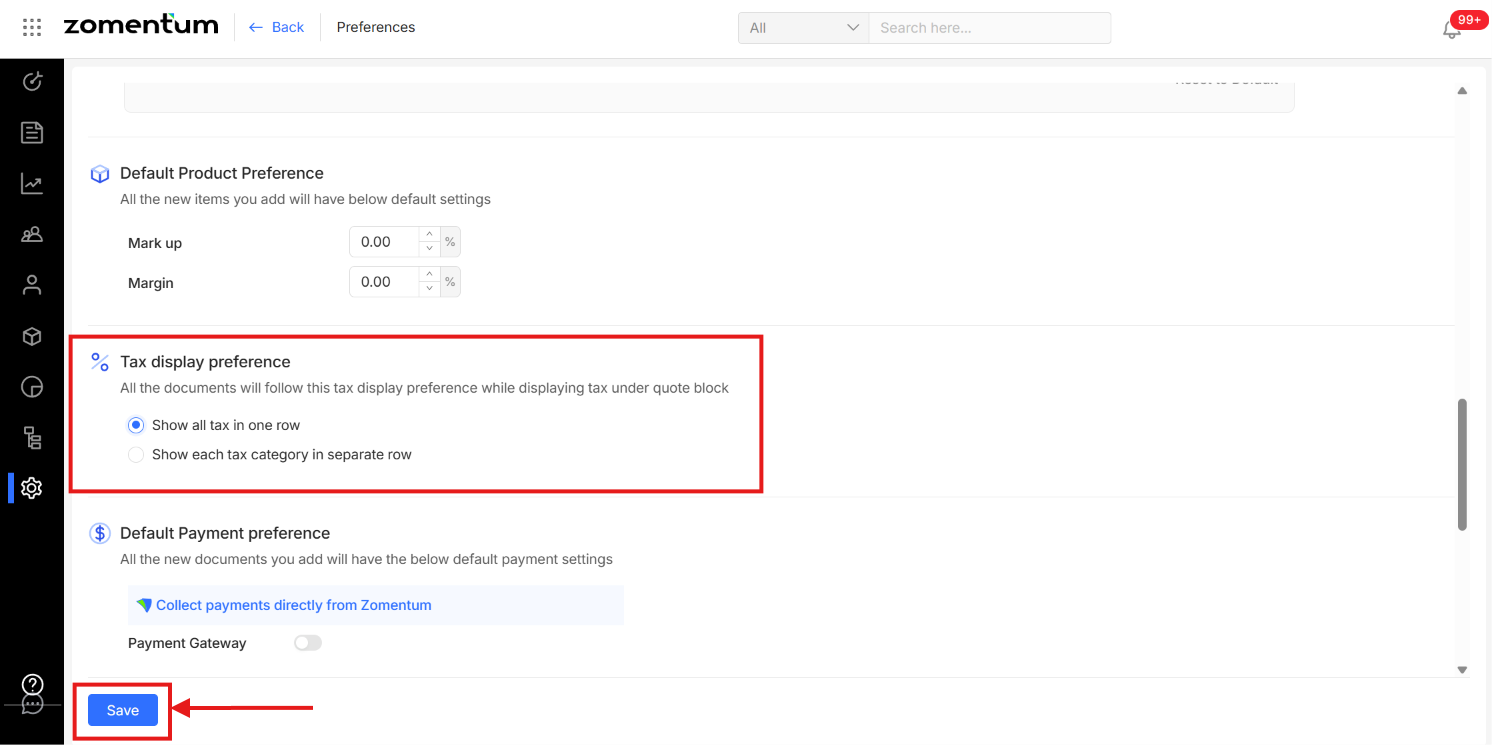
Show each tax category in a separate row - each tax type (e.g., GST, VAT, sales tax) is broken out and shown on its own line in the Quote Block summary. If you select this option, you'll also see a further choice:
Show individual tax components too - breaks down each tax category even further, displaying
its individual components separately.
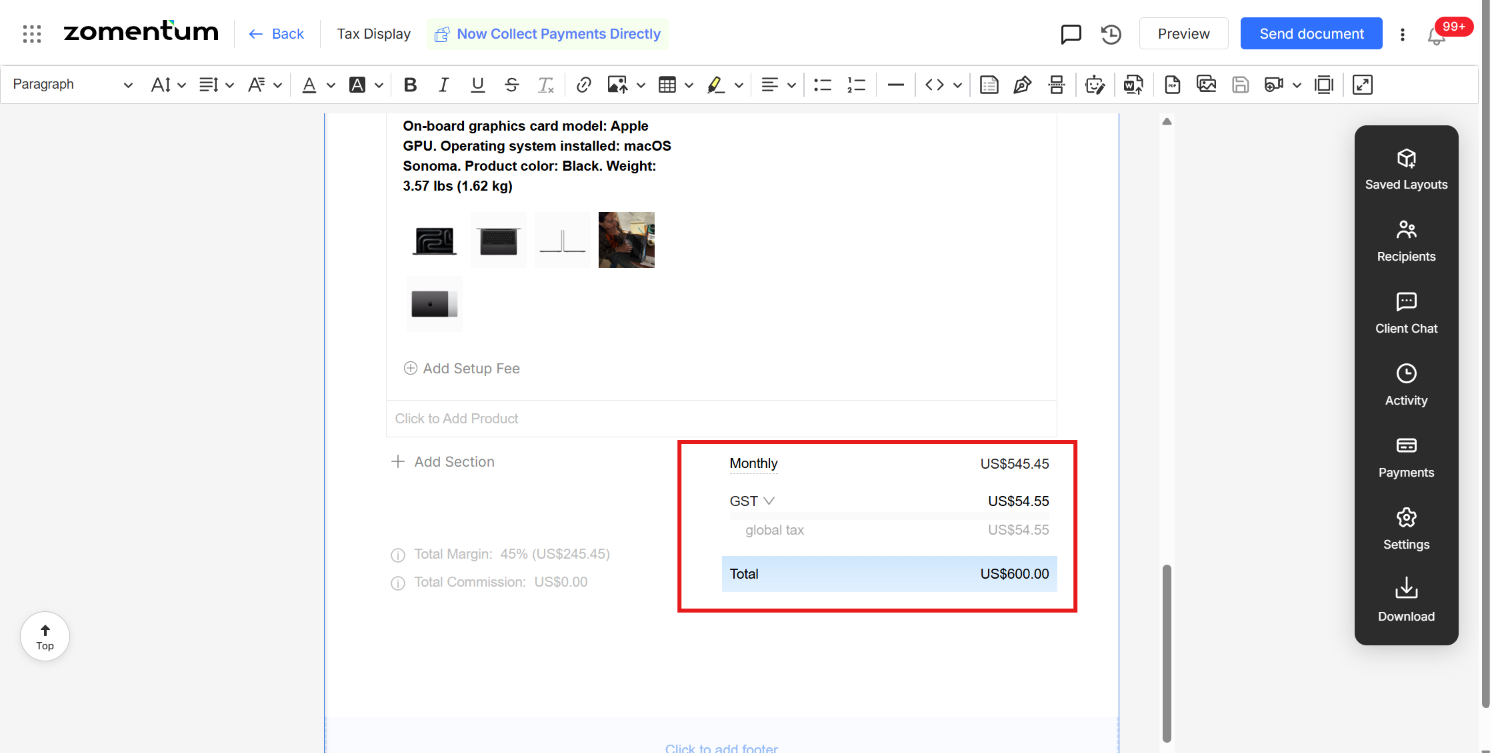
Note: Once you update this in Account Preferences, the change will only reflect in newly created documents. It will not apply retroactively to documents created before the update.