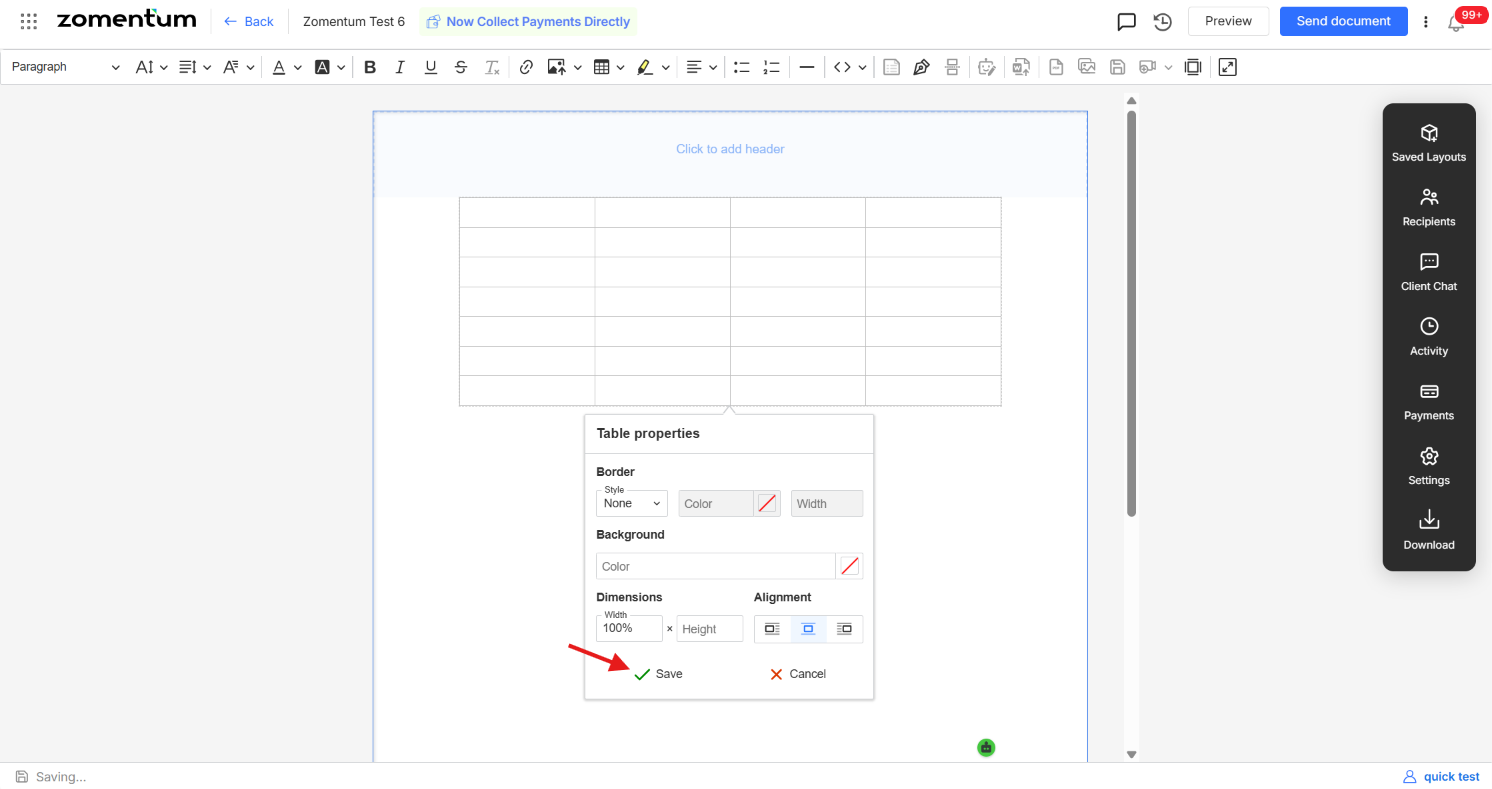
By default, tables inserted into a document use a double-line border. If you prefer a cleaner look or no border at all , you can adjust this from the table's formatting options.
Step 1: Open Table Formatting
Click anywhere inside the table to open the table formatting pop-up.
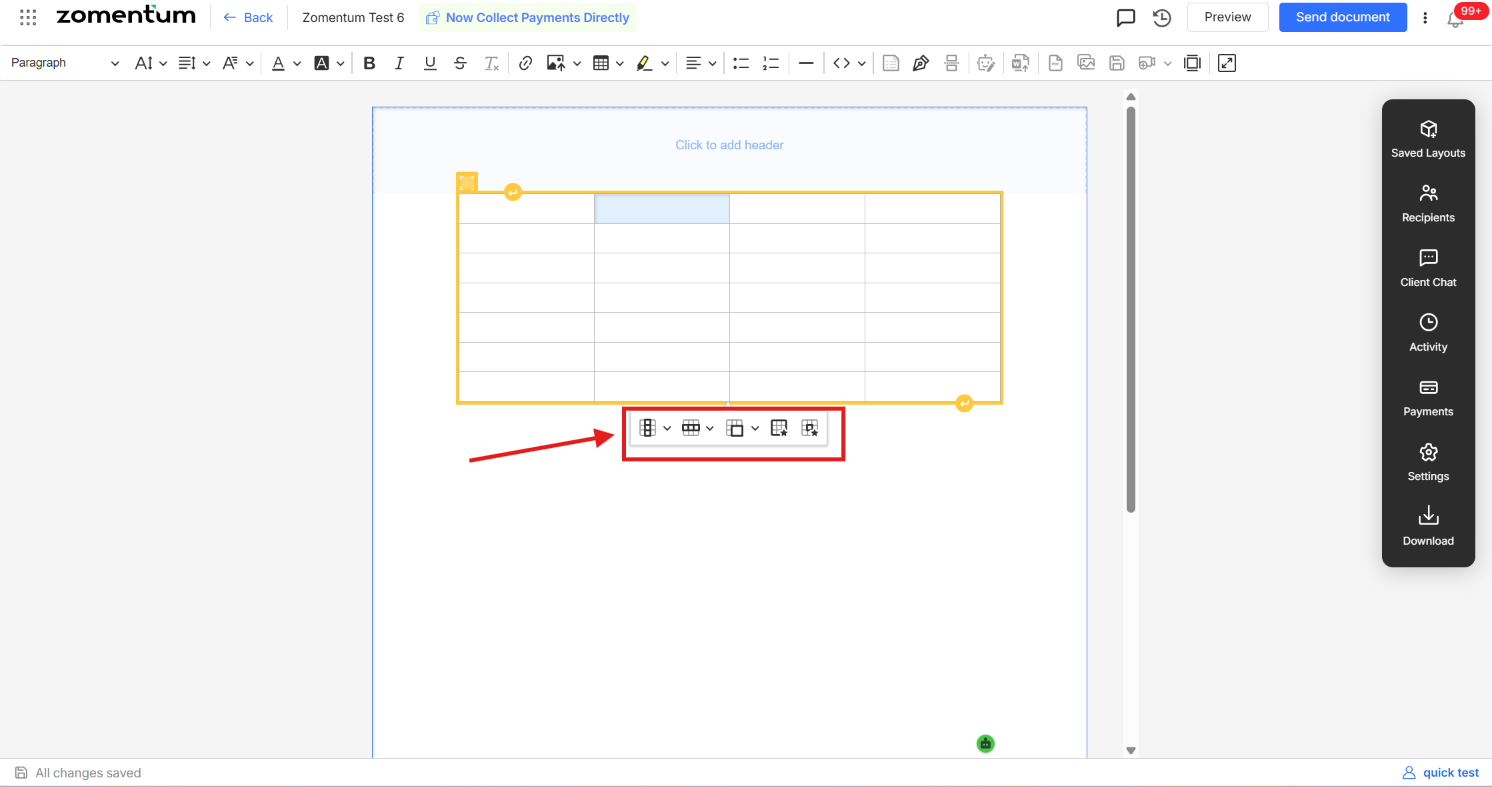
Hover over any cell to reveal the formatting options: Column Formatting, Row Formatting, Merge Cells, Table Properties, and Cell Properties.
Step 2: Update the Border Style
Select Table Properties.
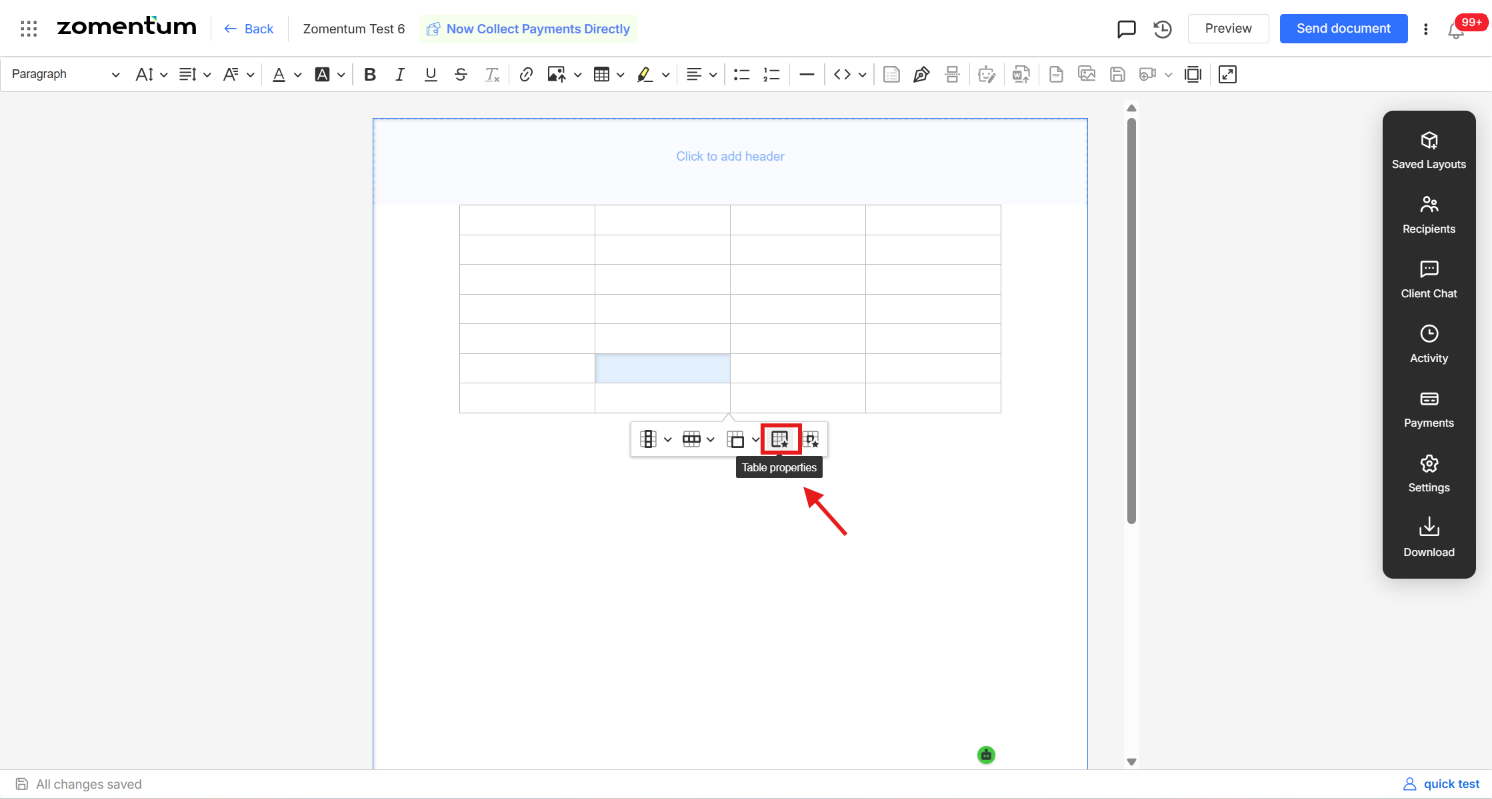
In the Table Properties pop-up, set the Border Style to None (or any other style of your choice).
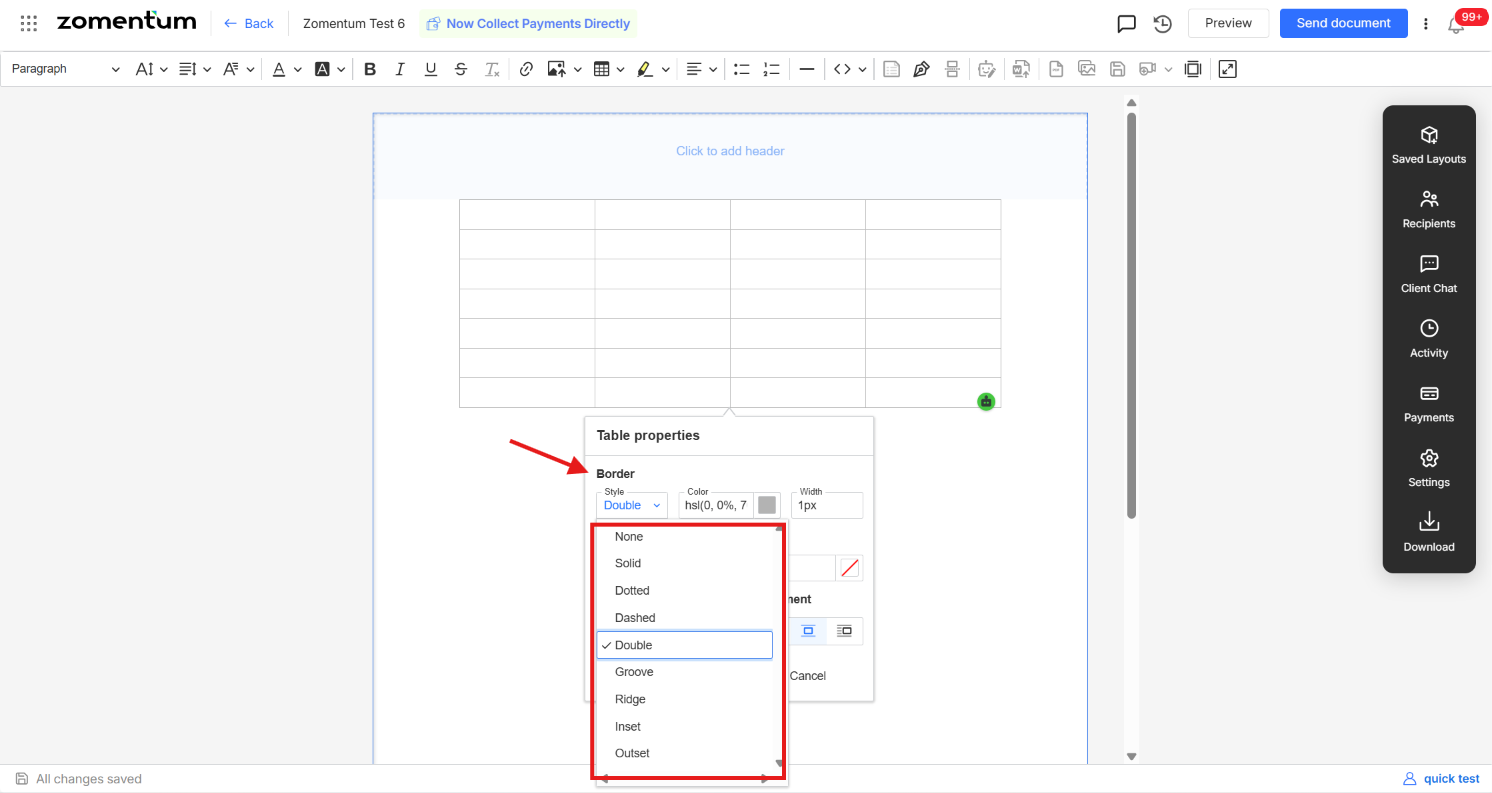
Optionally, you can also configure the background color, border color, border width, cell dimensions, and table alignment from the same pop-up.
Click Save to apply your changes.