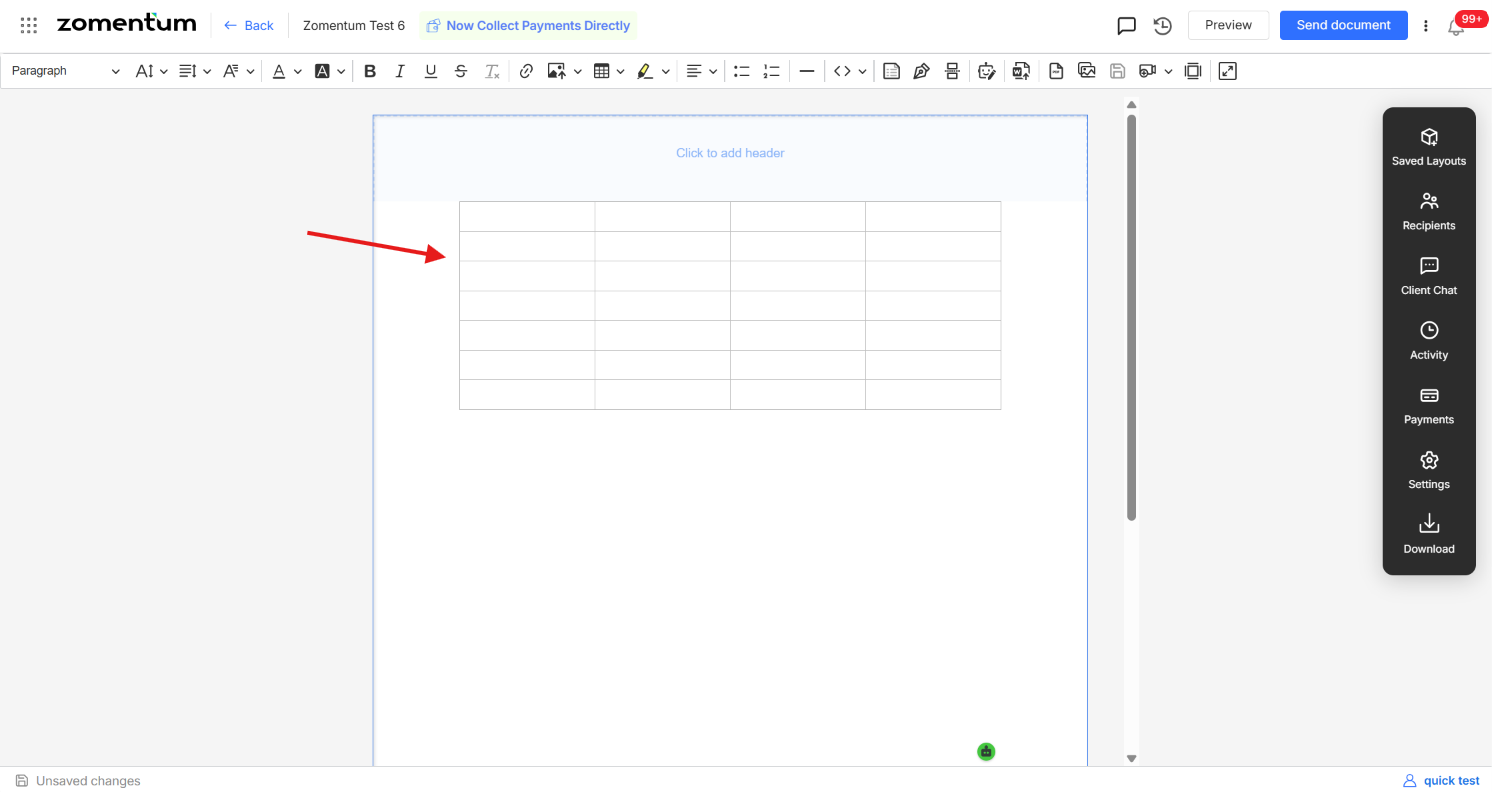
Tables help you present structured information such as pricing breakdowns, comparisons, or specifications in a clear, organized format. You can insert a table directly into a document using the built-in table block.
Steps to Add a Table Block
In the document editor, locate the Table icon in the navigation bar at the top of the editor.
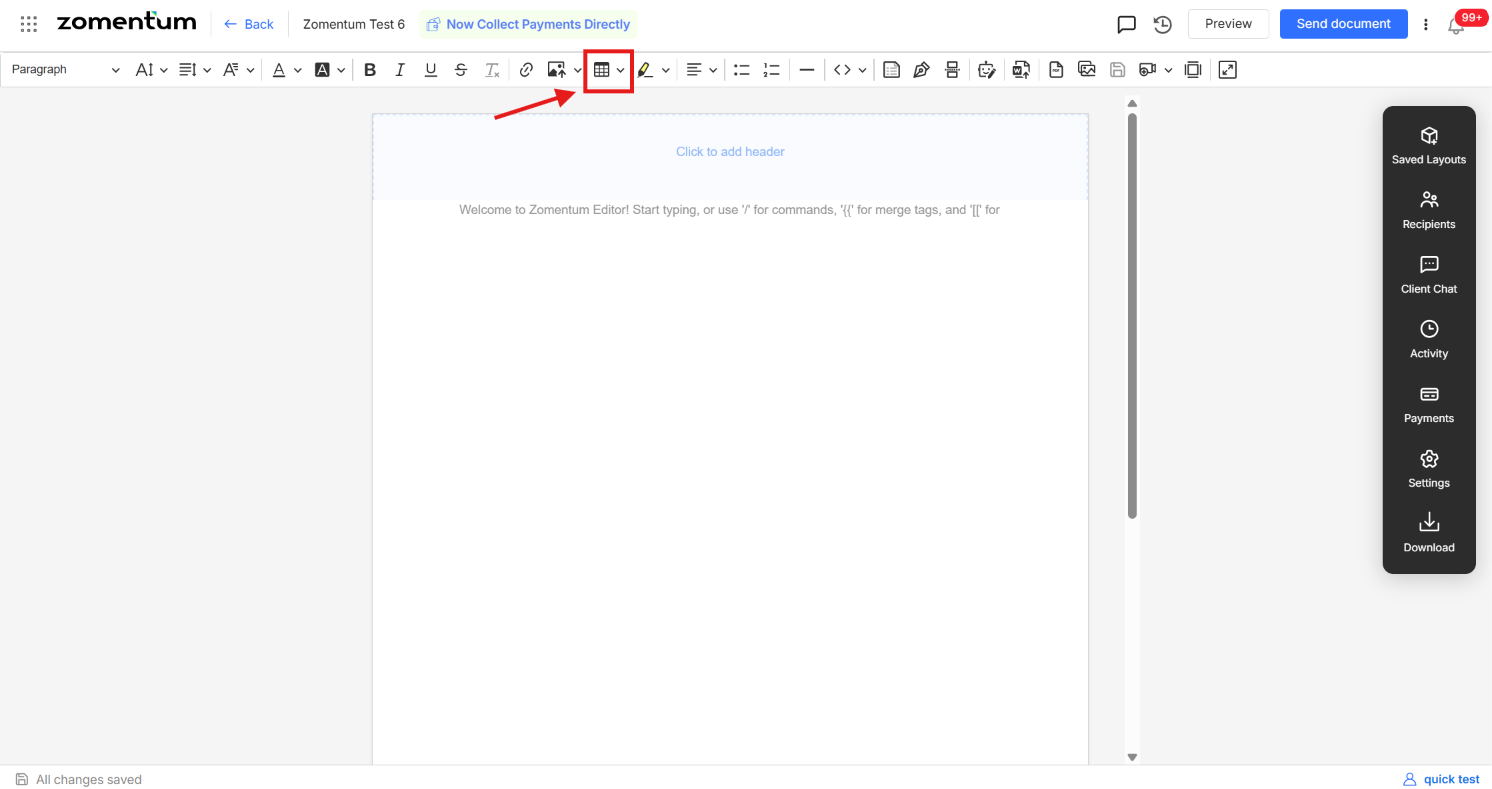
Click the icon. A grid selector appears.
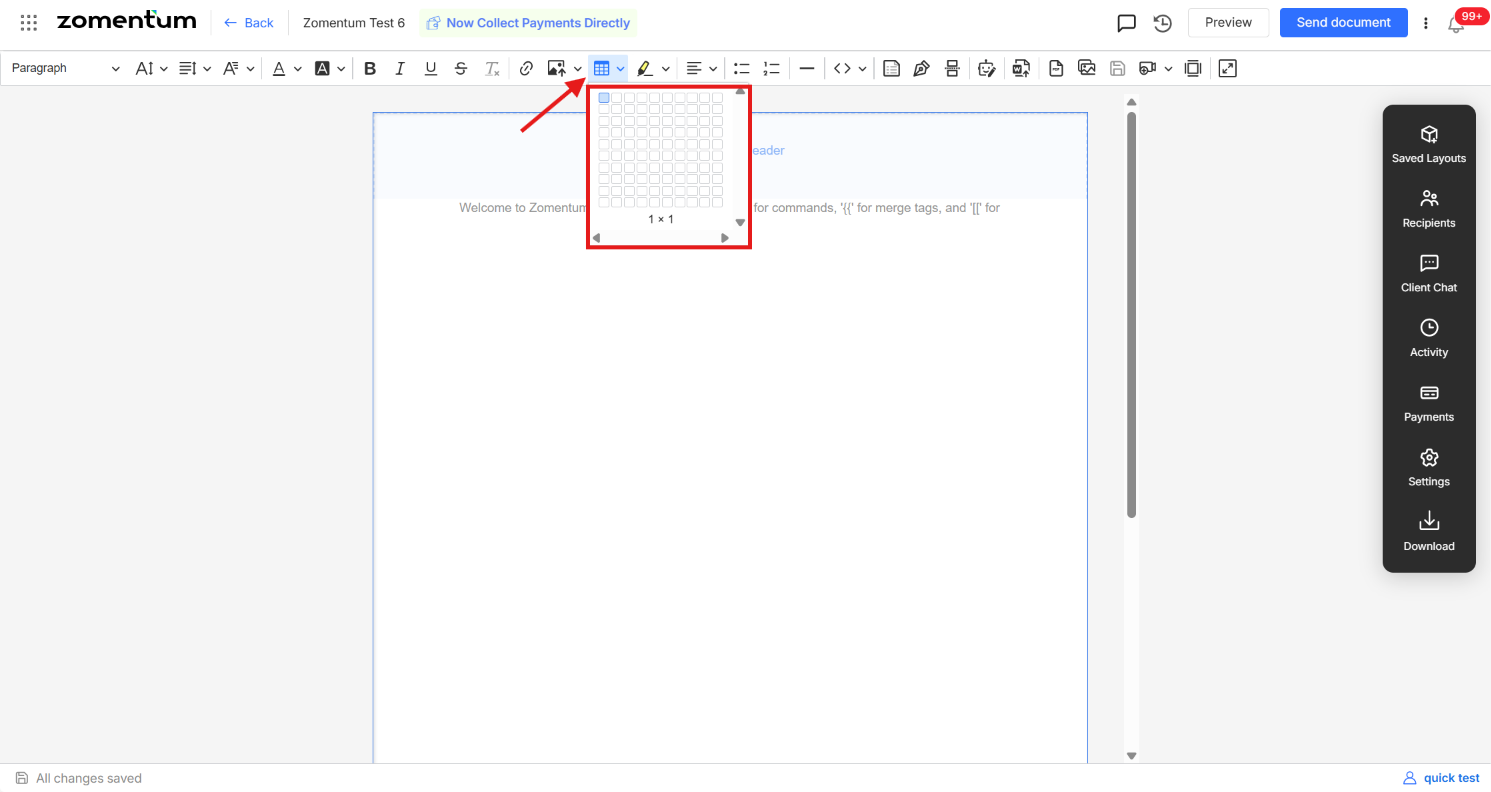
Hover over the grid to select the number of rows and columns you want, then click to confirm your selection.
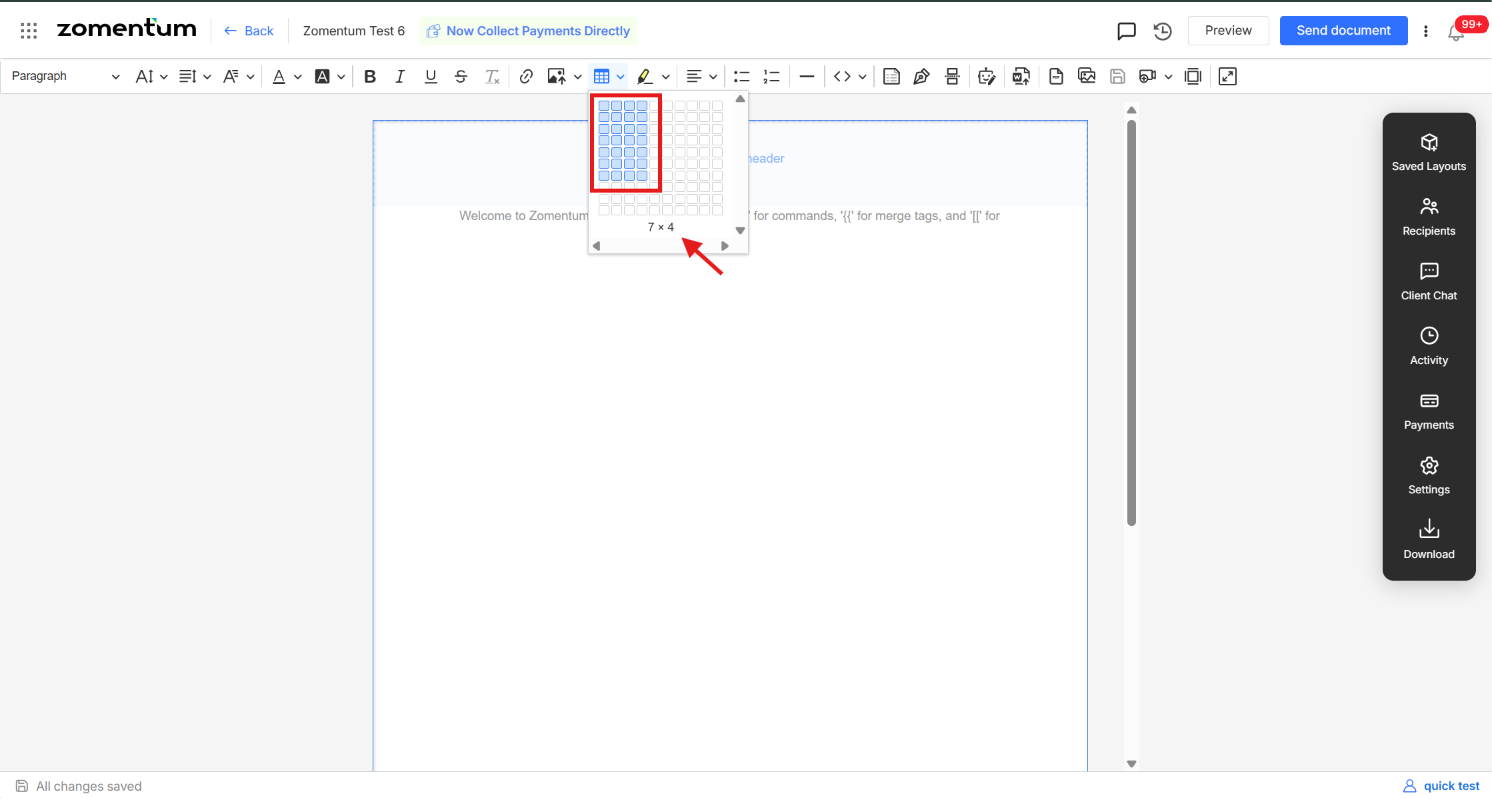
A table with the selected dimensions is inserted into the document at the cursor position.