
Table of Contents
1. Filtering Opportunities
– Example: View All Opportunities Assigned to a Specific Owner
2. Bulk Update Opportunities
3. Bulk Delete Opportunities
1. Filtering Opportunities
You can use filters to find specific Opportunities based on their information, instead of scrolling through the full list.
1.1 Example: View All Opportunities Assigned to a Specific Owner
Switch over from the Kanban view to the List view.
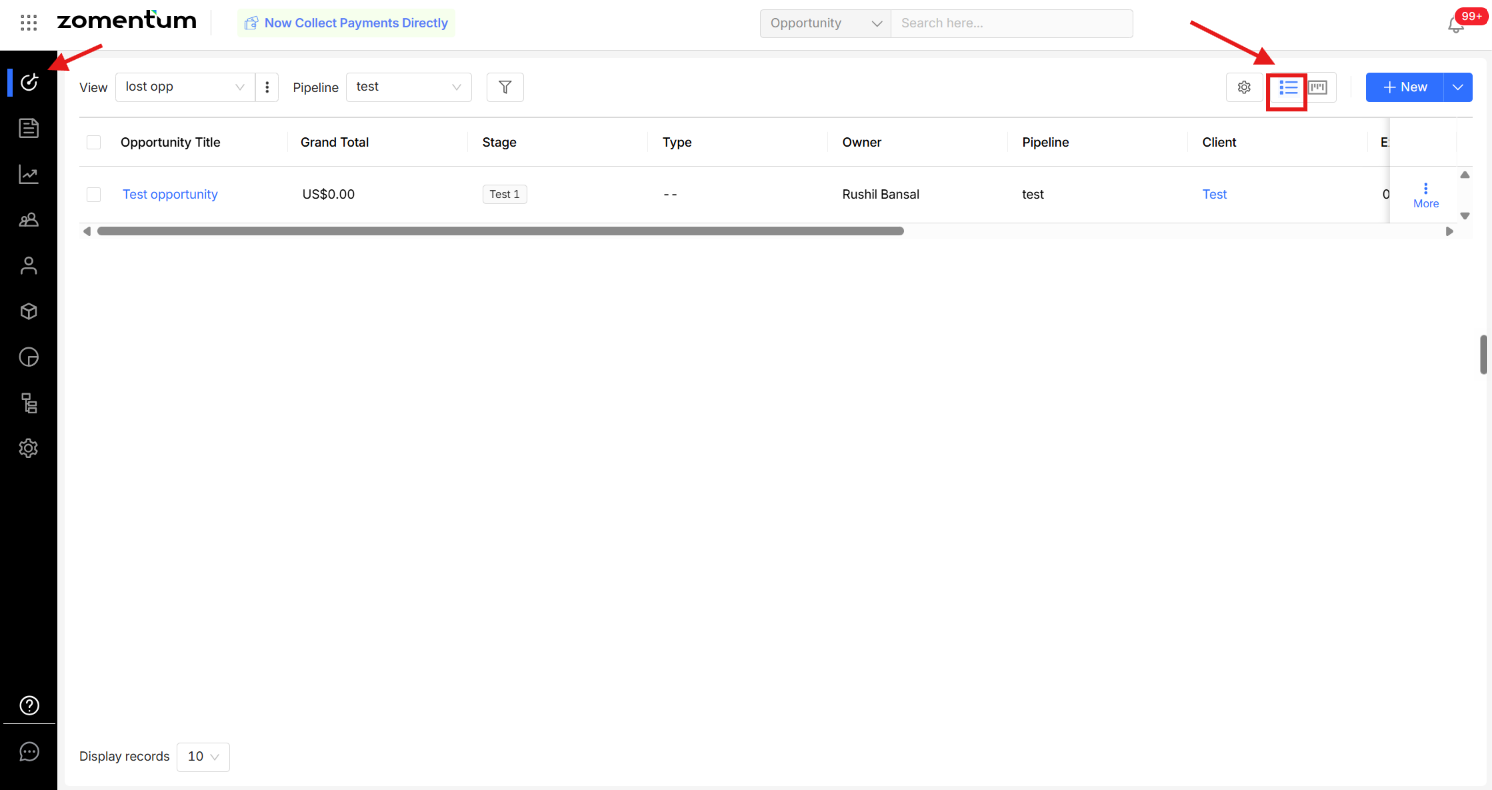
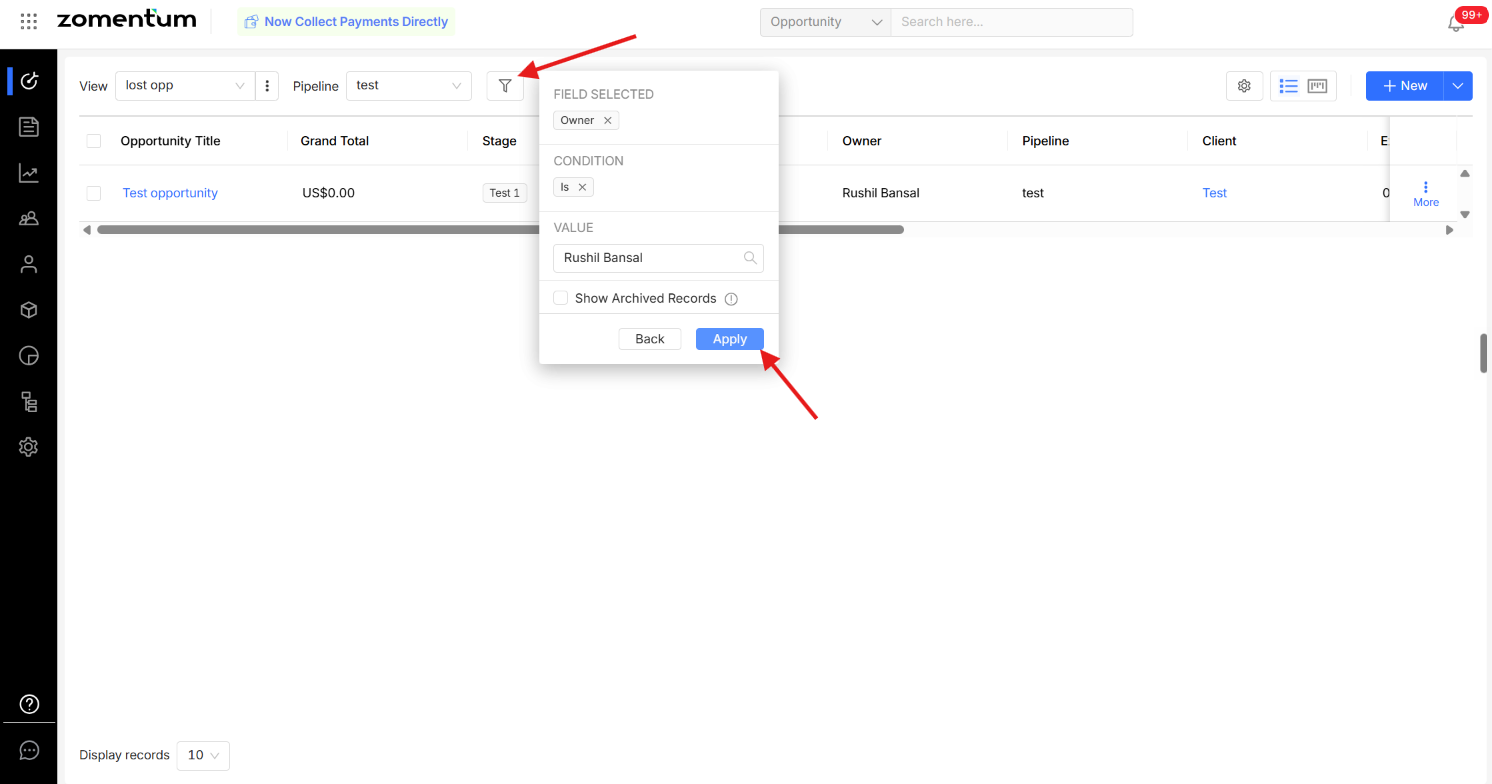
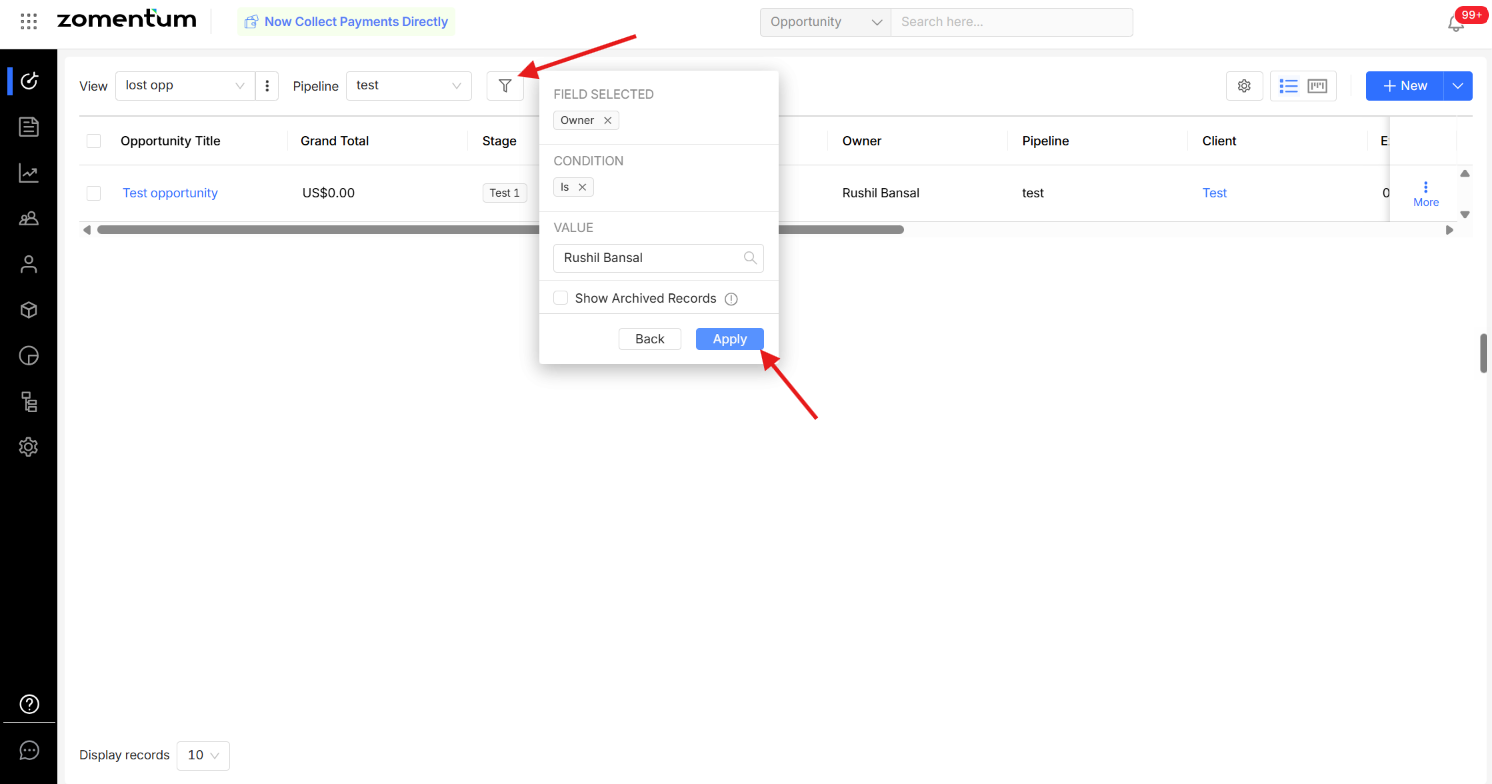
Select Owner as the filter field.
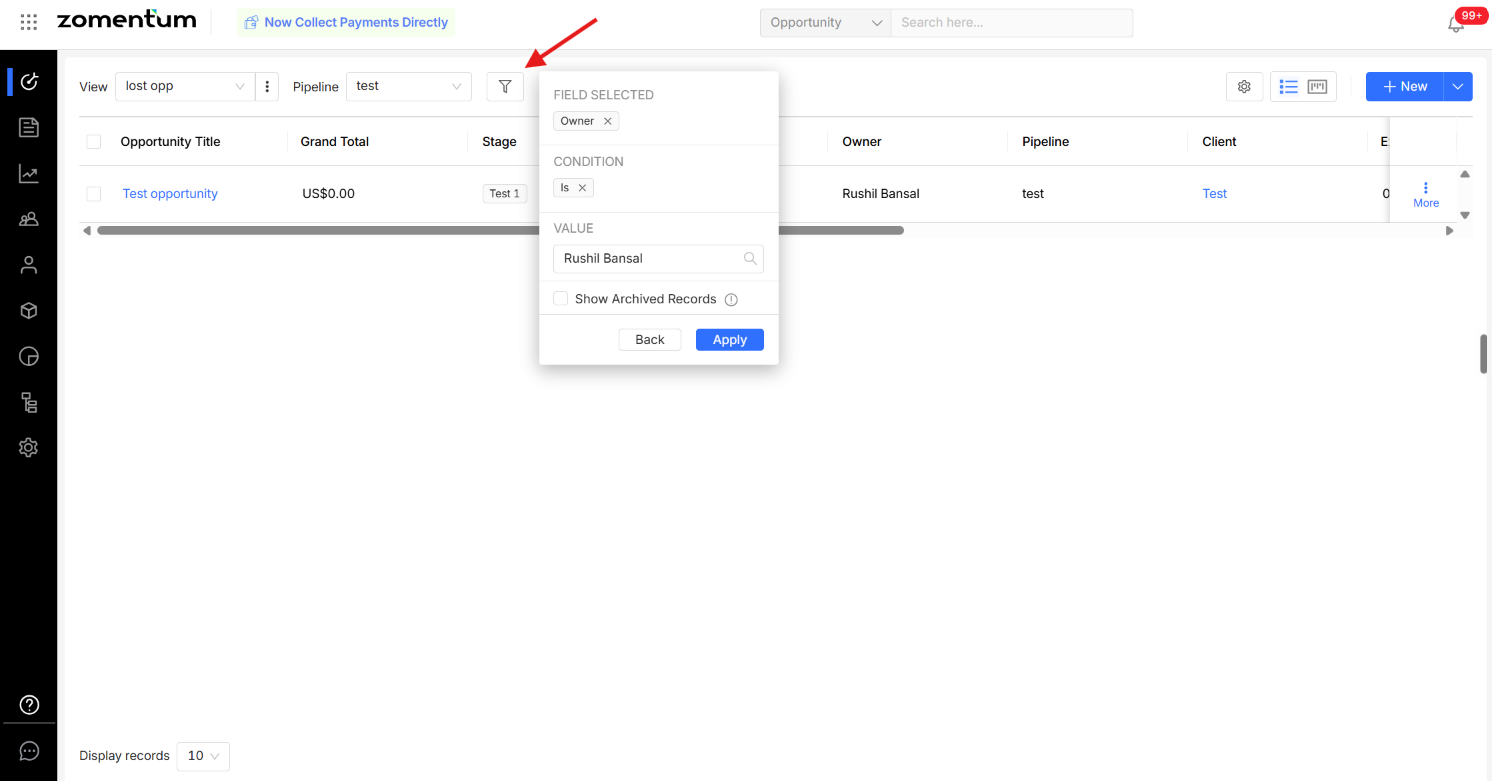
Set the condition to Owner is [User Name].
Click Apply Filter.
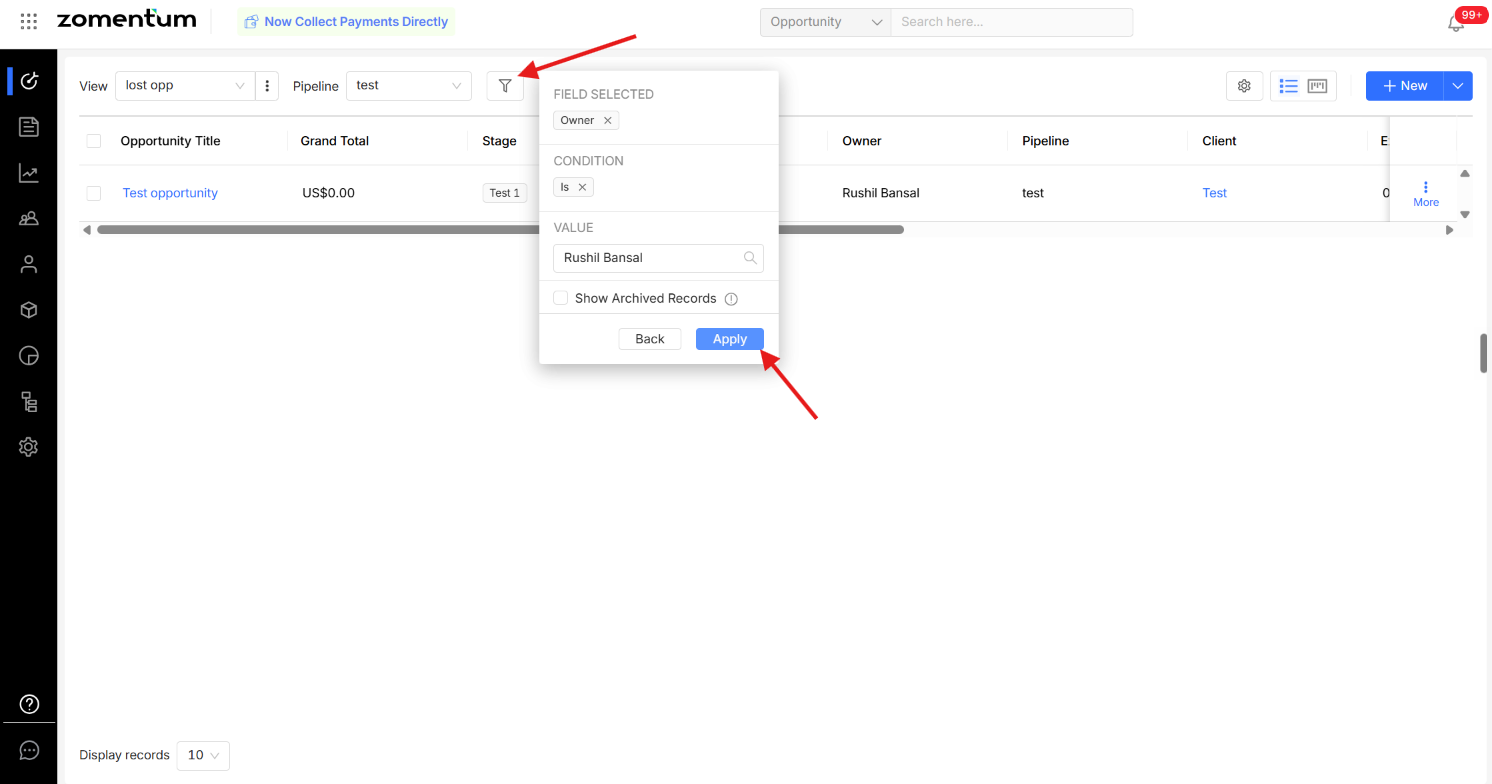
Zomentum will display all Opportunities assigned to the selected owner.
You can also save this filter as a View, so you can access the same filtered list in the future without rebuilding it. After applying a filter, select Save as View, and it will then appear as a quick option whenever you need that same list again.
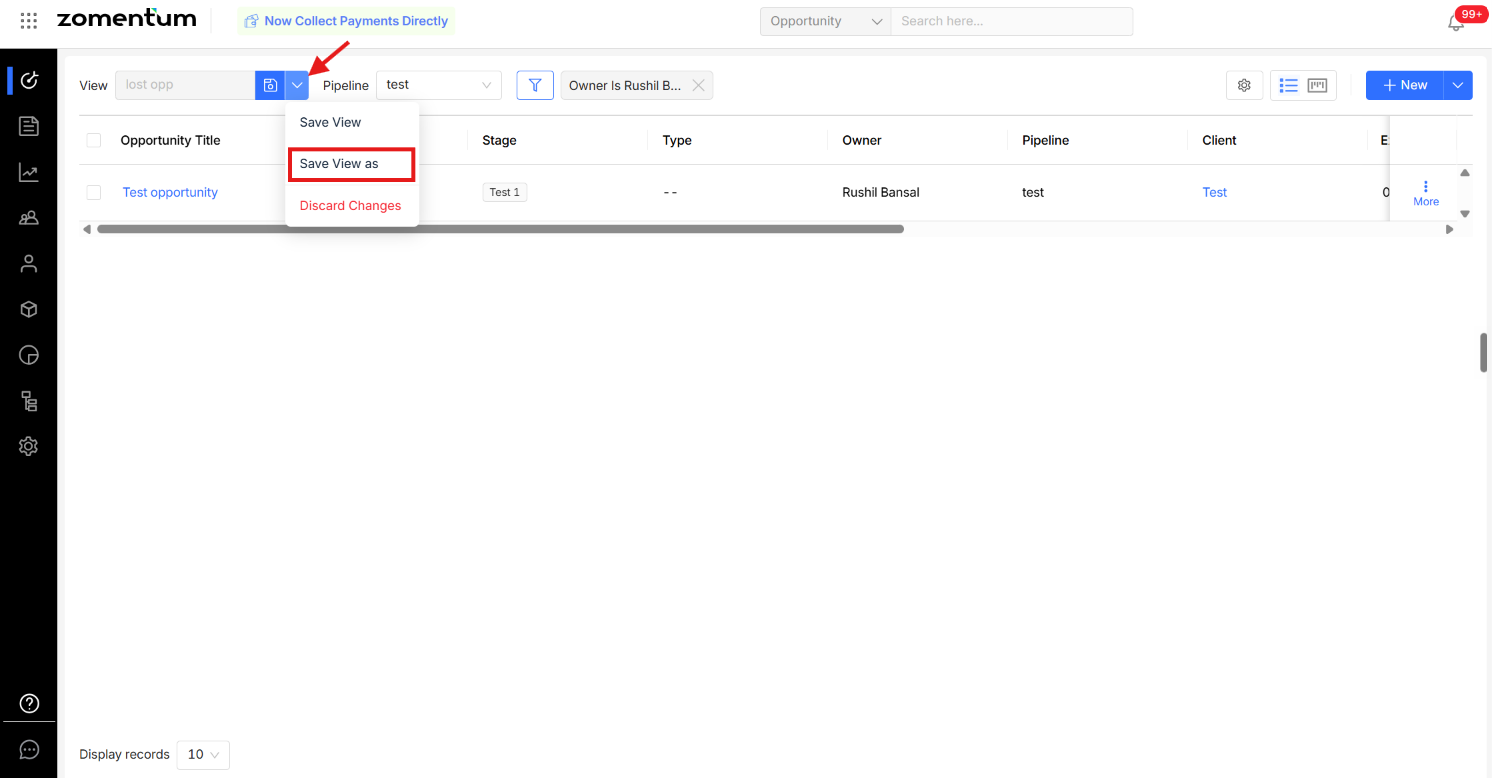
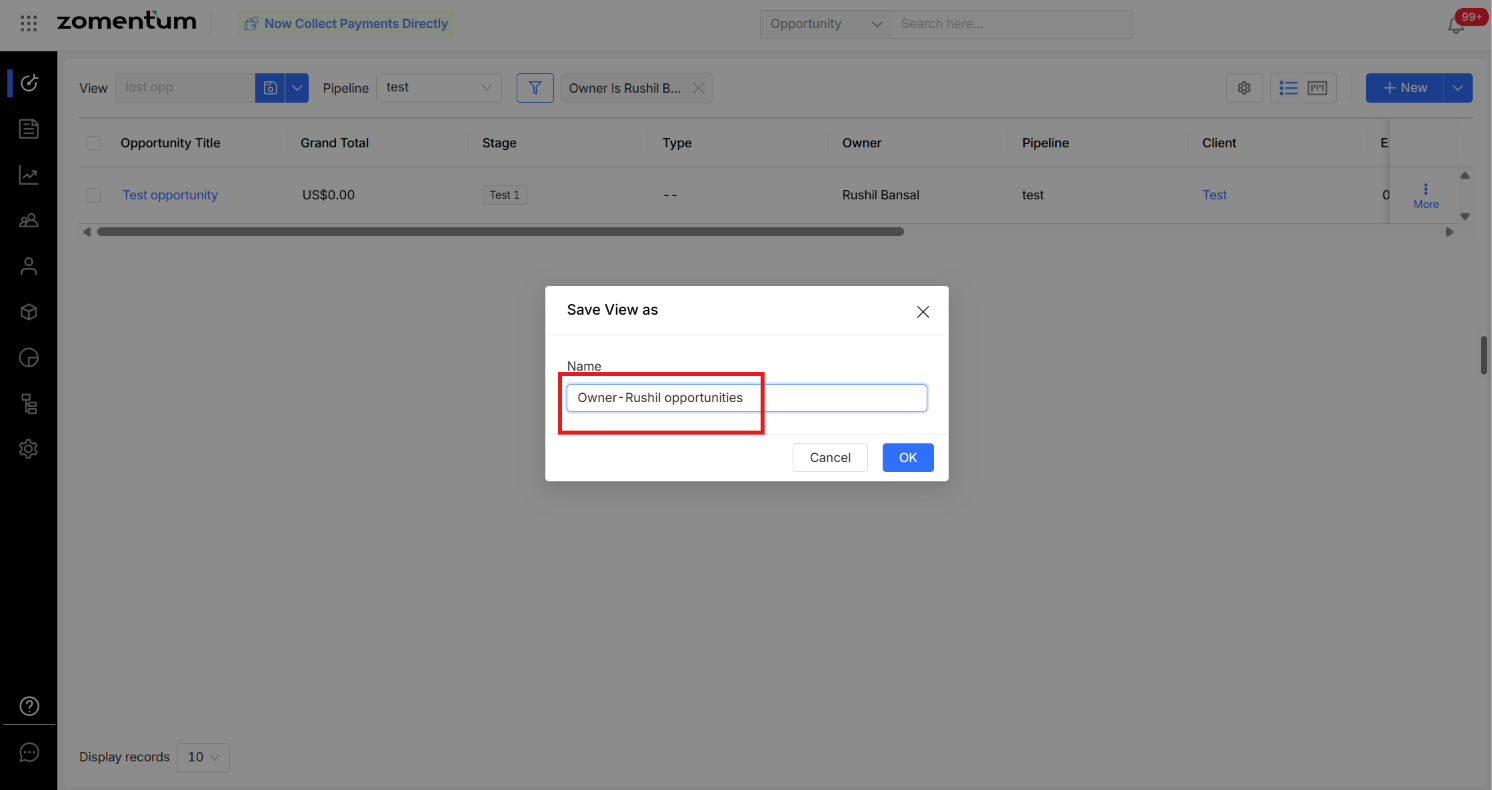
Tip: Saved Views are useful for filters you use often, such as Opportunities assigned to a specific owner, Opportunities in a particular stage, or Opportunities within a specific pipeline.
Filters can also be applied the same way in Kanban View, letting you view only the Opportunity cards that match your chosen criteria across pipeline stages.
2. Bulk Update Opportunities
If you need to update the same field across multiple Opportunities at once for example, moving a group of deals to a new stage or reassigning an owner , you can do this in a single action using Bulk Update, instead of editing each Opportunity individually.
2.1 Bulk Updating Opportunities
Switch over from the Kanban view to the List view.
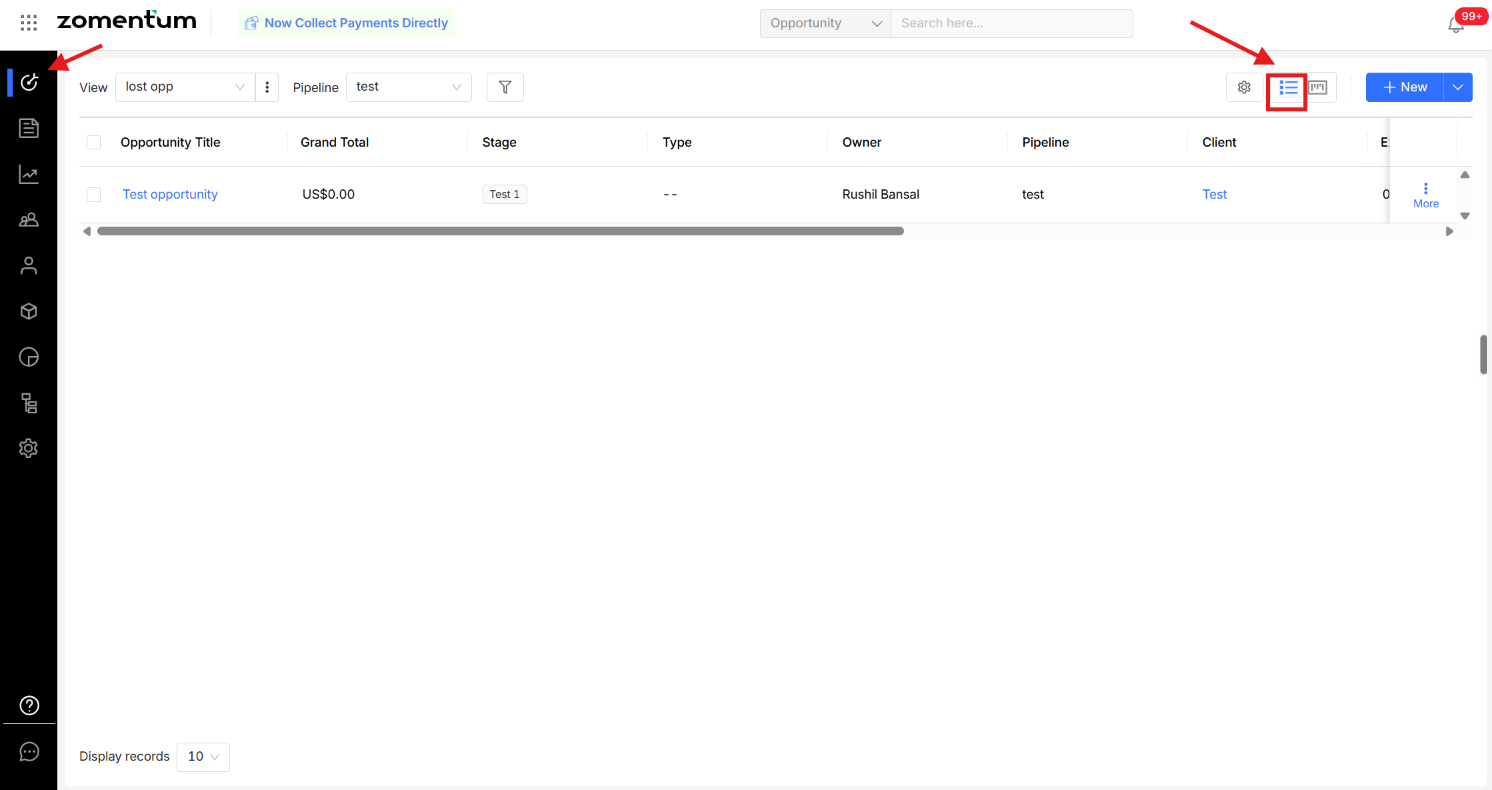
Select the Opportunities, or use the filter option to search for a specific set of Opportunities to be updated.
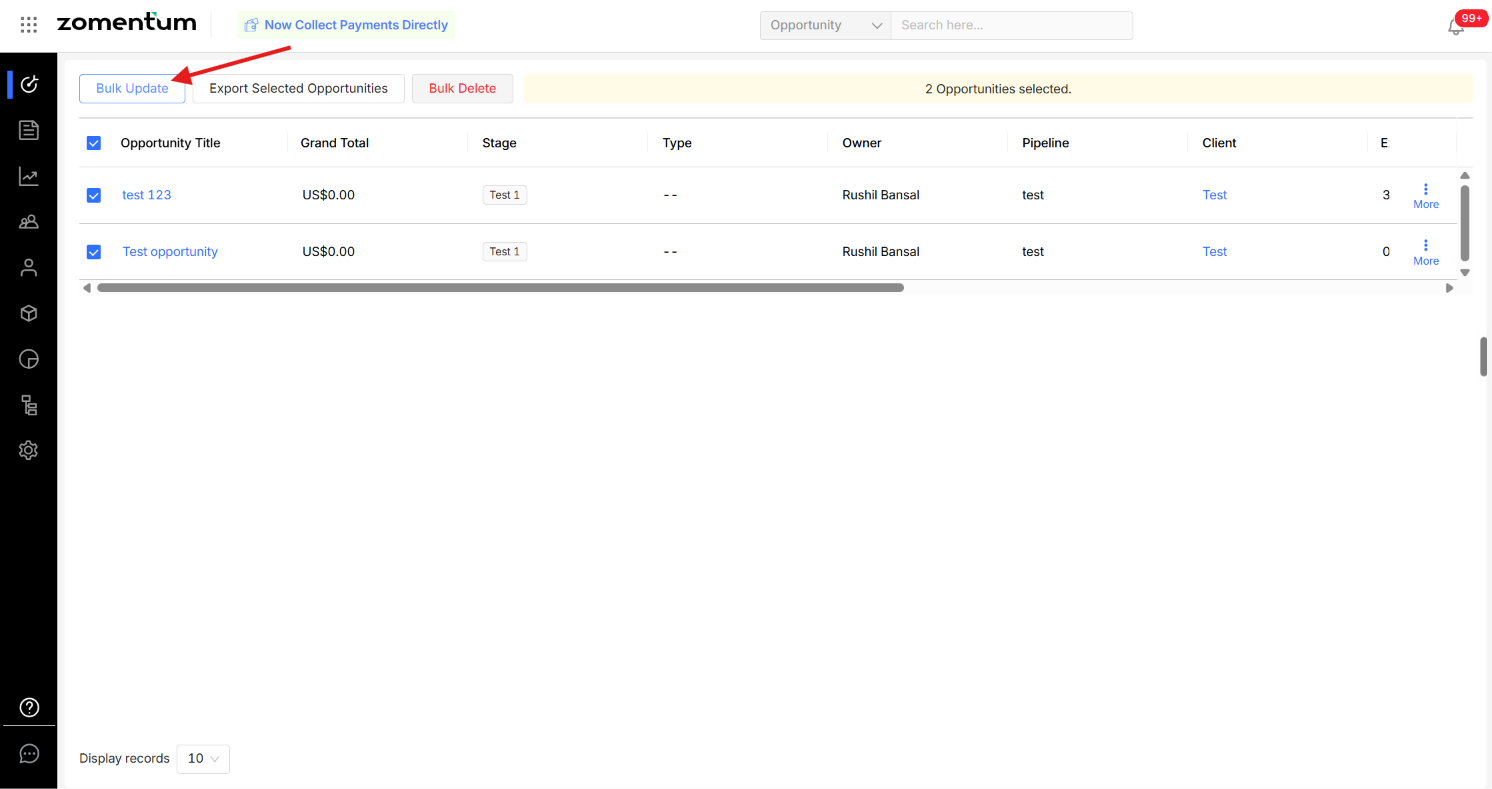
Tick the checkbox next to each of the Opportunities, or bulk select them using the checkbox next to the 'Opportunity Title' column header.
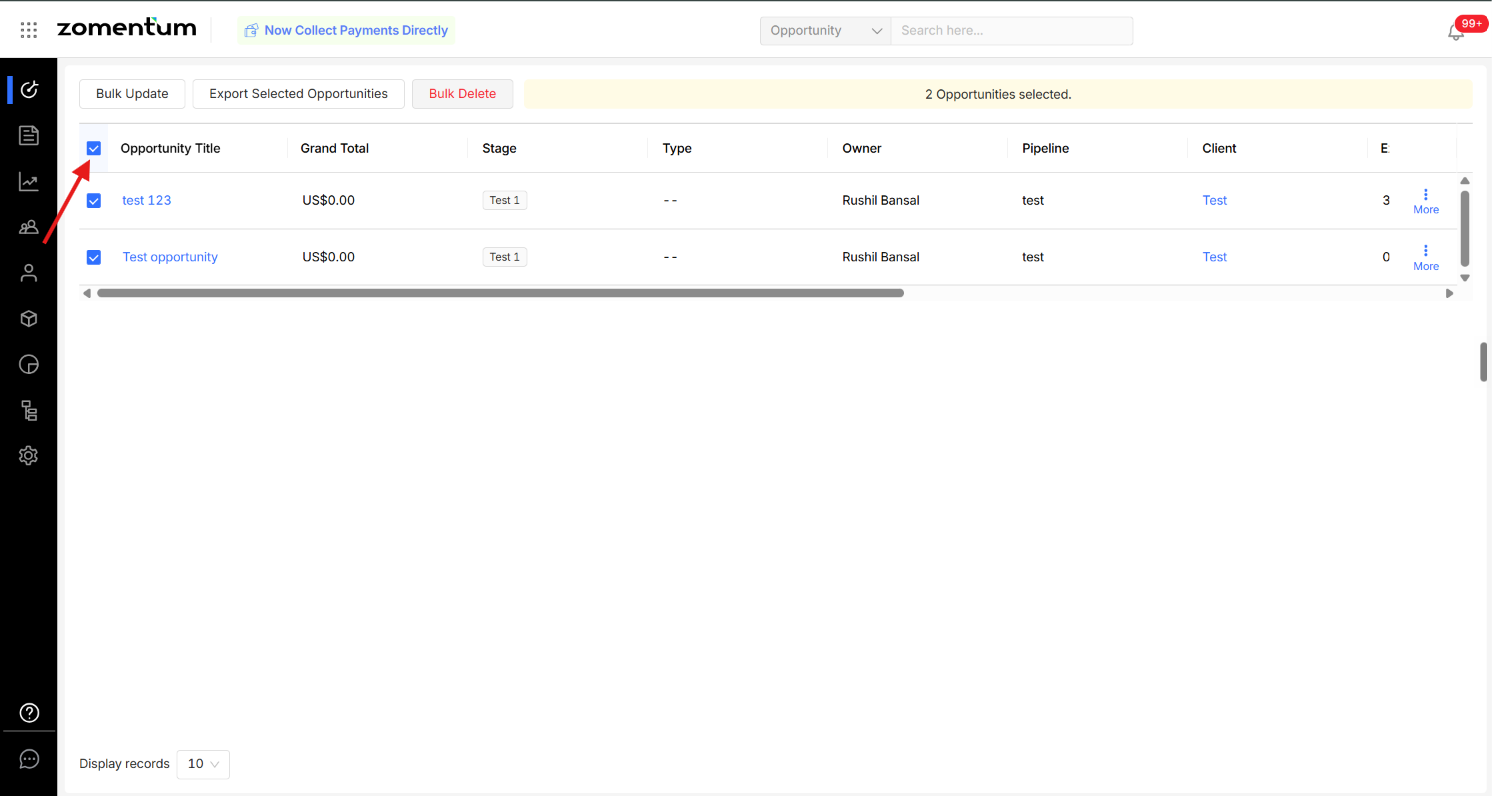
Click Bulk Update. From the pop-up screen on the right, select the field to be updated and enter the value.
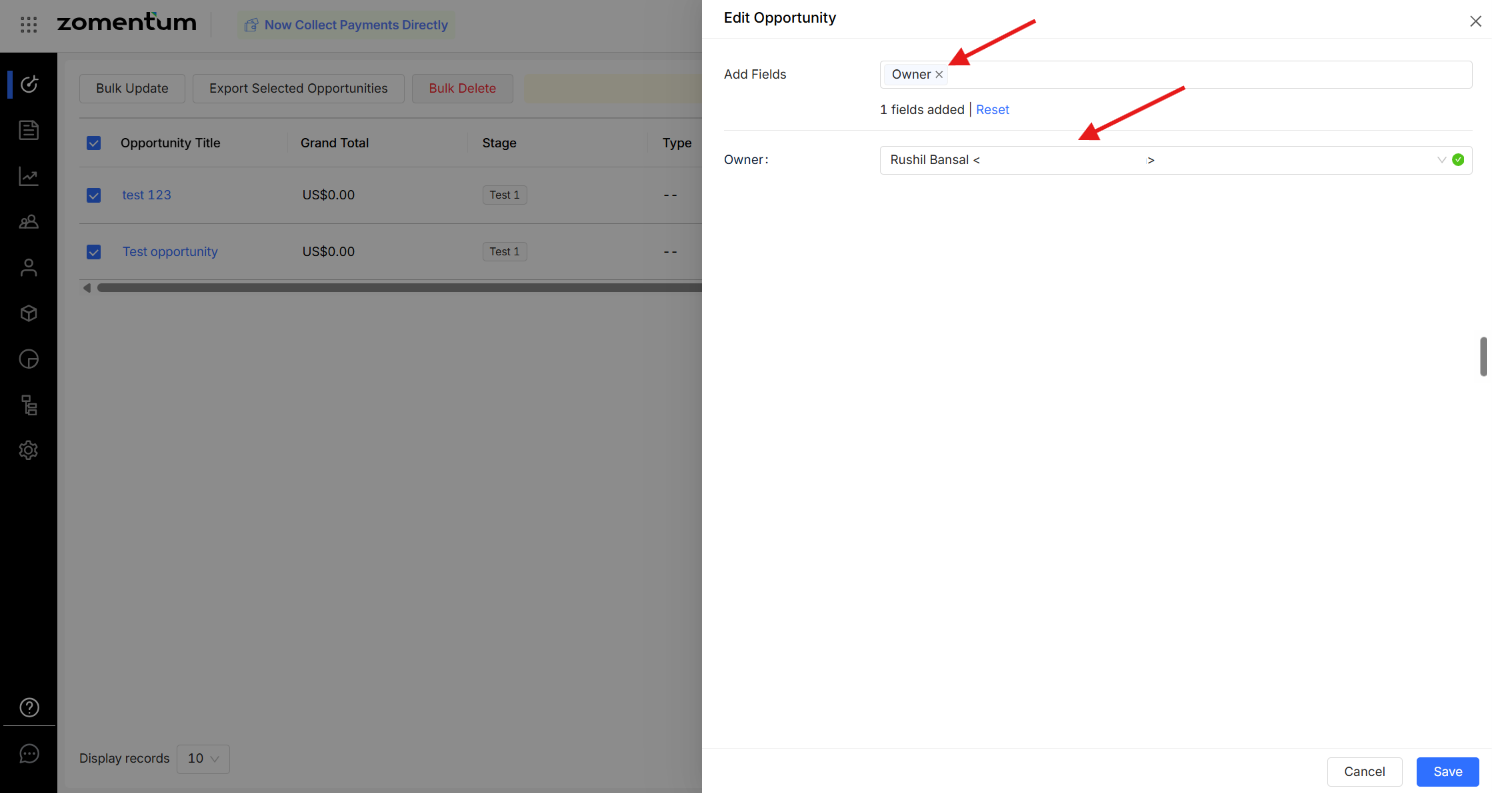
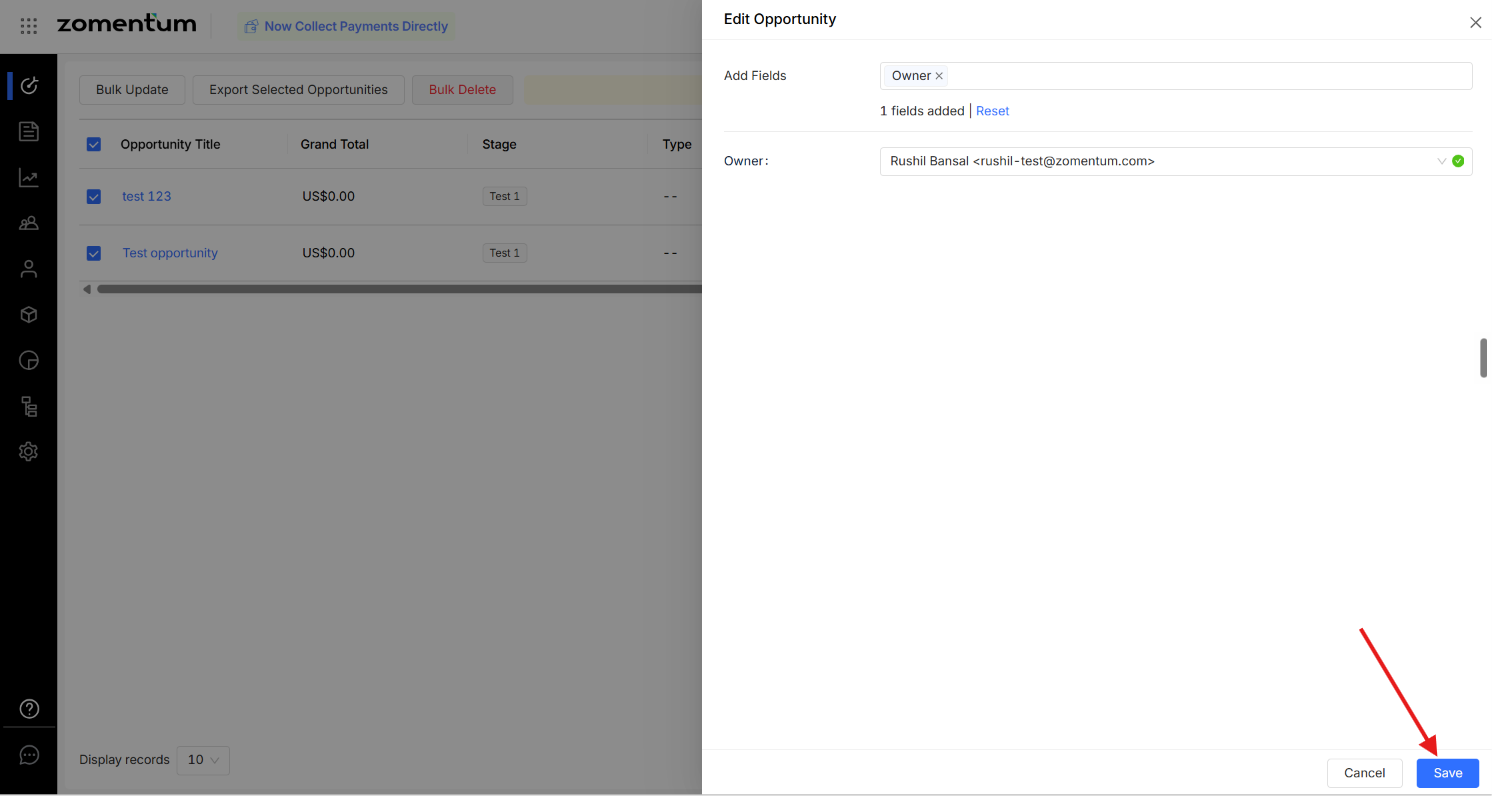
Hit Save, once done.
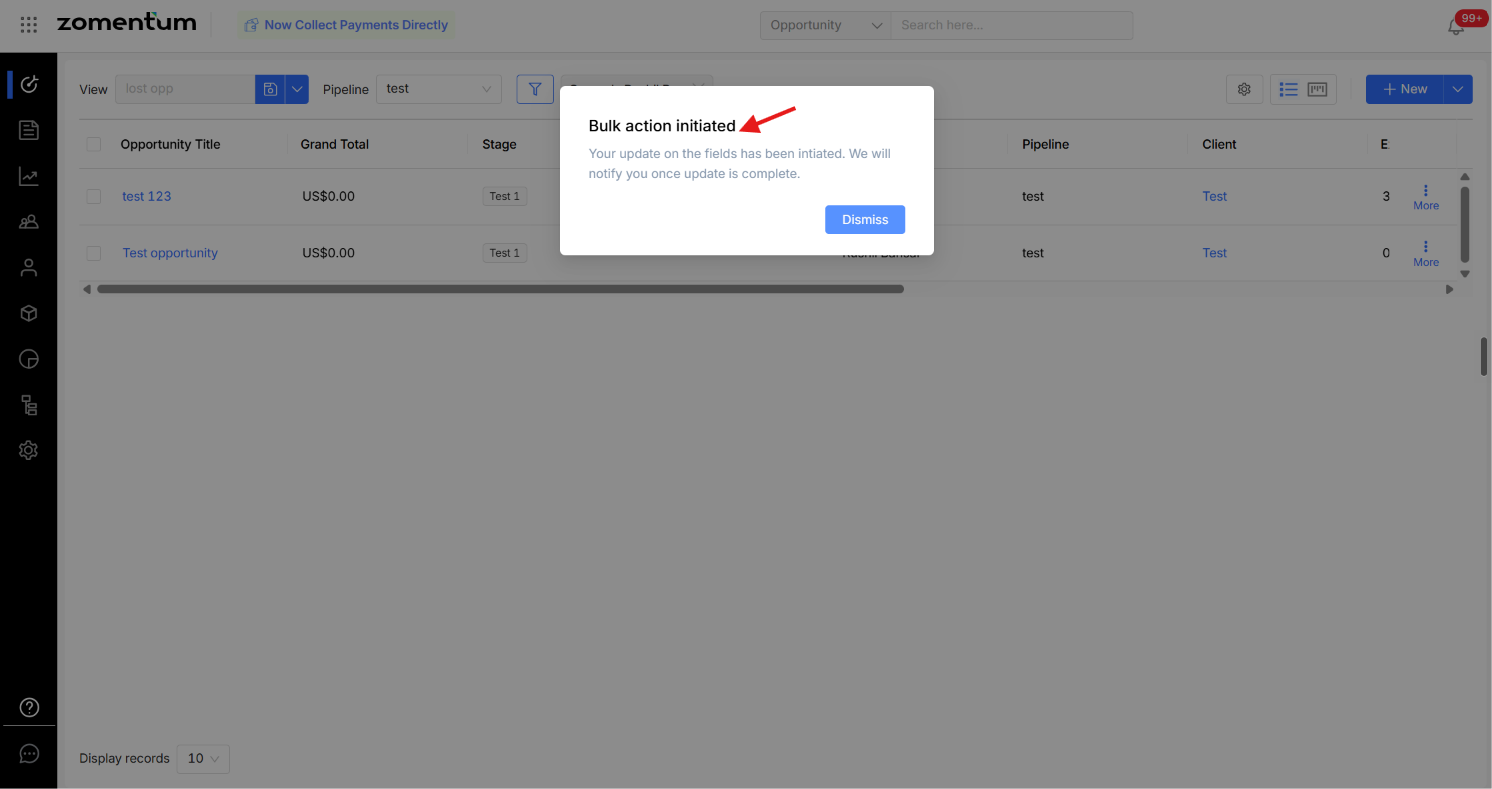
You'll see a confirmation once the update is complete, along with a notification.
Warning: Review your selection before saving. Bulk Update overwrites the chosen field across every selected Opportunity in one action. Double-check your filters and selection before hitting Save, as this can affect a large number of records at once.
3. Bulk Delete Opportunities
If you need to remove multiple Opportunities at once , for example, clearing out stale or duplicate records you can do this using Bulk Delete instead of deleting each Opportunity individually.
3.1 Bulk Deleting Opportunities
Switch over from the Kanban view to the List view.
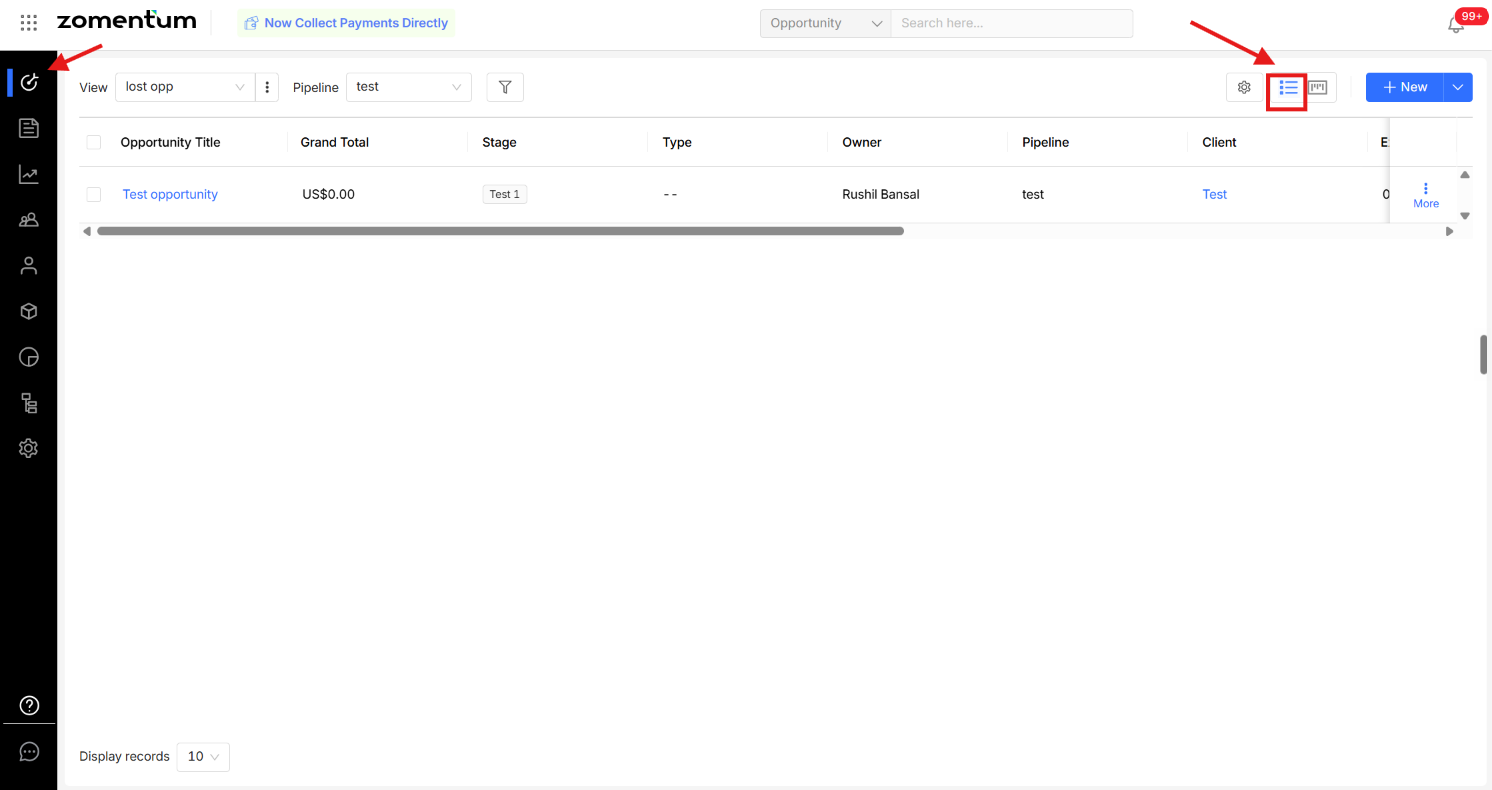
Select the Opportunities, or use the filter option to search for a specific set of Opportunities to be deleted.
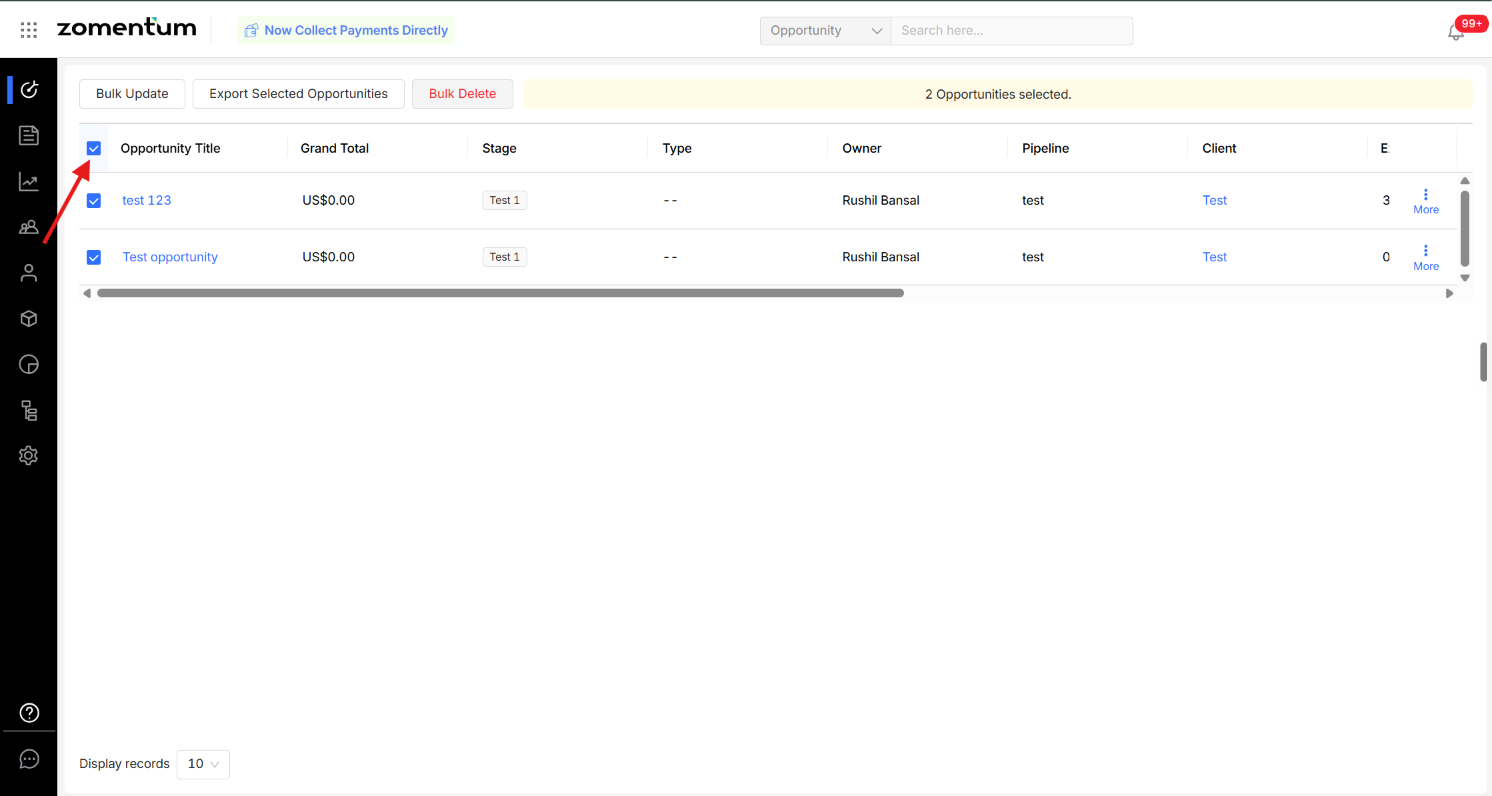
Tick the checkbox next to each of the Opportunities, or bulk select them using the checkbox next to the 'Opportunity Title' column header.
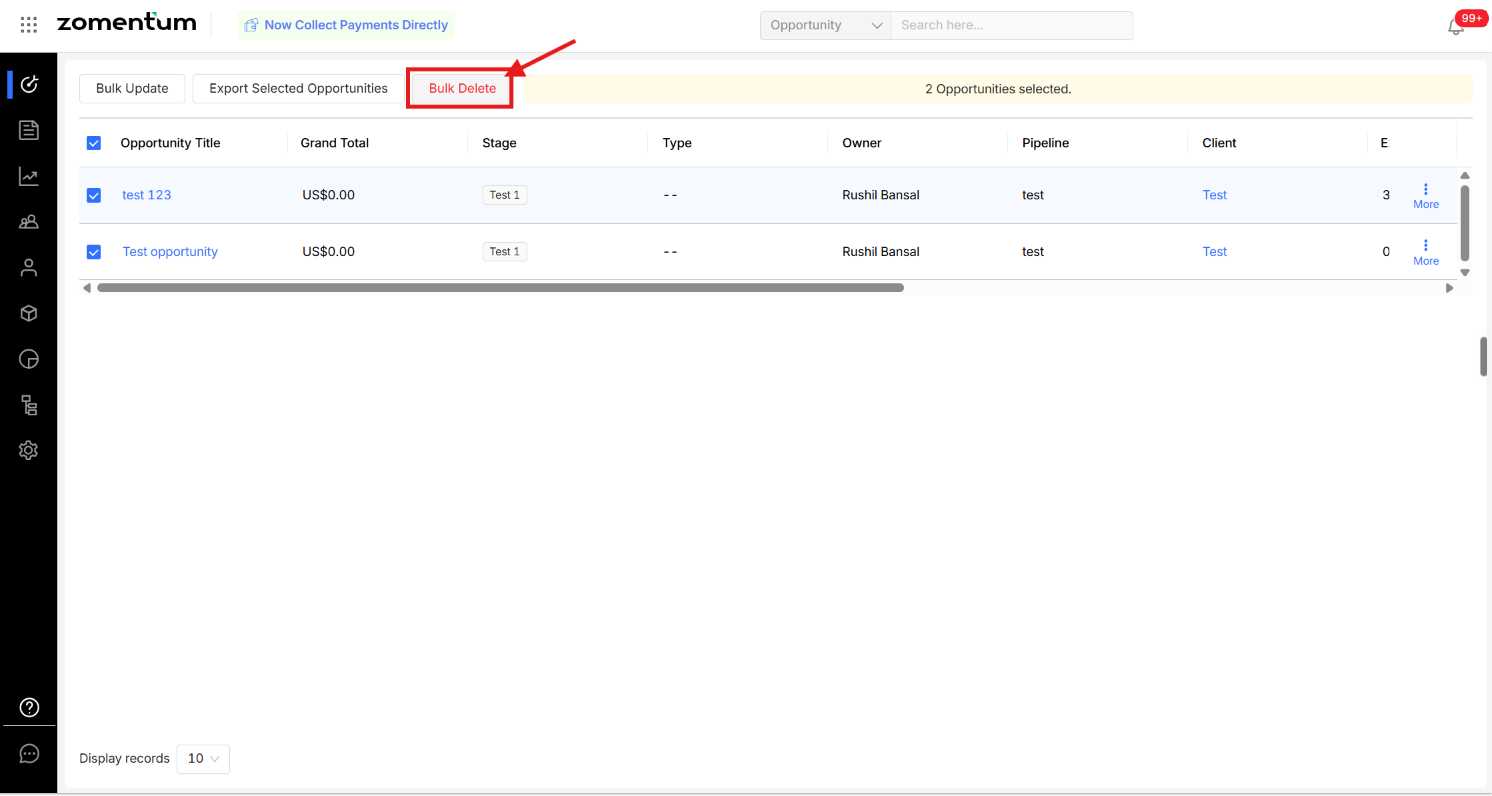
Click Bulk Delete.
Review the selected Opportunities in the confirmation panel, then confirm the deletion.
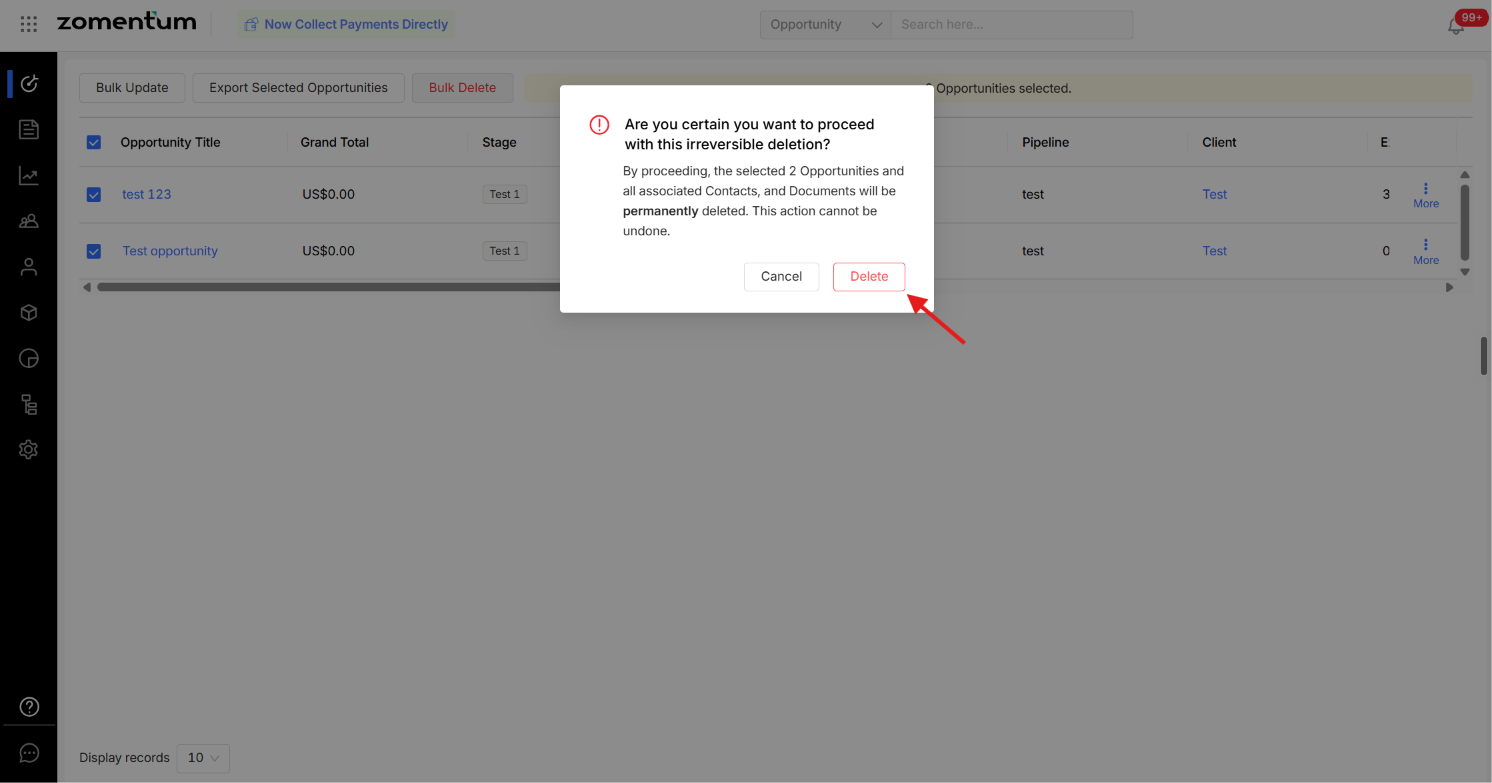
Warning: This action is permanent. Double-check your selection before confirming as deleted opportunities cannot be recovered.