
Table of Contents
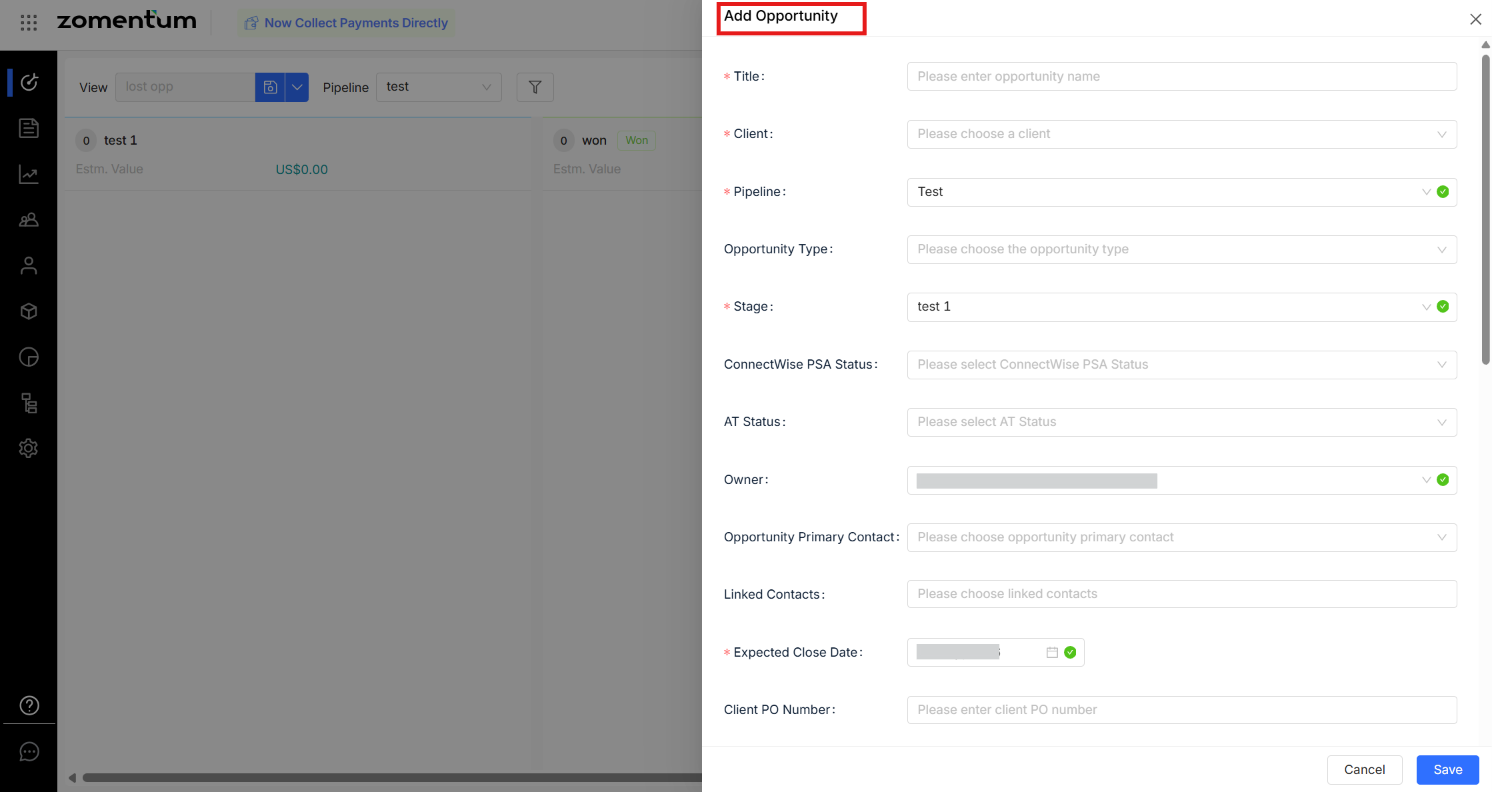
1. Required Fields
2. Optional Fields
3. Revenue and Cost
– Calculation of Totals and Margin
– Worked Example
Before you begin: This article assumes you're already in the Add Opportunity form. For steps on creating or deleting an Opportunity, see Create and Delete an Opportunity.
1. Required Fields
2. Optional Fields
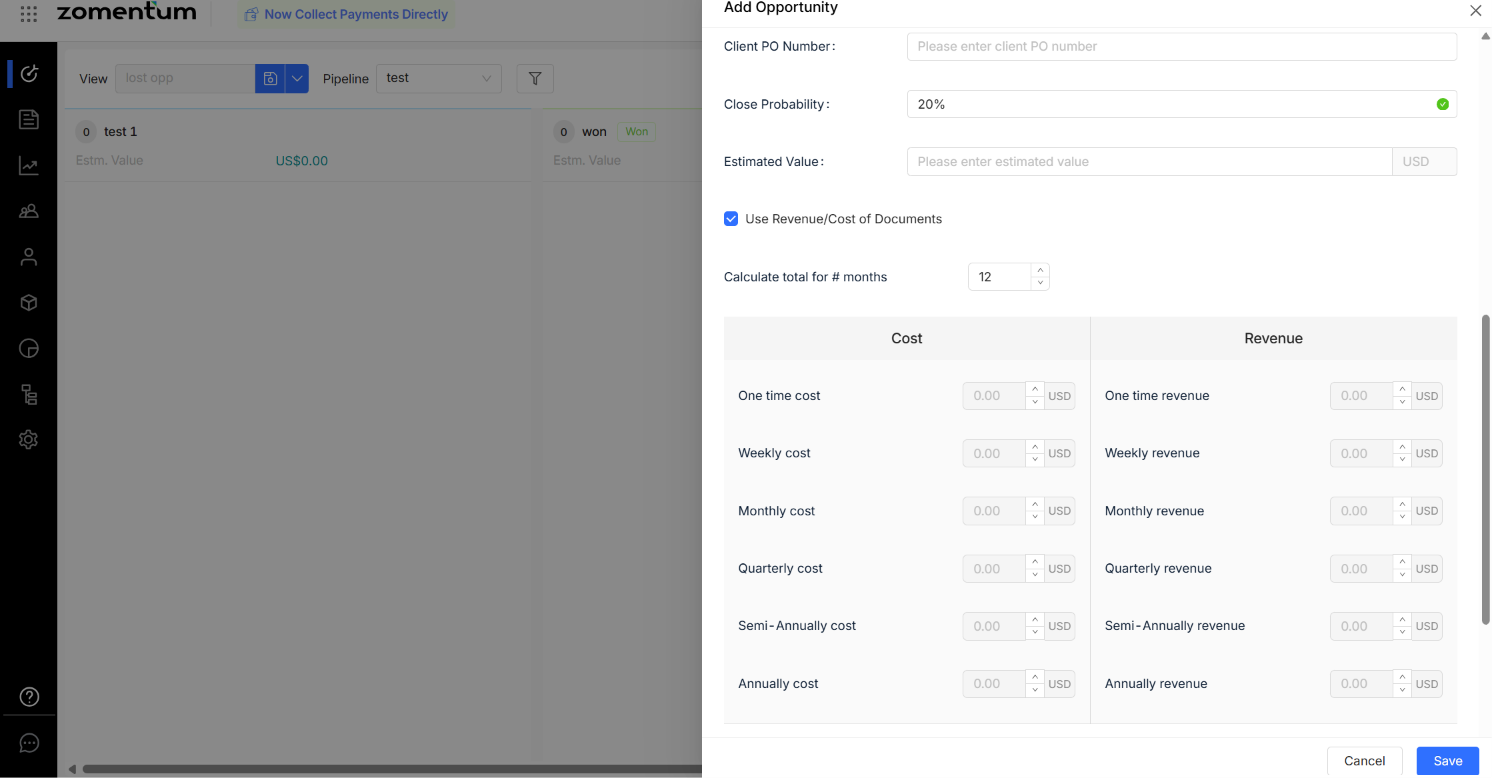
Tip: Use Custom Fields to capture additional information not covered by the standard fields. As with the fields above, only capture personal data in custom fields when it's genuinely needed for the opportunity.
3. Revenue and Cost
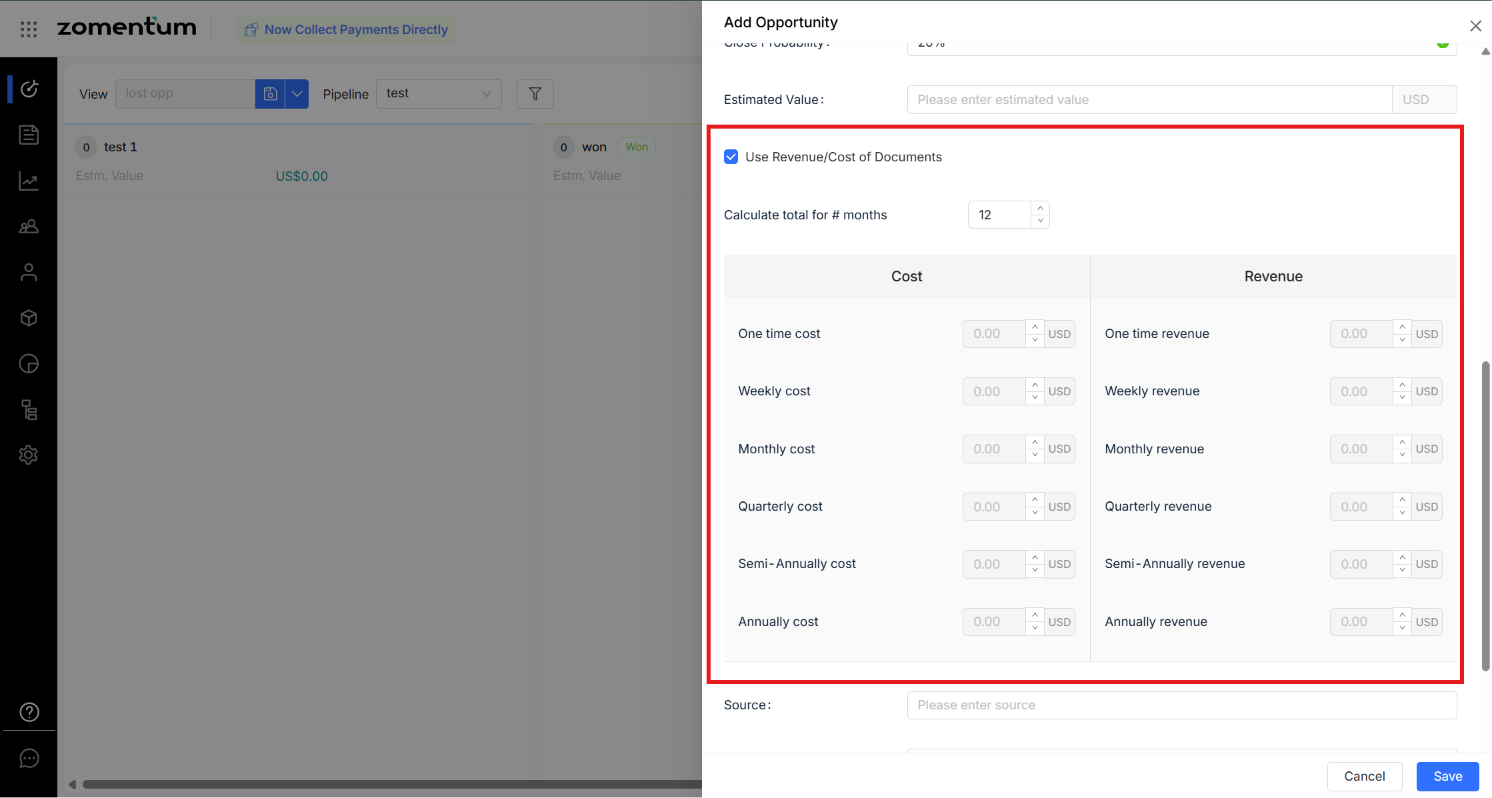
The Use Revenue/Cost of Documents checkbox controls how cost and revenue are calculated:
Checked: Cost and revenue are pulled automatically from the associated document.
Unchecked: You enter cost and revenue manually.
If entering manually, use Calculate total for # months to set the time period, then enter amounts by frequency (one-time, weekly, monthly, quarterly, half-yearly, yearly).
3.1 Calculation of Totals and Margin
Total Revenue = One-time revenue + (Weekly revenue × 4 × Number of months to calculate totals) + (Monthly revenue × Number of months to calculate totals) + (Quarterly revenue ÷ 3 × Number of months to calculate totals) + (Half-yearly revenue ÷ 6 × Number of months to calculate totals) + (Yearly revenue ÷ 12 × Number of months to calculate totals)
Total Cost = One-time cost + (Weekly cost × 4 × Number of months to calculate totals) + (Monthly cost × Number of months to calculate totals) + (Quarterly cost ÷ 3 × Number of months to calculate totals) + (Half-yearly cost ÷ 6 × Number of months to calculate totals) + (Yearly cost ÷ 12 × Number of months to calculate totals)
Margin Value = Total Revenue − Total Cost
Margin Percentage = (Total Revenue − Total Cost) ÷ Total Revenue
3.2 Worked Example
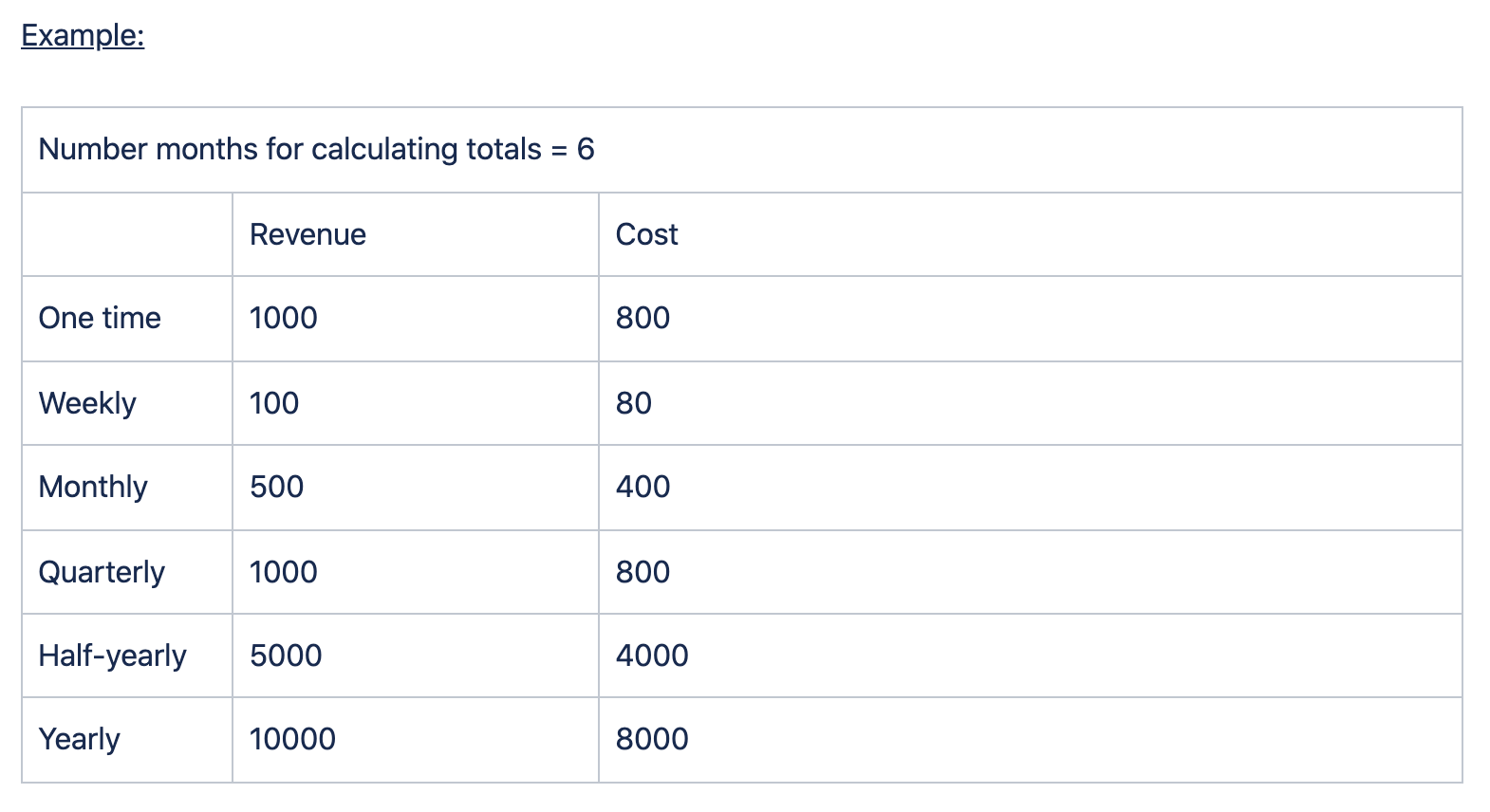
Total Revenue: 1000 + (100 × 4 × 6) + (500 × 6) + (1000/3 × 6) + (5000/6 × 6) + (10000/12 × 6) = 18,400
Total Cost: 800 + (80 × 4 × 6) + (400 × 6) + (800/3 × 6) + (4000/6 × 6) + (8000/12 × 6) = 14,720
Margin Value: 18,400 − 14,720 = 3,680
Margin Percentage: 3,680 / 18,400 = 20%