
Table of Contents
1. Importing Opportunities
– Step 1: Download the Template
– Step 2: Upload the file with records
– Step 3: Select an Import Property
2. Exporting Opportunities
Zomentum lets you bring Opportunities into your workspace in bulk using a CSV or Excel file and export existing Opportunities out for reporting, backup, or use in other systems. This article walks you through both processes.
1. Importing Opportunities
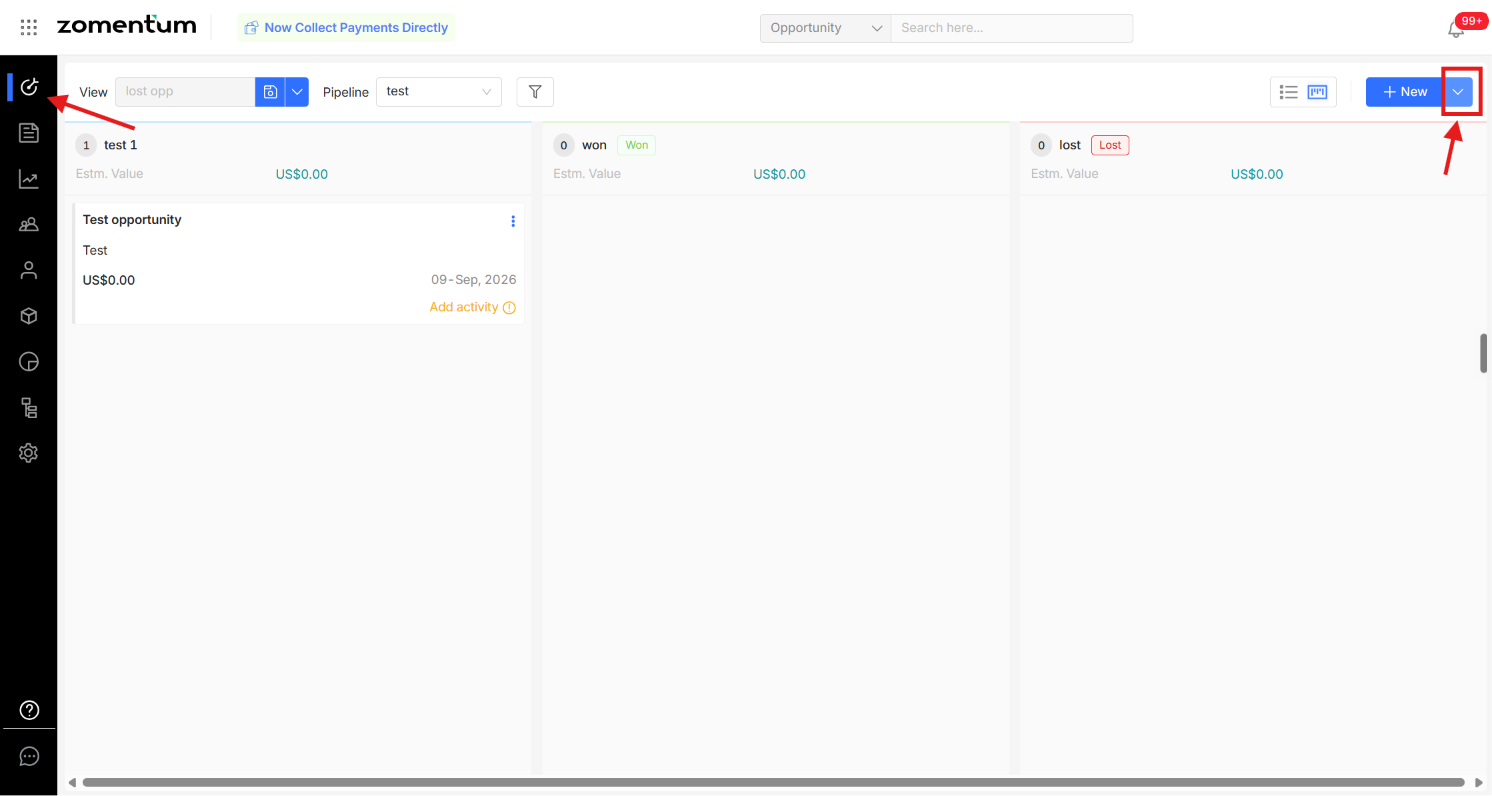
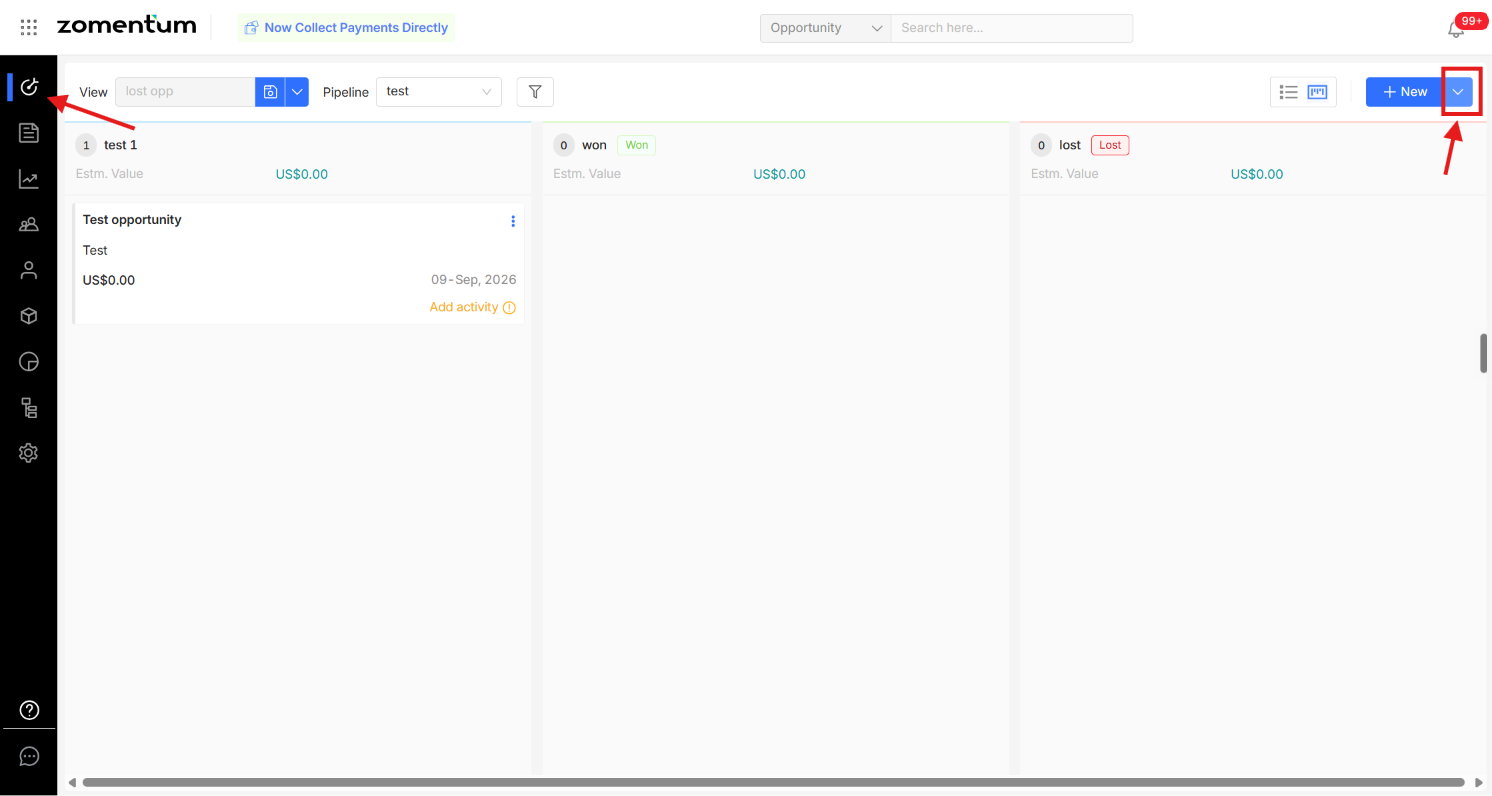
Click on Opportunities in the left sidebar.
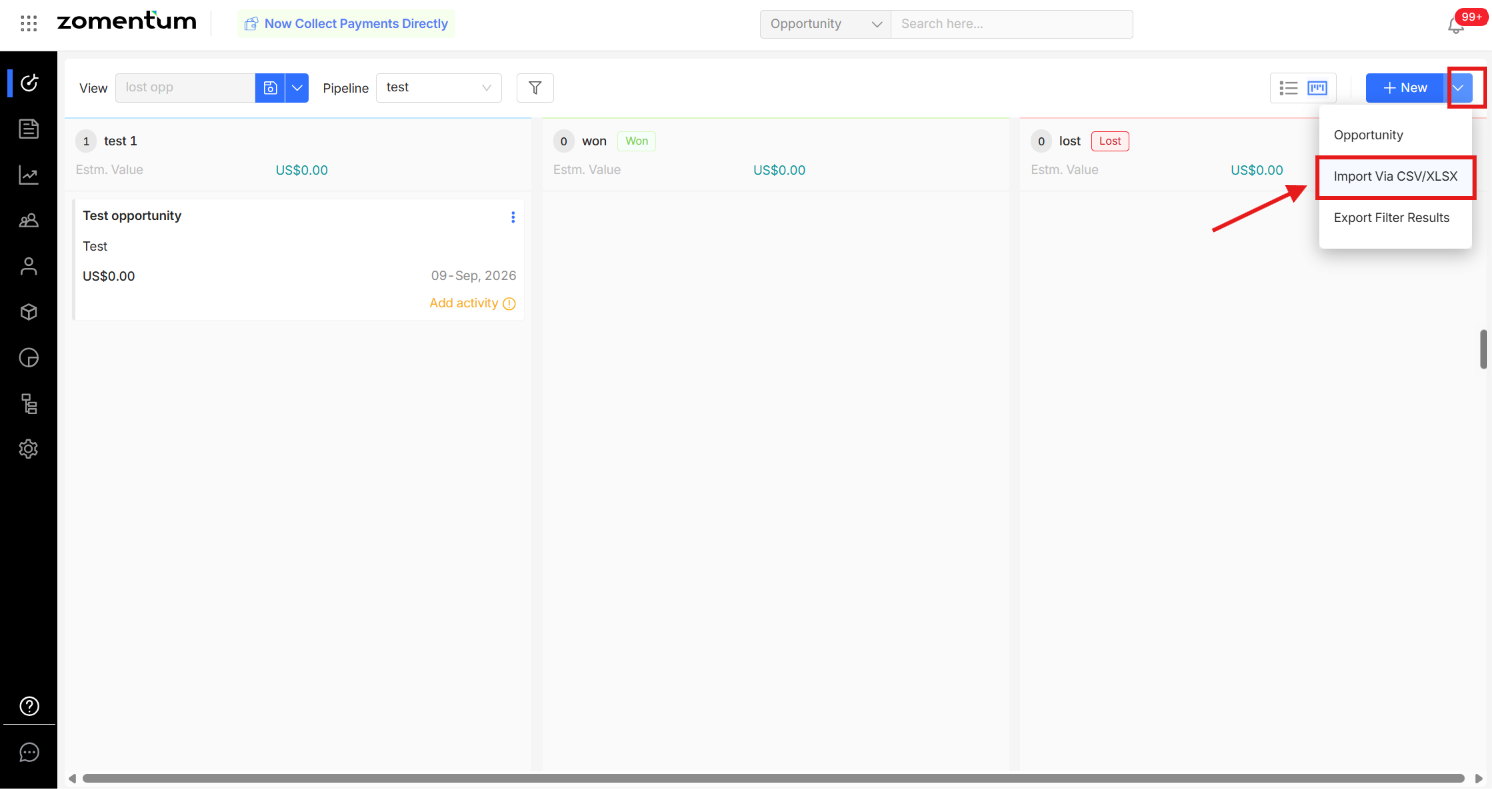
Click the + New dropdown in the top right corner and select Import Via CSV/XLSX.
In the "Import Via CSV/XLSX" window, follow the steps below.
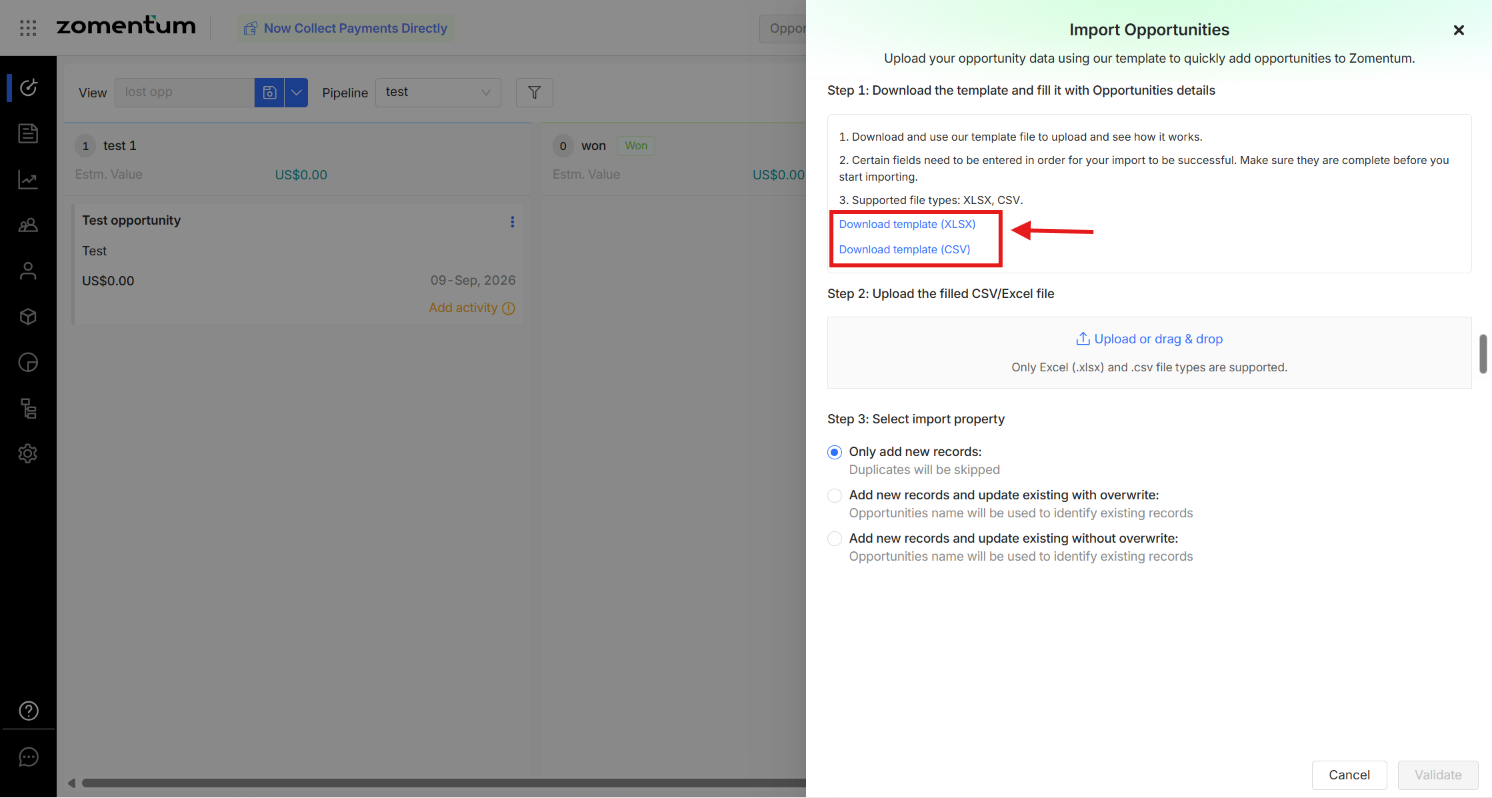
1.1 Step 1: Download the Template
Download the template file (available in XLSX or CSV format) and fill it in with your opportunity details. Certain fields are required for a successful import, so make sure these are complete before uploading.
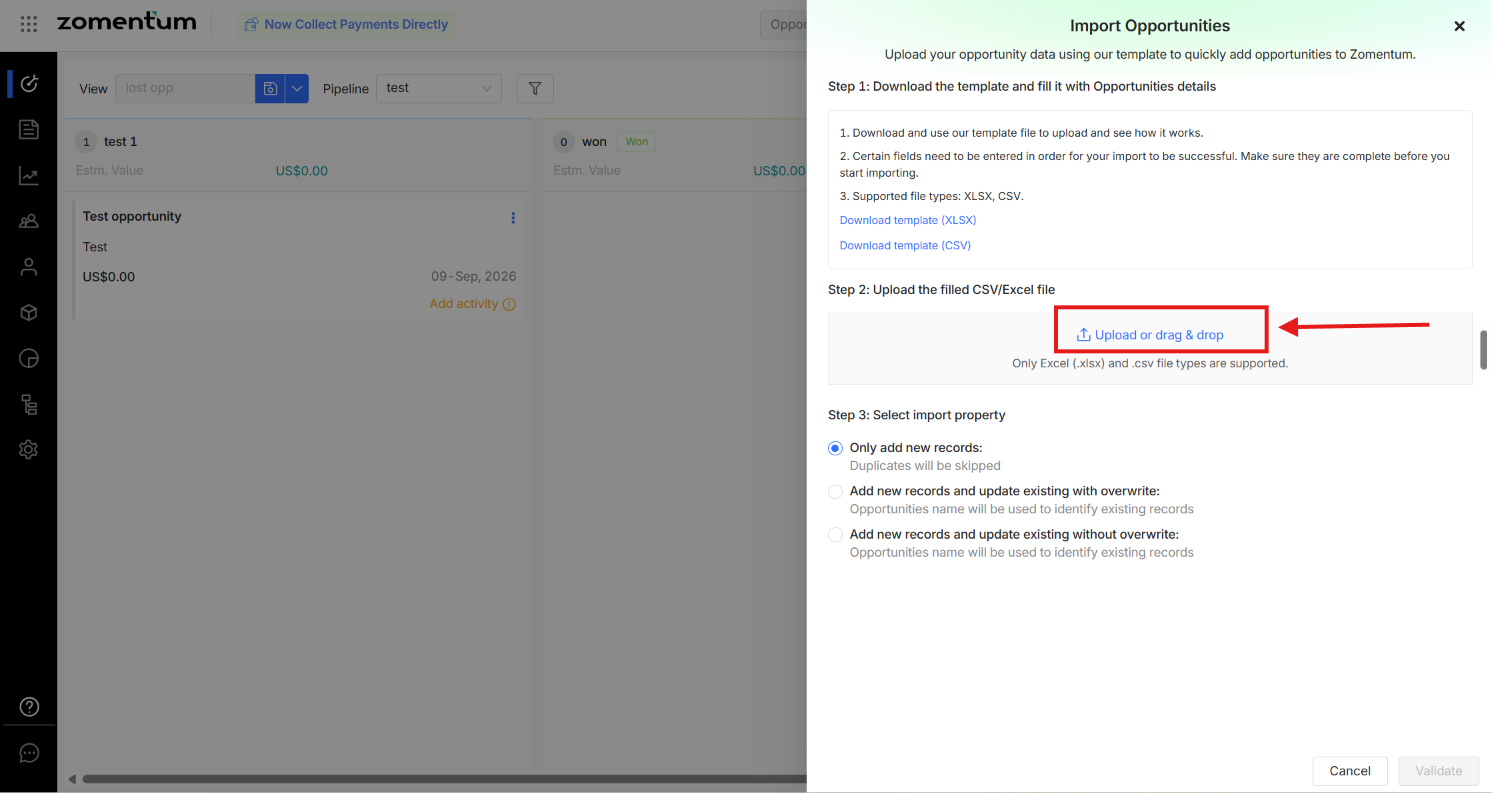
1.2 Step 2: Upload the File with records.
Upload or drag & drop your completed CSV or Excel (.xlsx) file. Only these two file types are supported.
1.3 Step 3: Select an Import Property
Choose one of the following options:
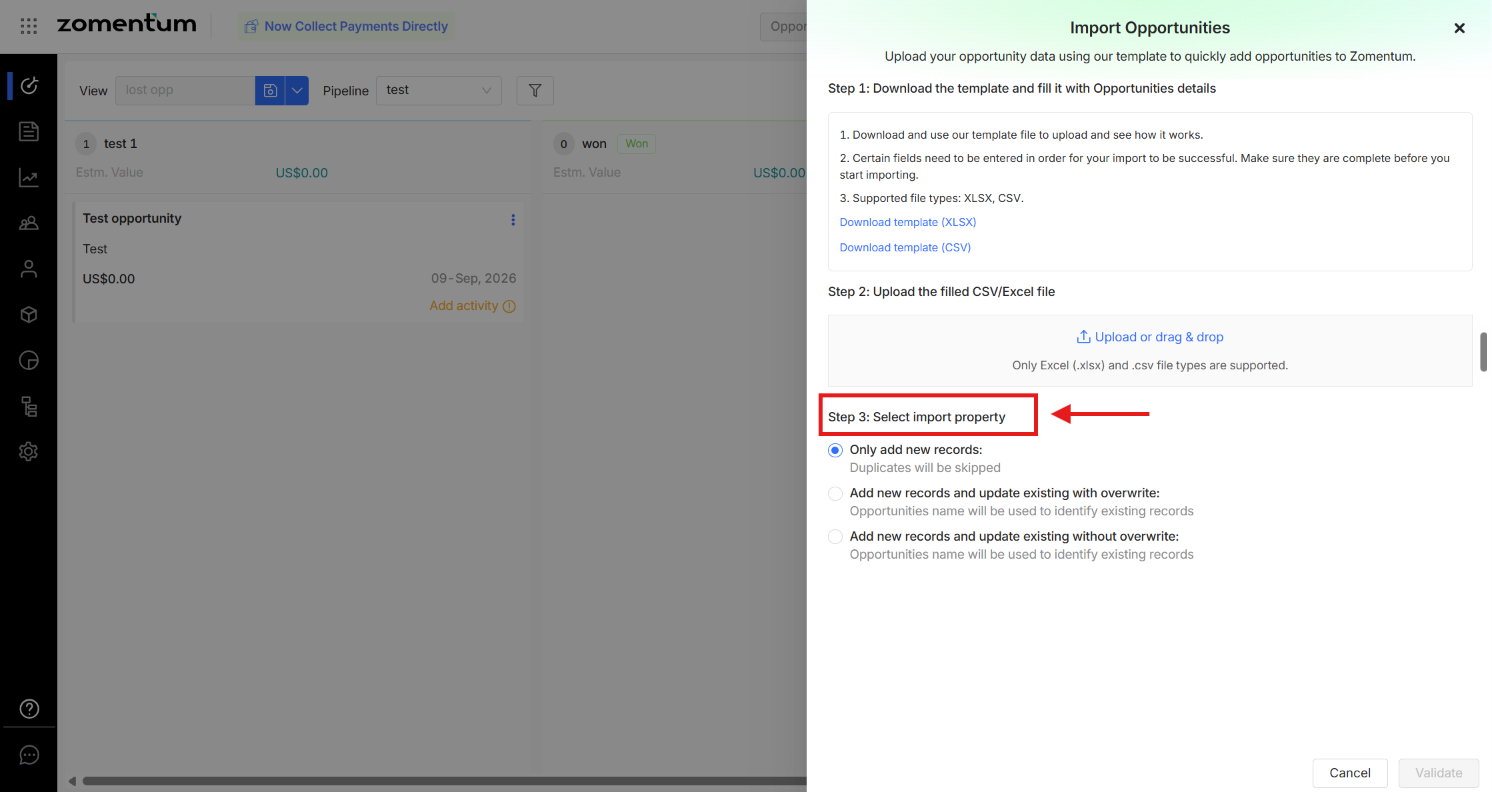
Click Validate to check your file, then complete the import.
2. Exporting Opportunities
- Click on Opportunities in the left sidebar.
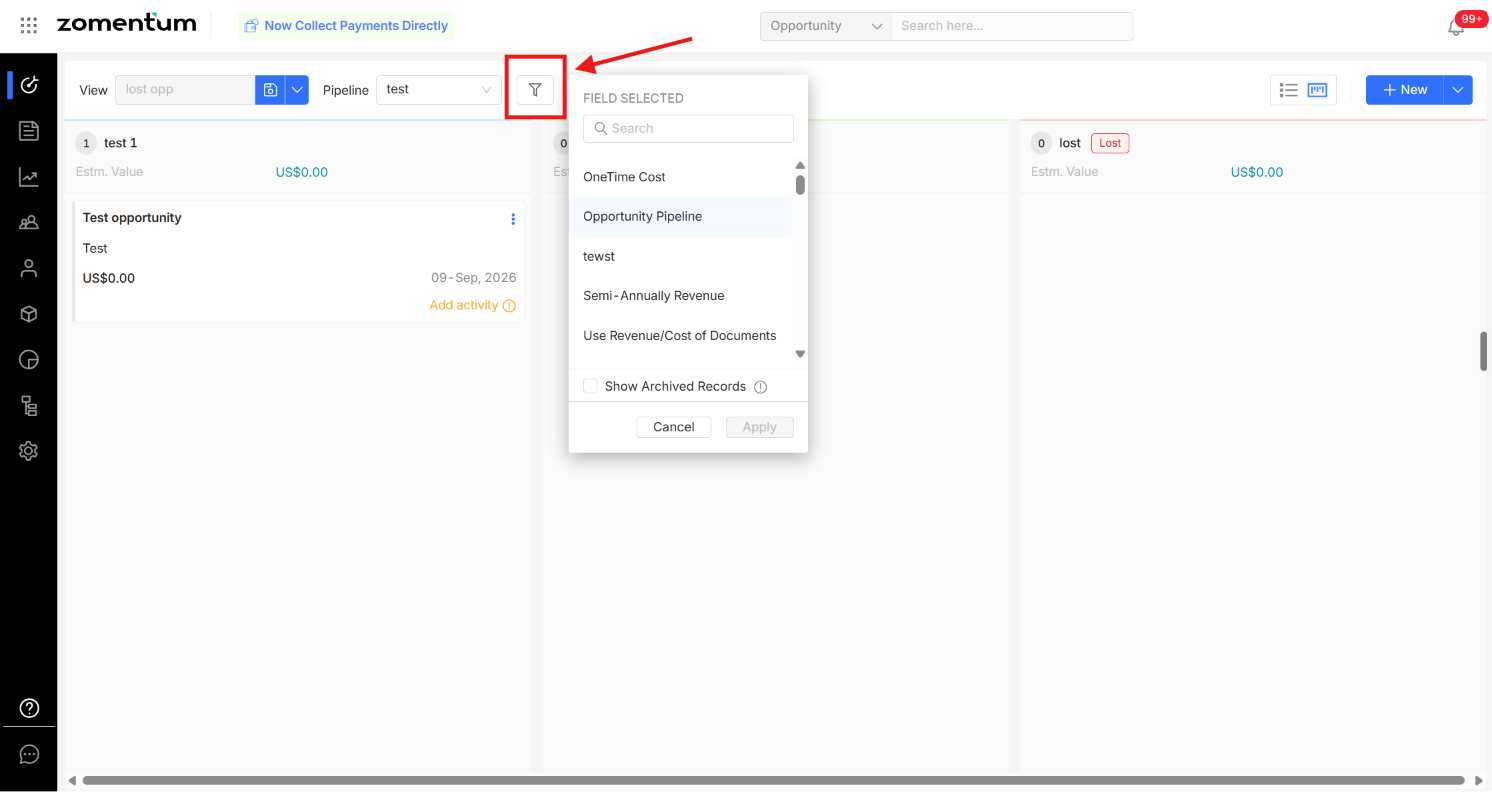
- Apply any filters you'd like the export to reflect (e.g., pipeline, stage).
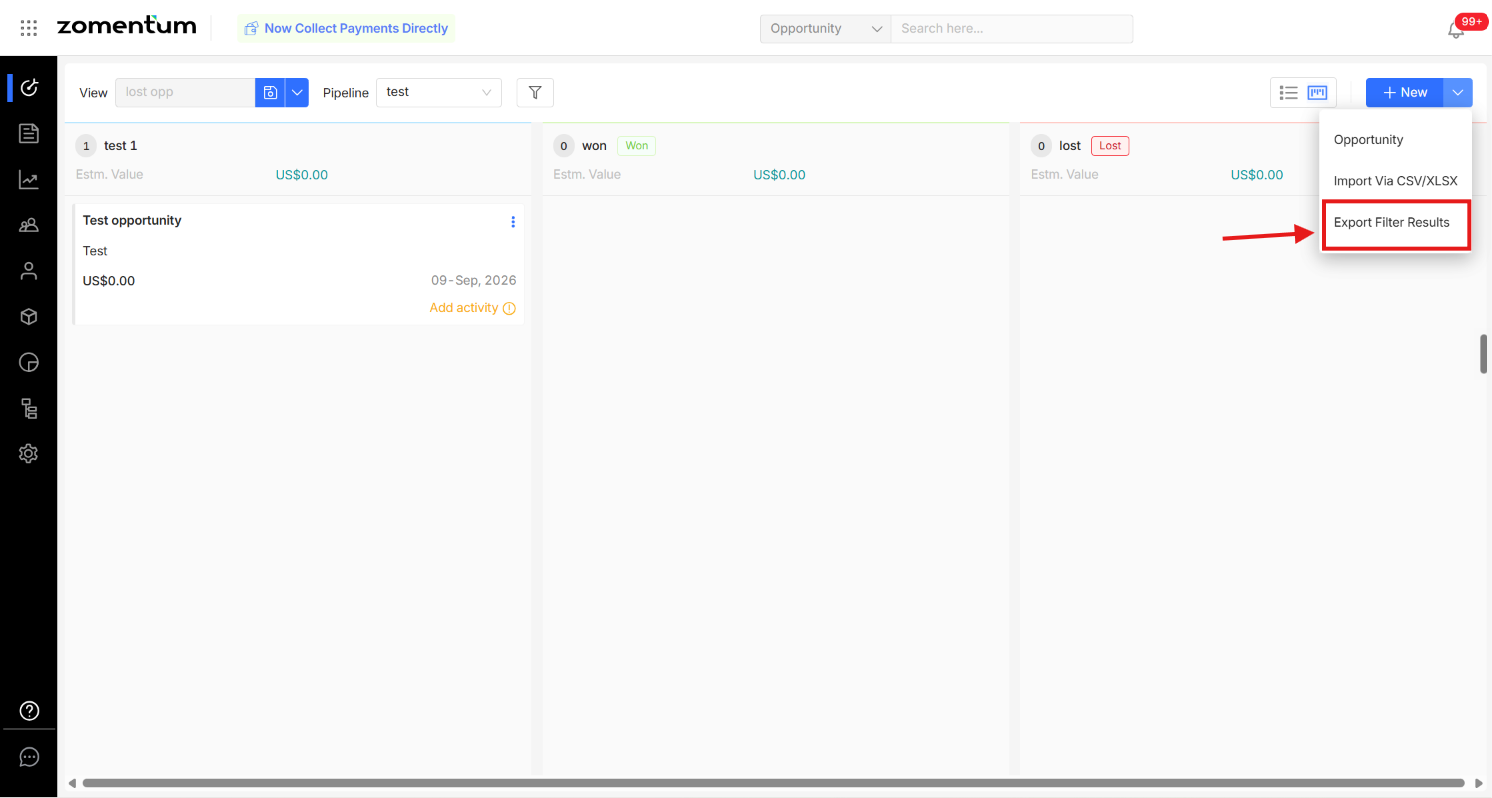
- Click the + New dropdown in the top right corner and select Export Filter Results.
- A confirmation dialog will show how many opportunities match your current filters and list the filters applied.
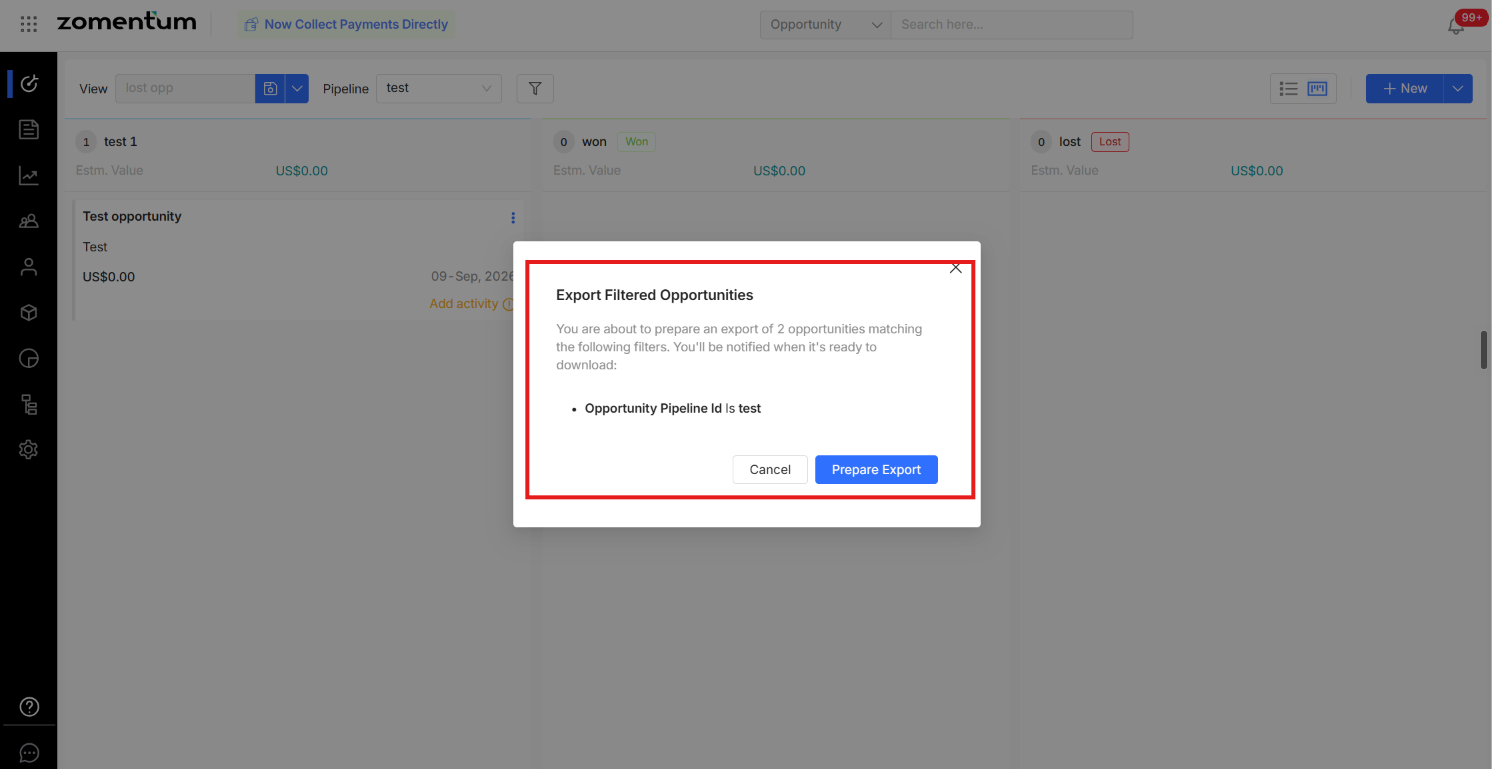
- Click Prepare Export to generate the file. You'll be notified once it's ready to download.
Warning: Exported files contain personal data. An exported Opportunity file can include Primary Contact names, LinkedIn profiles, and Client PO Numbers. Treat the downloaded file the same way you would any other file containing personal data.