
The manual invoice checkout flow has been redesigned as a two-step process, giving payers a faster way to reuse saved payment details while keeping those details protected behind a fresh security layer.
Step one: Confirming the amount to pay
The first page of checkout asks the payer how much they'd like to pay, either the full outstanding invoice amount or a partial amount of their choice. As soon as they confirm and click Continue to Payment, a one-time passcode (OTP) is dispatched to the email address on file for that payer. The OTP stays valid for 5 minutes and functions as an identity gate, so only someone with access to that inbox can move forward and see the saved payment methods. Once the correct OTP is entered, the payer is taken to the second step.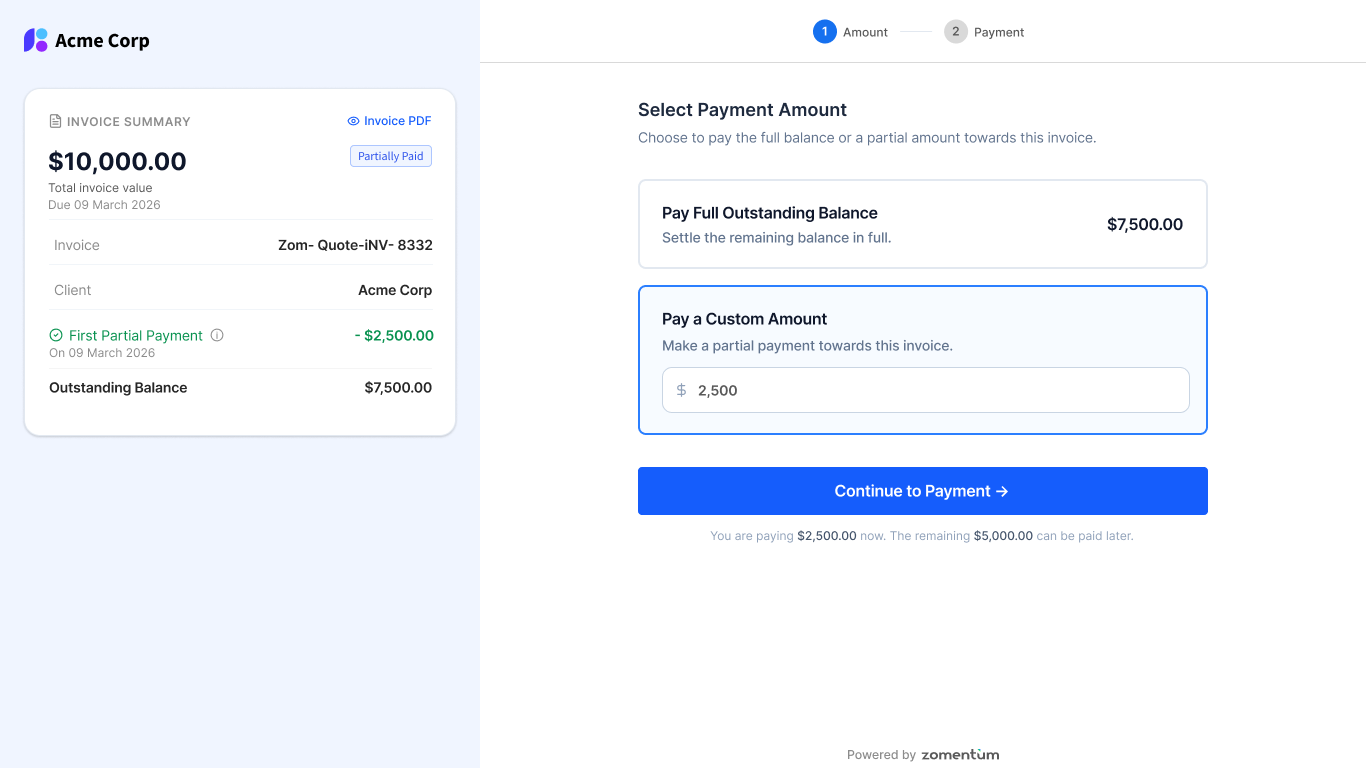
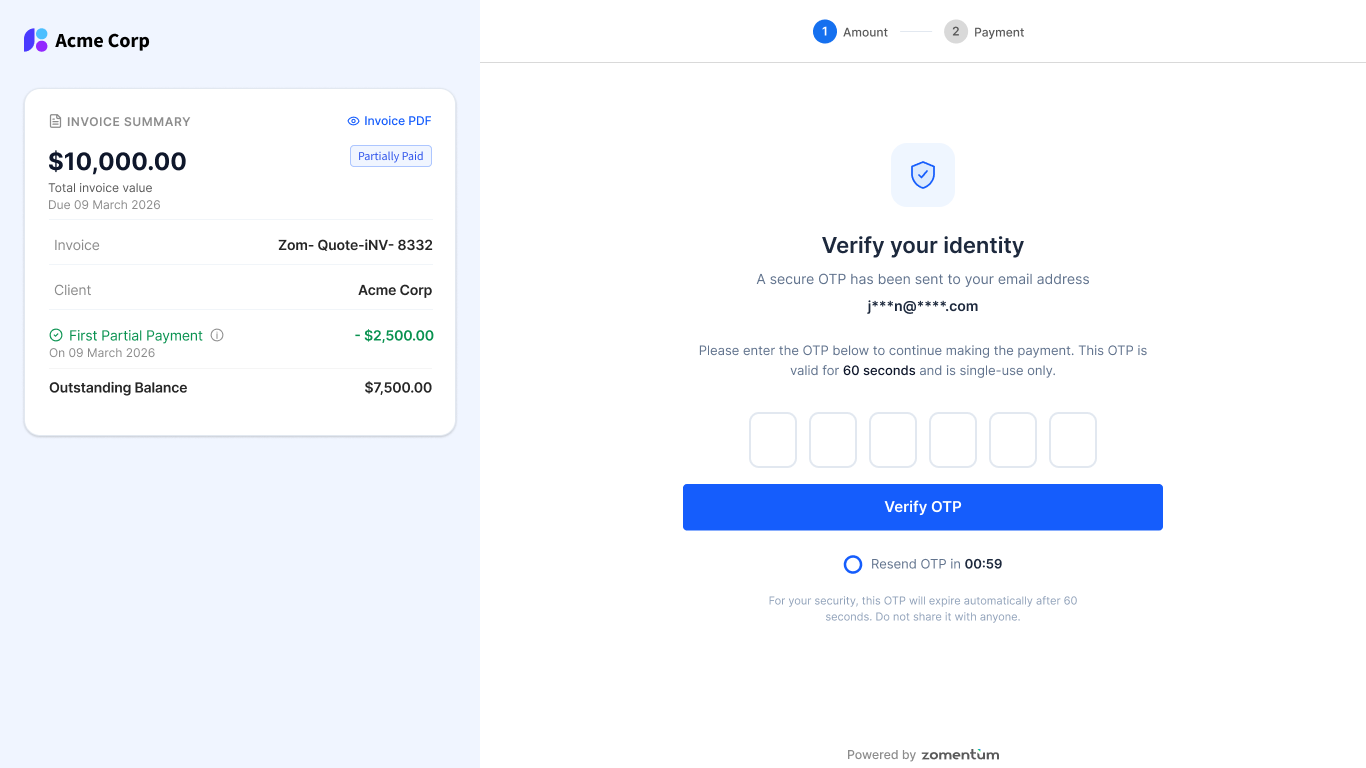
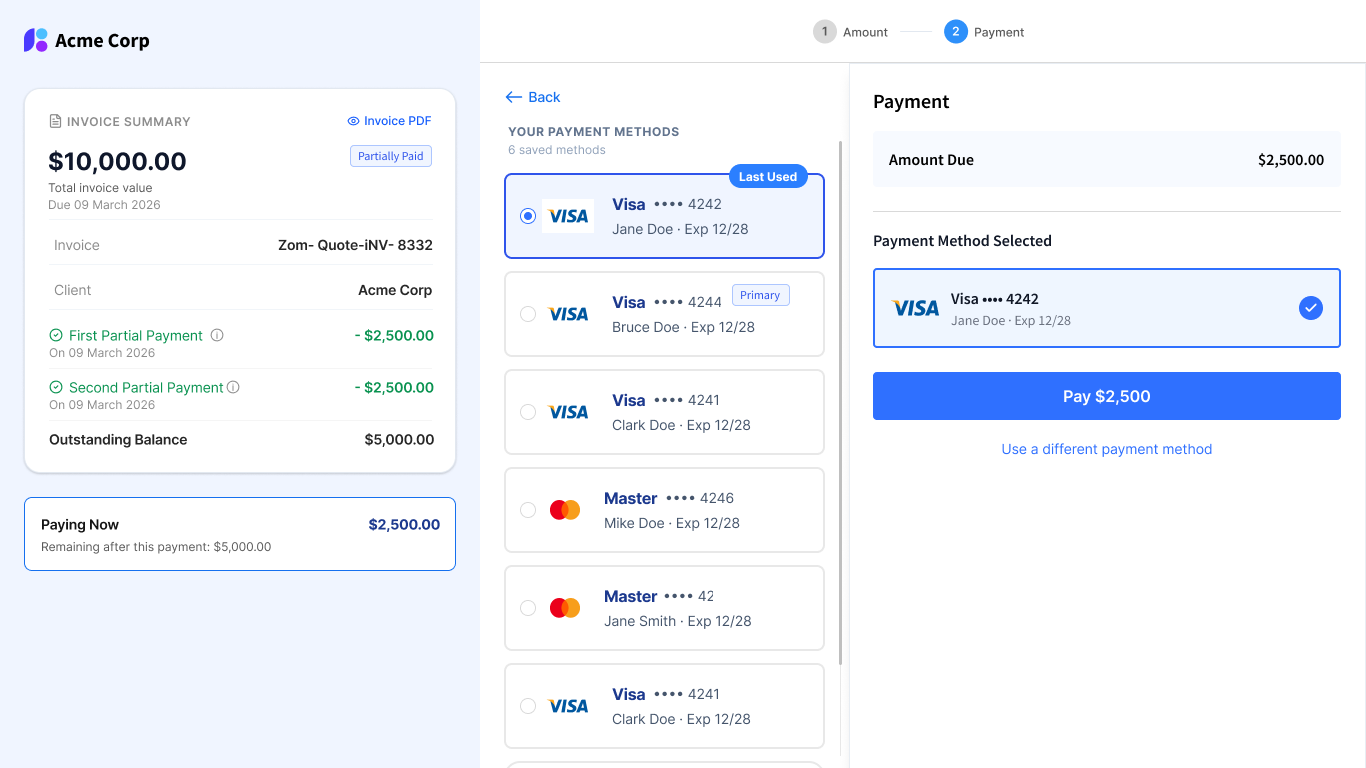
Step two: Choosing a saved payment method
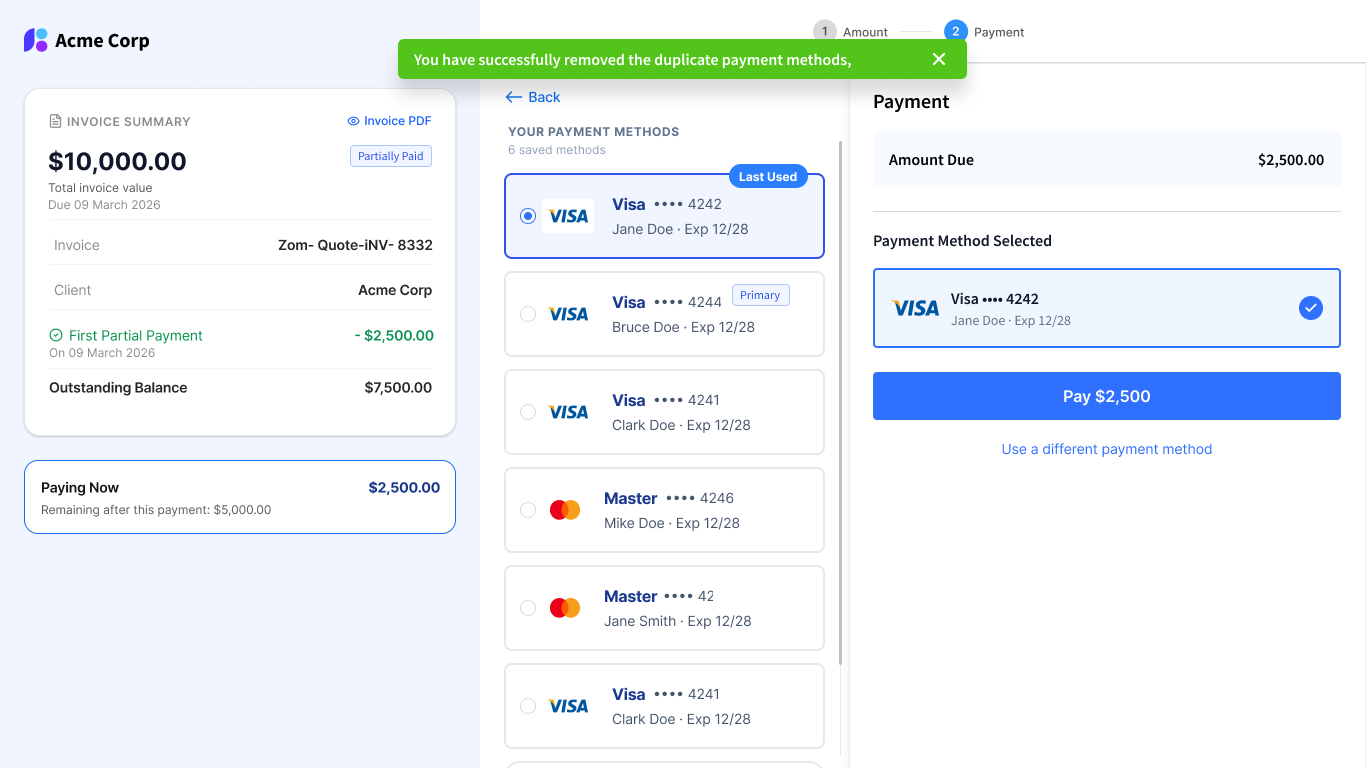
On the second page, the payer chooses one of their saved methods and clicks Pay to finish the transaction. To make this faster, the method used on their most recent successful payment is pinned to the top of the list. It's usually the one they want, and this saves them from scrolling or second-guessing.
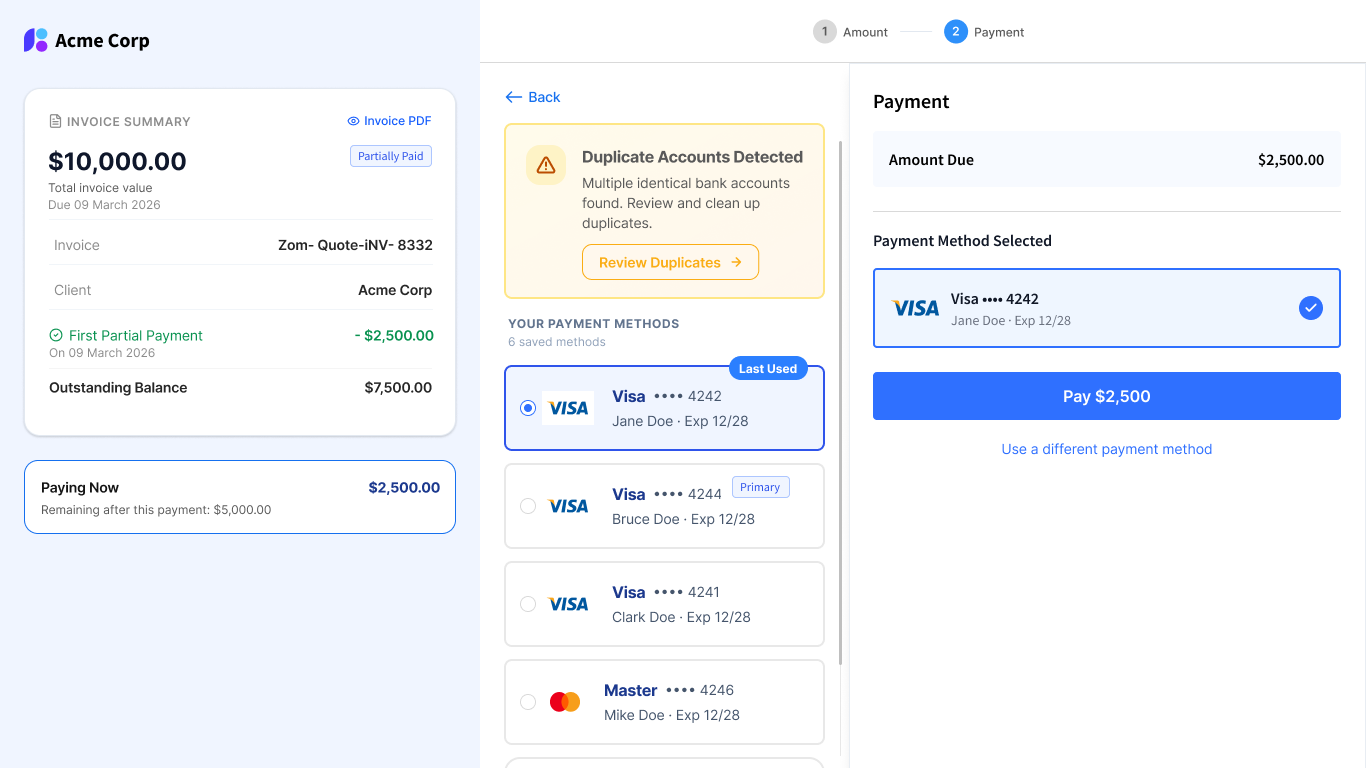
Cleaning up duplicate bank mandates
Over time, many payers accumulate more than one entry for the same bank mandate. When duplicates are detected, a Review Duplicates banner now appears at the top of the saved methods list. Selecting it opens a modal where the payer can compare the duplicate entries side by side, pick the one they want to hold on to, and delete the others in a single bulk action.
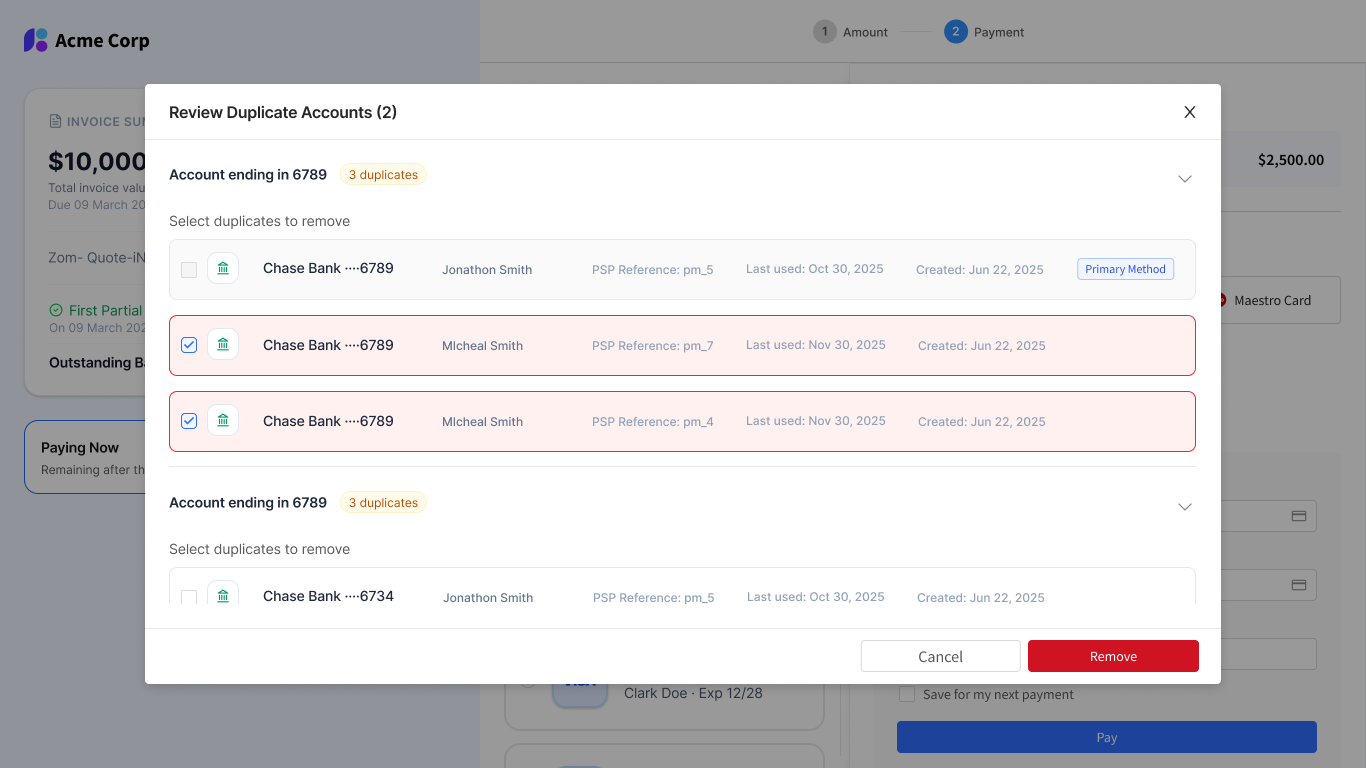
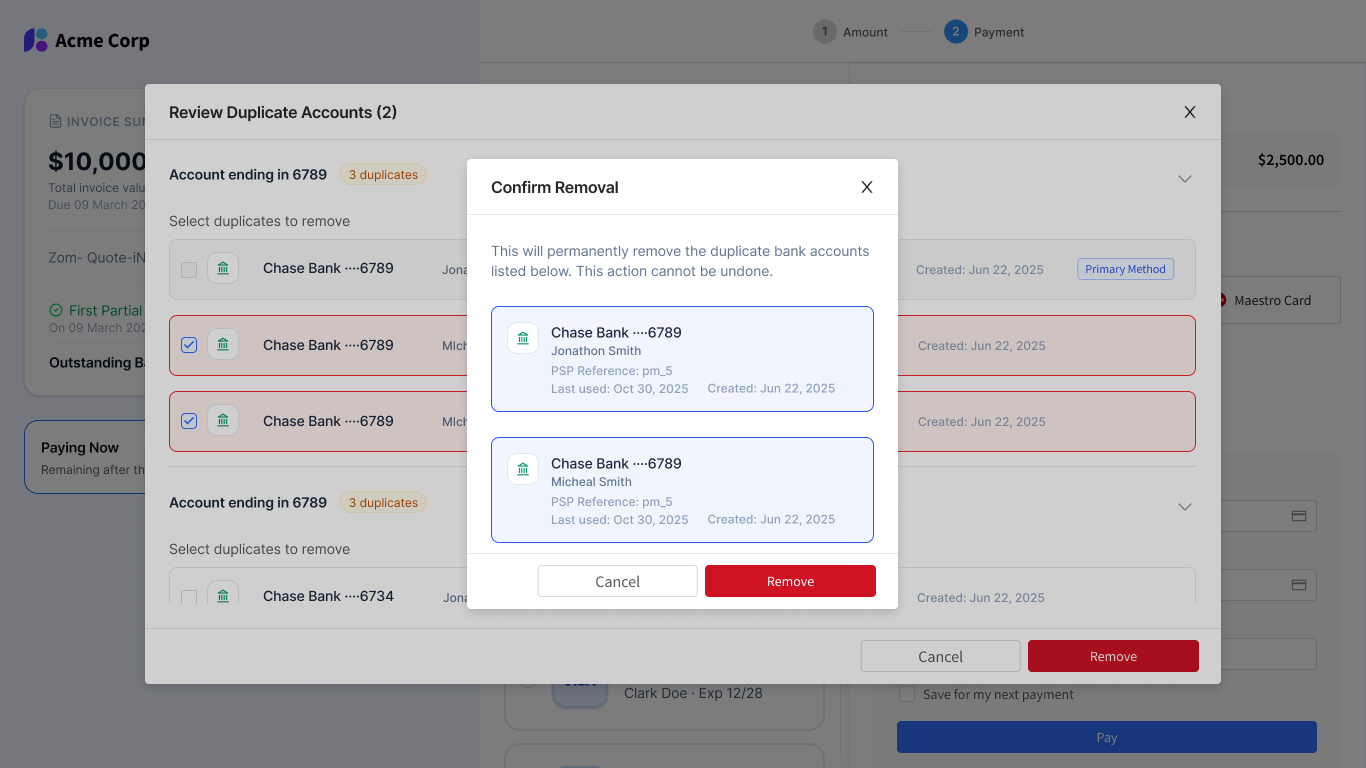
There's one guardrail here. A mandate marked as Primary cannot be deleted while it holds that status. If the payer wants to remove a Primary entry, they'll need to first assign Primary to a different mandate, and only then can the original be deleted.
Idle sessions and timeouts
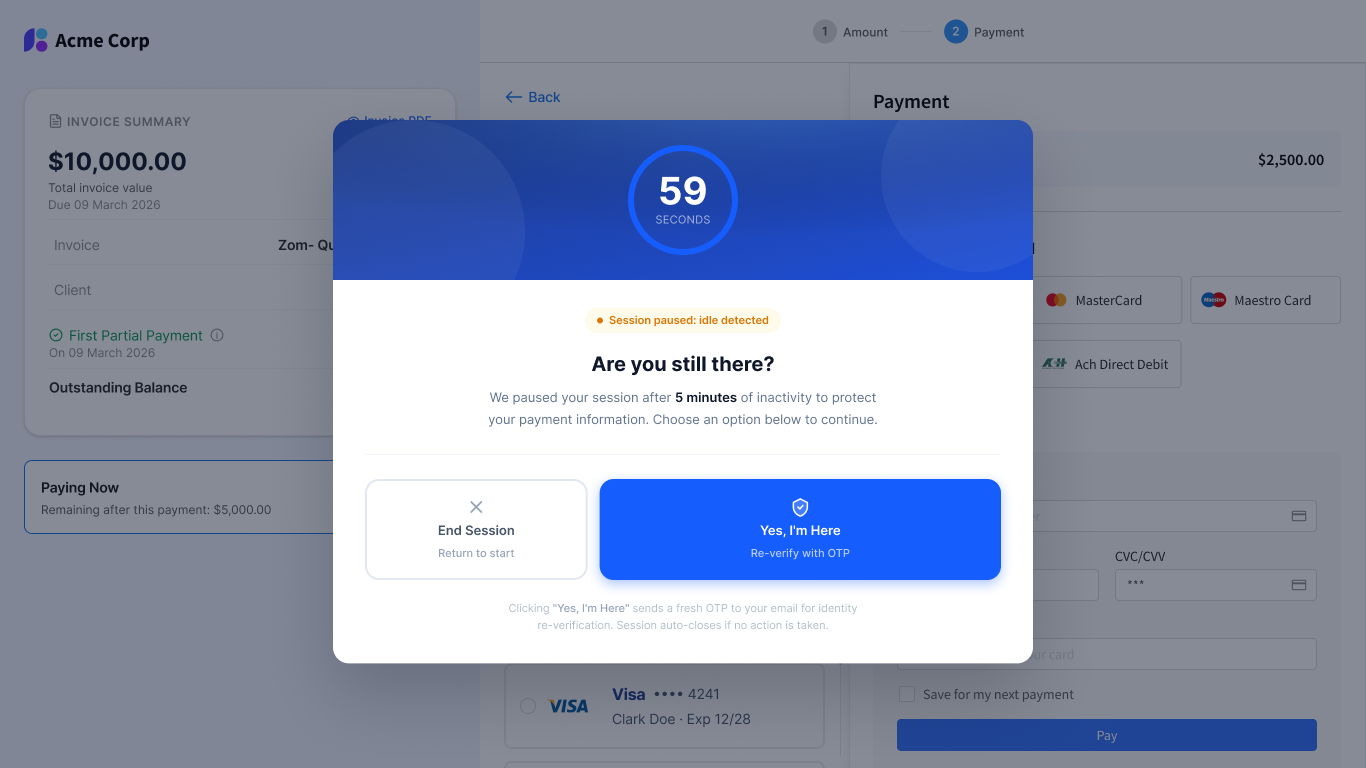
Because saved payment methods are visible on the second page, the system watches for inactivity to keep exposure minimal if a payer walks away mid-checkout. After 5 minutes of no activity, a pop-up appears asking the payer to confirm they're still there. Continuing from this point requires generating a new OTP. If the pop-up itself is ignored, the session fully times out at the 5-minute mark, and the payer can pick things back up by clicking Start New Session to begin the flow again.
Auto Collect Handling
Scheduled auto-collect invoices are not affected by any of these changes and will continue to process on their existing links, with no OTP prompt and no impact on how saved methods are used behind the scenes.