
Zomentum Payments now supports Instant Payment Links, a fast, flexible way to collect payments from your clients without needing a prior invoice or formal document. The aim is to speed up cash flow, handle ad-hoc project expenses, and allow teams to take advances before invoices are generated.
What is an Instant Payment Link?
An Instant Payment Link is a shareable URL that lets your client make a payment directly without requiring any invoice. You simply enter a few details, generate the link, and share it with your client through any channel you prefer.
Payment links are ideal for:
- Collecting sudden or unplanned ad-hoc project expenses
- Taking a deposit or advance payment before the invoice has been created
- Accelerating cash flow without waiting for the full invoicing cycle to complete
- Sending quick payment requests via text, email, or social messaging apps
How to create a Payment Link?
Creating a payment link takes only a few seconds. Follow these steps:
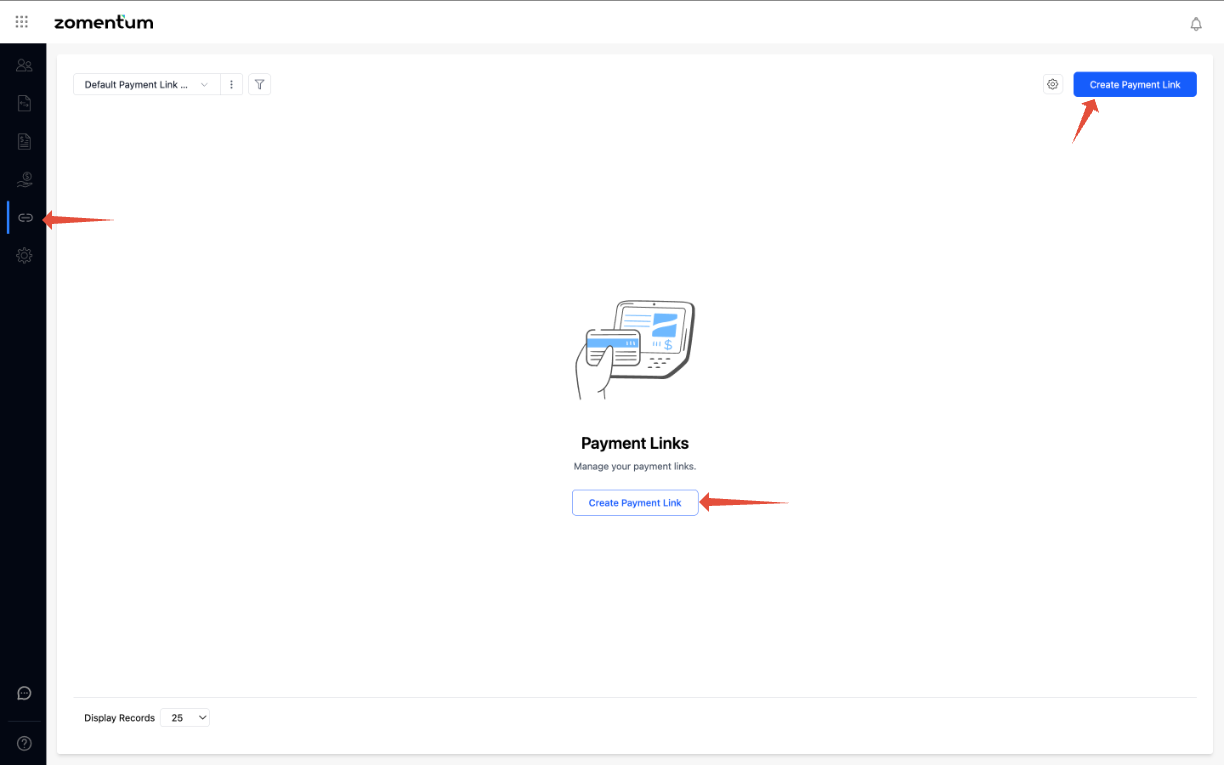
- Navigate to Zomentum Payments and select Payment Links from the left navigation menu.
- Click Create Payment Link.
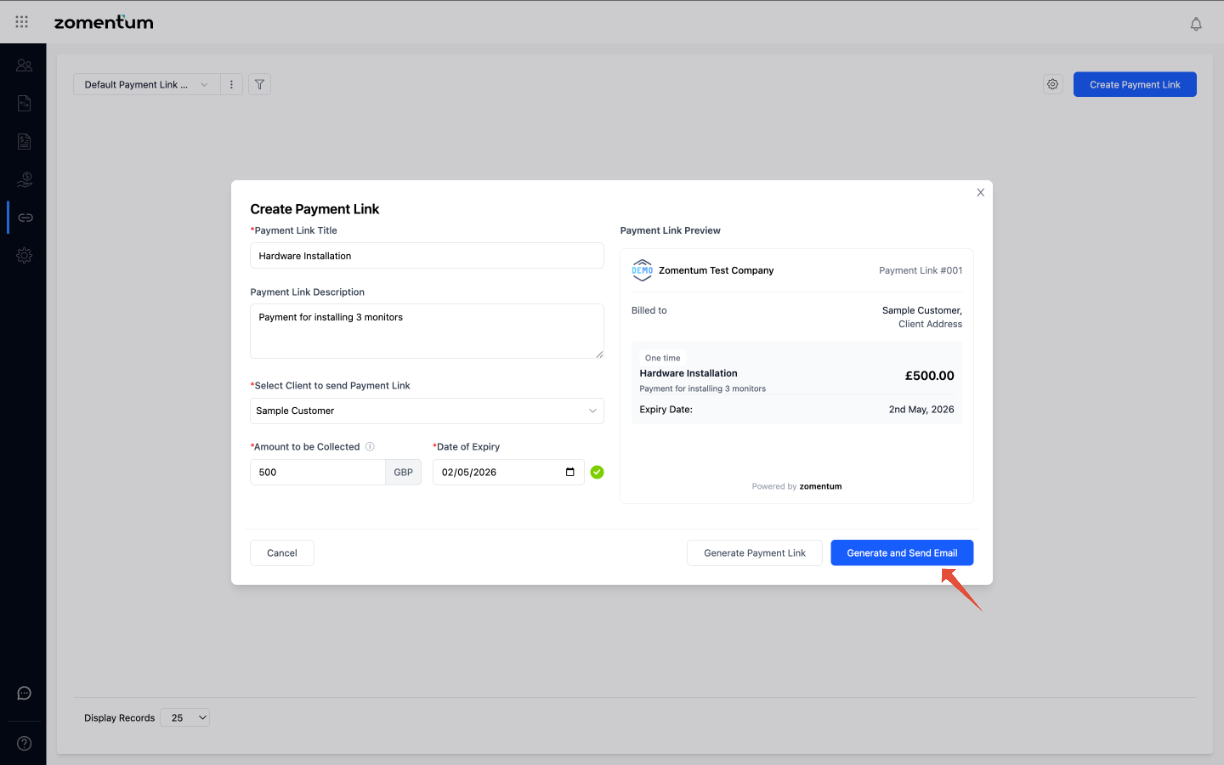
- Fill in the required fields (see table below).
- Click on Generate Payment Link. Your payment link is ready to use.
- Alternatively, you may click on Generate and Send Email to generate the link and automatically email the link to the recipient.
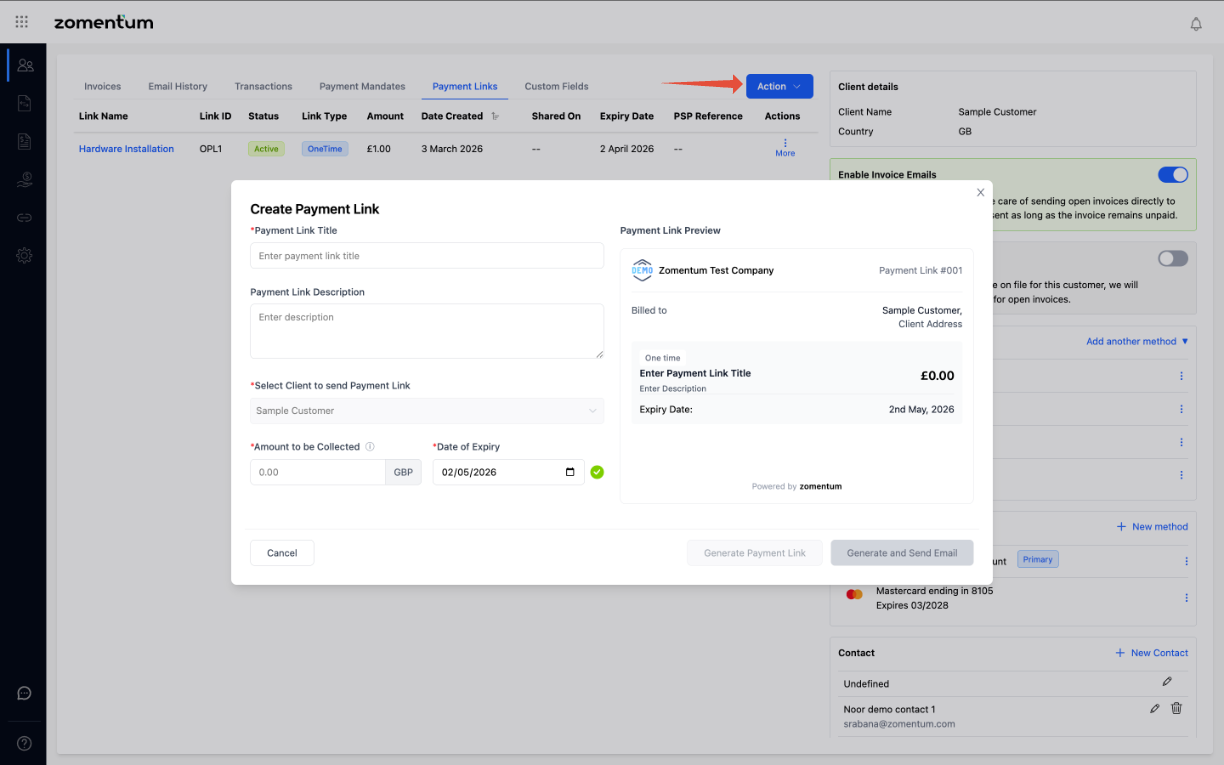
- You can also open any specific client record, click on the Payment Links sub-tab, click on the Actions dropdown → Create Payment Link option to generate a payment link for that specific customer.
Link Expiry and Manual Deactivation
Automatic Expiry
Every payment link has an expiry date set at the time of creation. The maximum expiry period is 60 days from the date the link is generated. After the expiry date, the link becomes inactive automatically and clients will no longer be able to make payments through it.
Manual Deactivation
If a payment link is no longer needed before its expiry date, you can deactivate it manually. This is useful when:
- The client has already paid through another channel
- The project or work order has been cancelled
- A new payment link has been created to replace the old one
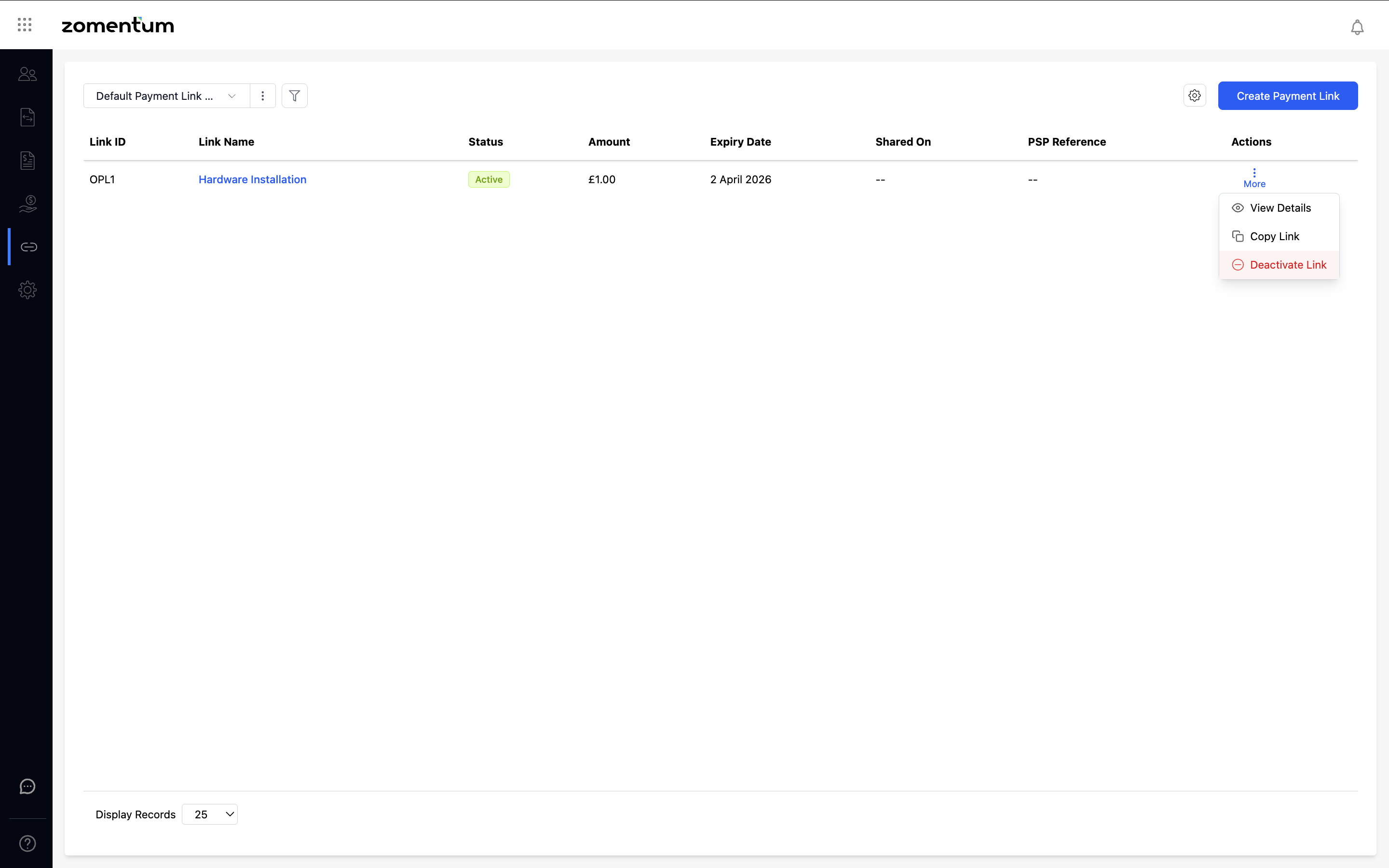
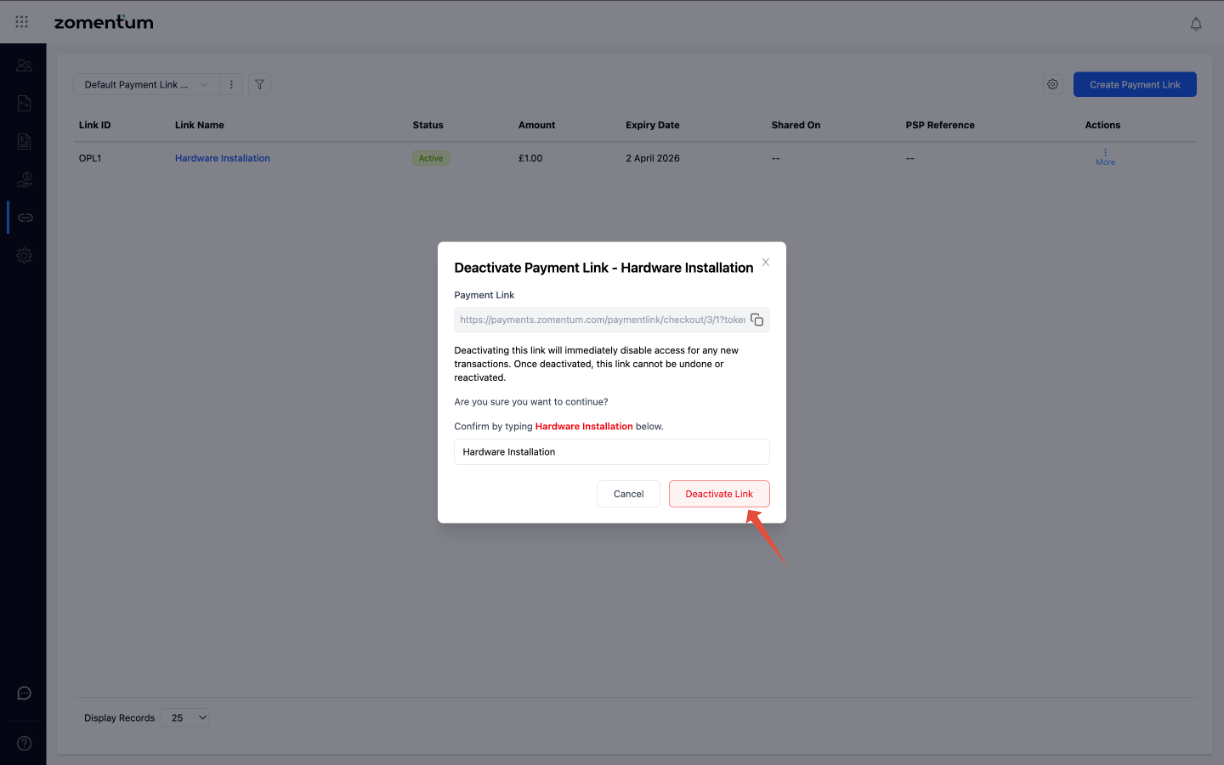
To deactivate a link, navigate to the Payment Links section, locate the link, and click on Deactivate Link. To confirm the deactivation, type in the name of the link on the pop-up modal and click on Deactivate Link. Once deactivated, the link cannot be reactivated.
Payment Collection and Accounting Reconciliation
How Payments Flow Into Your Accounting Tool
When a client completes a payment through a Zomentum payment link, the payment is automatically recorded in your connected accounting tool, either QuickBooks Online (QBO) or Xero.
The payment arrives as an unallocated payment, meaning it is recorded in the system but not yet applied to any specific invoice. This is intentional, and it gives you the flexibility to create the invoice at your own convenience and apply the payment when ready.
Reconciliation
All payments collected through Zomentum Payment Links are reconciled as a deposit in QuickBooks Online or Xero. This ensures:
Updated and accurate bookkeeping at all times
A clear audit trail for all ad-hoc collections
Minimised errors in accounting by eliminating manual data entry